Messages
Add-on Feature
Messages is an add-on feature that enables internal communication between dispatchers and drivers through order-specific chats and group messaging.
⚠️ Note: This feature is not included in the standard license. Please contact your account manager to enable it.
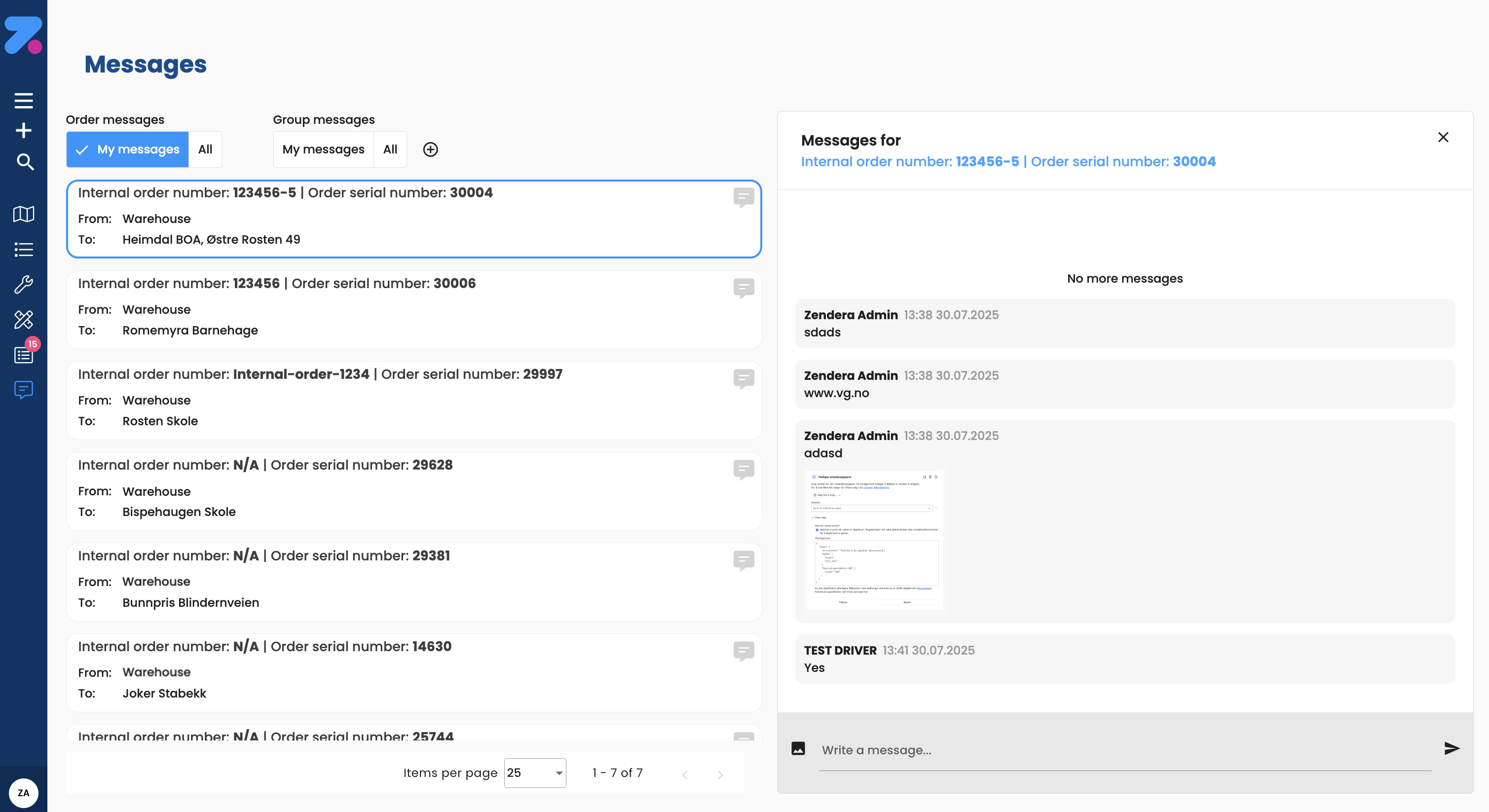
Messages is the chat view inside Zendera. Use it to communicate with drivers (via the Zendera Driver mobile app) and, where enabled, with customers.
The number badge in the sidebar (e.g. Messages (5)) shows how many unread conversations you have.
Modes of messaging
Two modes are available:
- Order chat — a per-order thread visible to everyone with access to that order. Best for “where is the driver?”, “customer changed their mind”, etc.
- Group channels — org-wide or team-wide channels. Best for general announcements and ongoing topics.
How to open Messages
Click Messages in the left sidebar.
How to send an order chat message
- Open the order.
- Click the Messages card (or the chat icon in the order header).
- Type your message. Use
@to mention a teammate. - Attach a file by dragging it into the message box, or click the paperclip icon.
- Send.
You can edit or delete your own messages from the ⋮ menu on the message.
How to chat with a driver
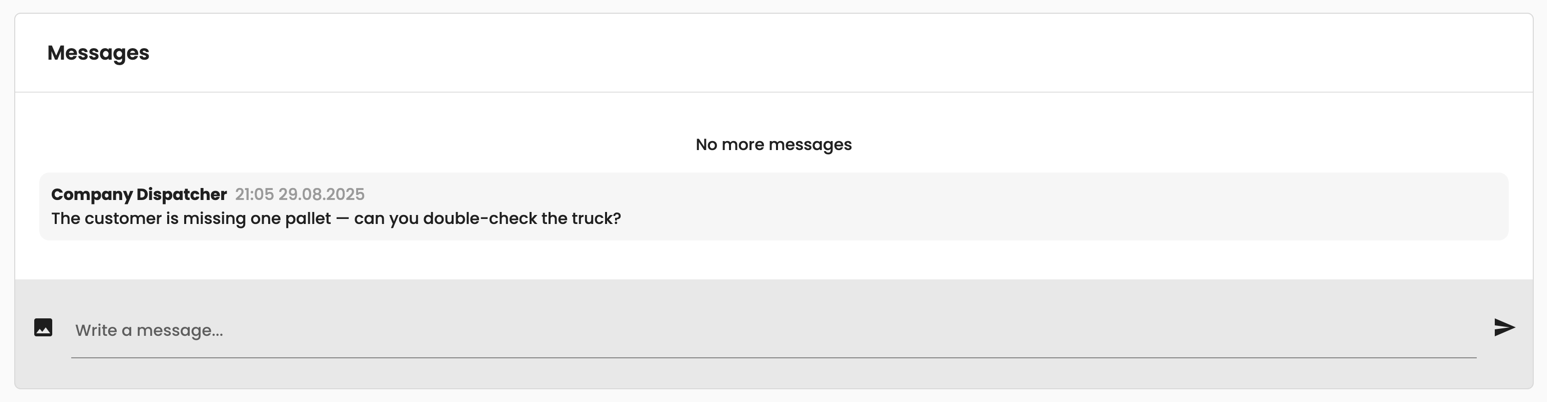
Order chats are visible to the assigned driver in the Zendera Driver mobile app. Anything you write in the order’s Messages thread reaches them, and the driver receives a push notification on the mobile app. The driver can reply from the app.
For broader, non-order chat with a driver, use a group channel that includes them.
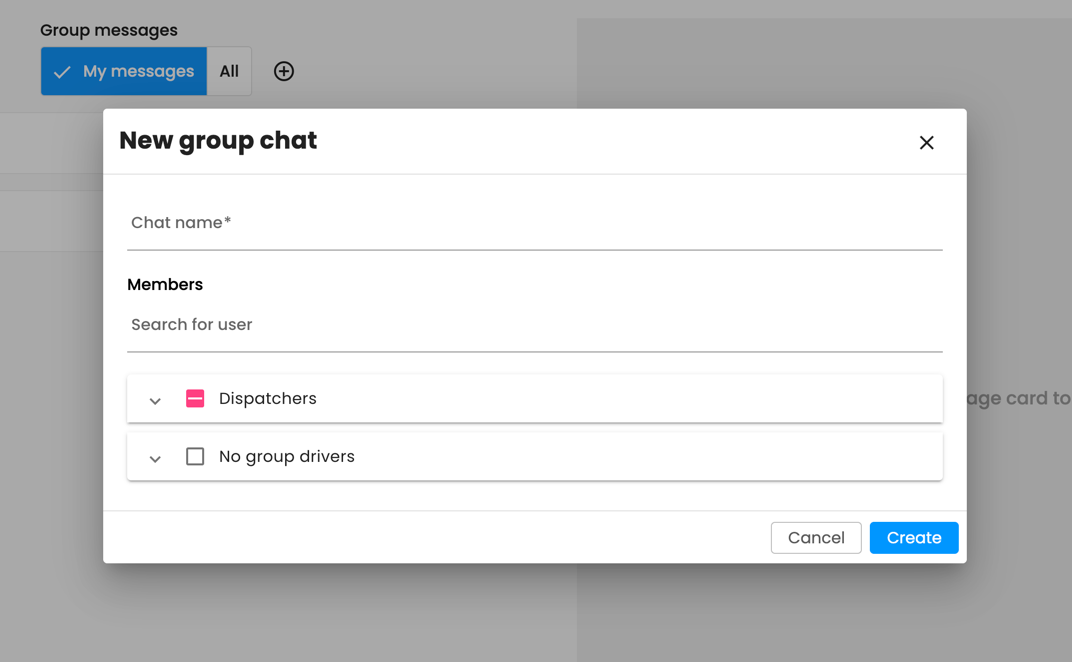
How to create a group channel
Heads up: new members only see messages posted after they join — group channels aren’t retroactive.
- Open Messages → Group channels.
- Click New channel.
- Pick a name and add members (multi-select).
- Create.
How to manage a group channel
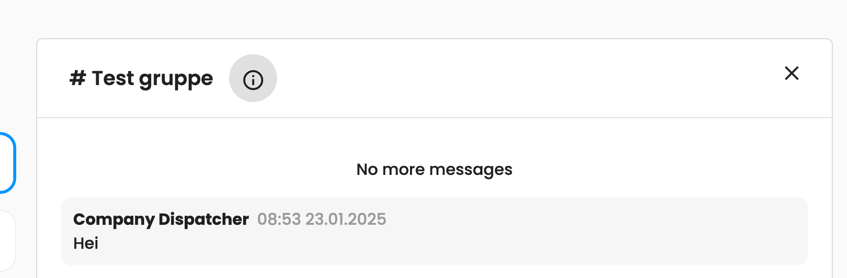
Open a channel and click the information icon to:
- View the complete member list.
- Add or remove participants.
- Rename the group.
- Archive inactive groups.
How to pin or archive a channel
- Pin a message — hover over it → Pin. Pinned messages appear at the top of the channel for quick reference.
- Archive a channel — open it → channel ⋮ → Archive. Archive is a soft-delete; the channel disappears from the active list but messages are preserved for compliance.
How to search messages
The search box at the top of Messages searches across all channels and order chats you have access to. Filters include:
- Channel — narrow to a specific channel.
- Sender — messages from one person.
- Date range.
Common gotchas
- Group channels are not retroactive. A new member can’t see messages from before they joined.
- Order chat is visible to anyone who can see the order. Don’t put sensitive internal-only info in order chats — use a group channel or a task instead.