Single Driver View
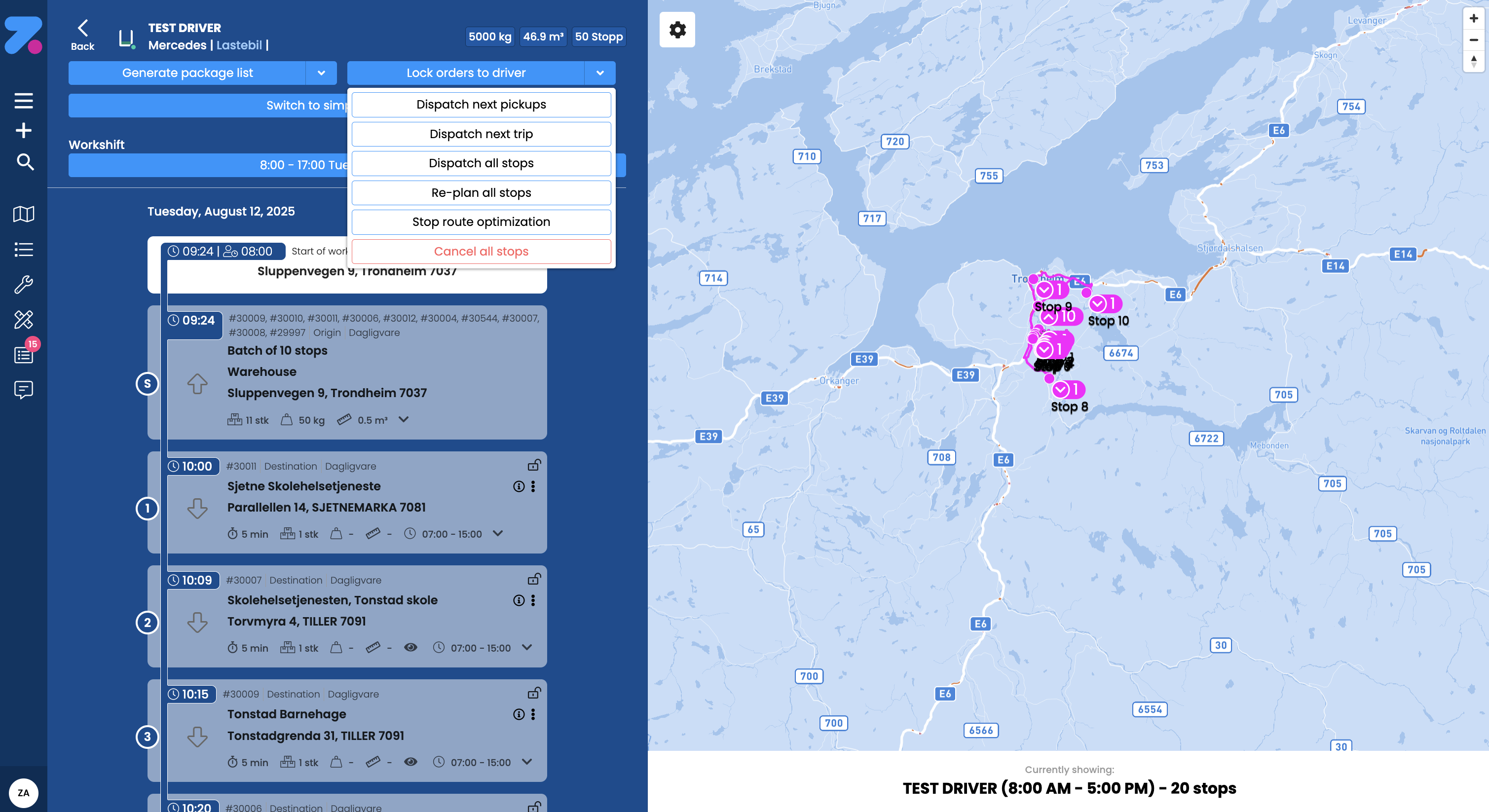
Single driver dispatch view with stop cards and timeline
When you click a driver’s name, the board and map filter to that driver only.
Stop Card Status Colors
- Transparent/gray = planned (not visible in app yet)
- White = assigned (visible to the driver)
- Light blue = arrived (driver has reached the location)
- Green = completed (delivery/pickup finished)
Driver Assignment Actions
Assign Next Pickups
Send only pickups (across rounds) to the driver
Send Next Trip
Send stops up to the next depot pickup
Assign All Stops
Send everything planned for this driver
Re-plan All Stops
Re-run optimization (stops temporarily hidden from the app)
Stop Optimization
Pause optimization for this driver
Cancel All Stops
Set all stops to cancelled status
👀 View Options
- Group view – group similar stops together
- Single view – show each stop individually
⚡ Quick Update (⋮ on stop card)
- Change pickup/delivery time
- Assign this stop
- Send all stops to (up to and including this stop)
- Change priority (low/medium/high)
- Change driver
- Cancel the order (remove from app and route)
Pro Tips
- Left-click a stop card → map centers on the stop
- Click ⋮ → open the order details page
- Choose Shifts via the arrow (▼) above the Shifts list
Last updated on