Quick Start Guide
Complete driver workflow from start to finish. Perfect for your first day on the road!
Before You Start
Before You Start Checklist
Make sure you have:
- Downloaded the Zendera app from Google Play or App Store
- Received your login credentials from dispatch
- Your phone is charged and ready
Log In
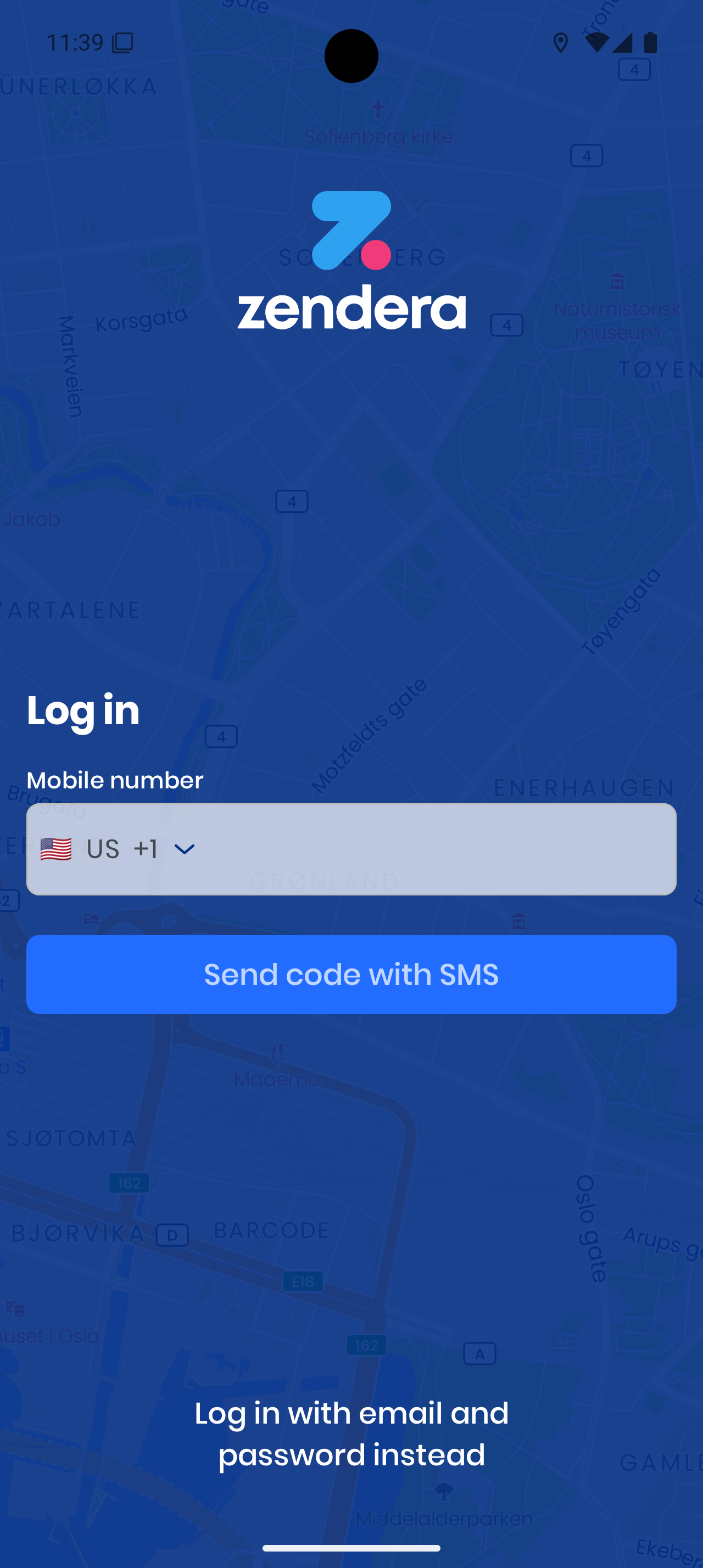
SMS Login (Recommended):
- Select your country code
- Enter your phone number
- Tap “Send code with SMS”
- Enter the code you receive
Email Login: Enter your email + password → Login (If you forgot your password, reset it from the login screen)
Go Online & Setup
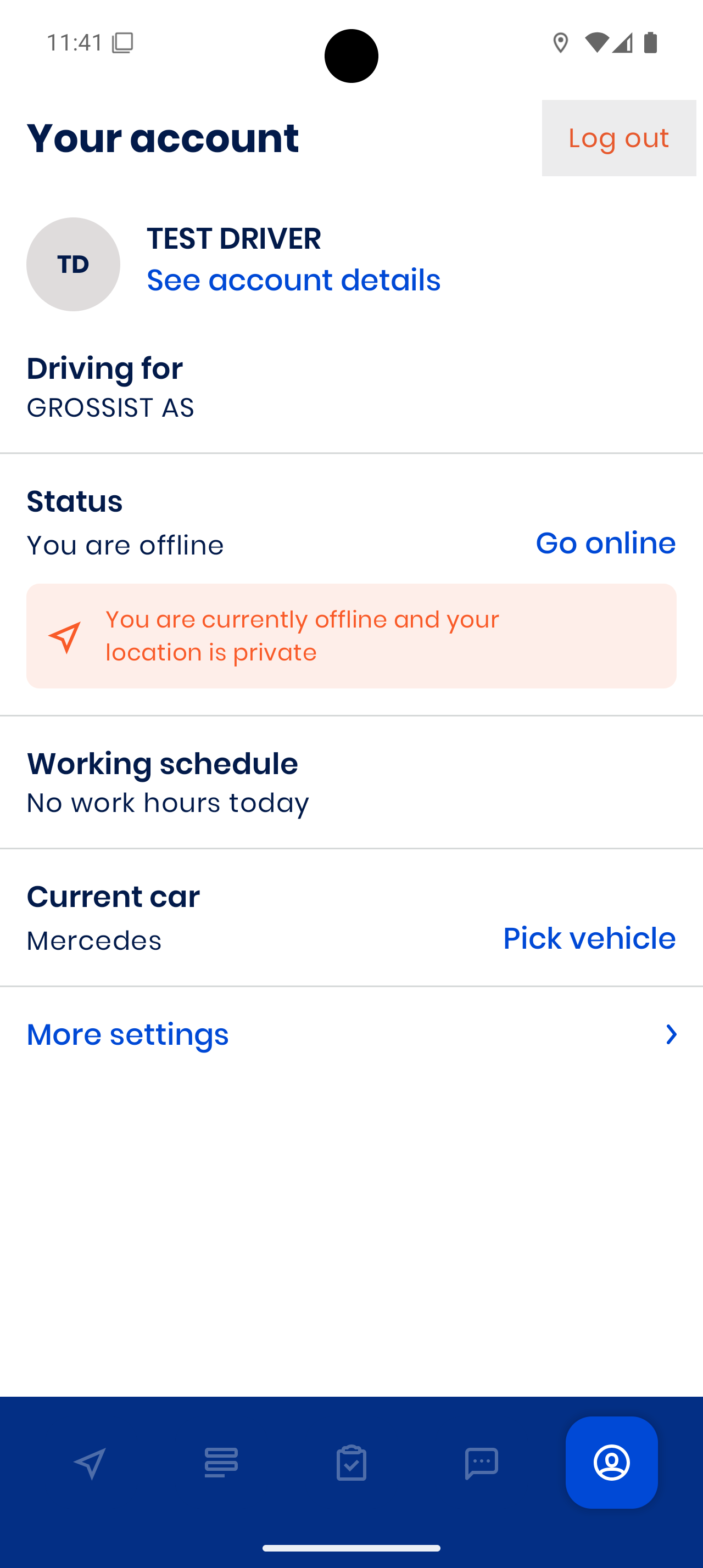
From Your Account, tap “Go online”
🚗 Pick the correct vehicle
📅 Check your working schedule
Important: You won’t receive orders until you’re online!
Navigation Setup:
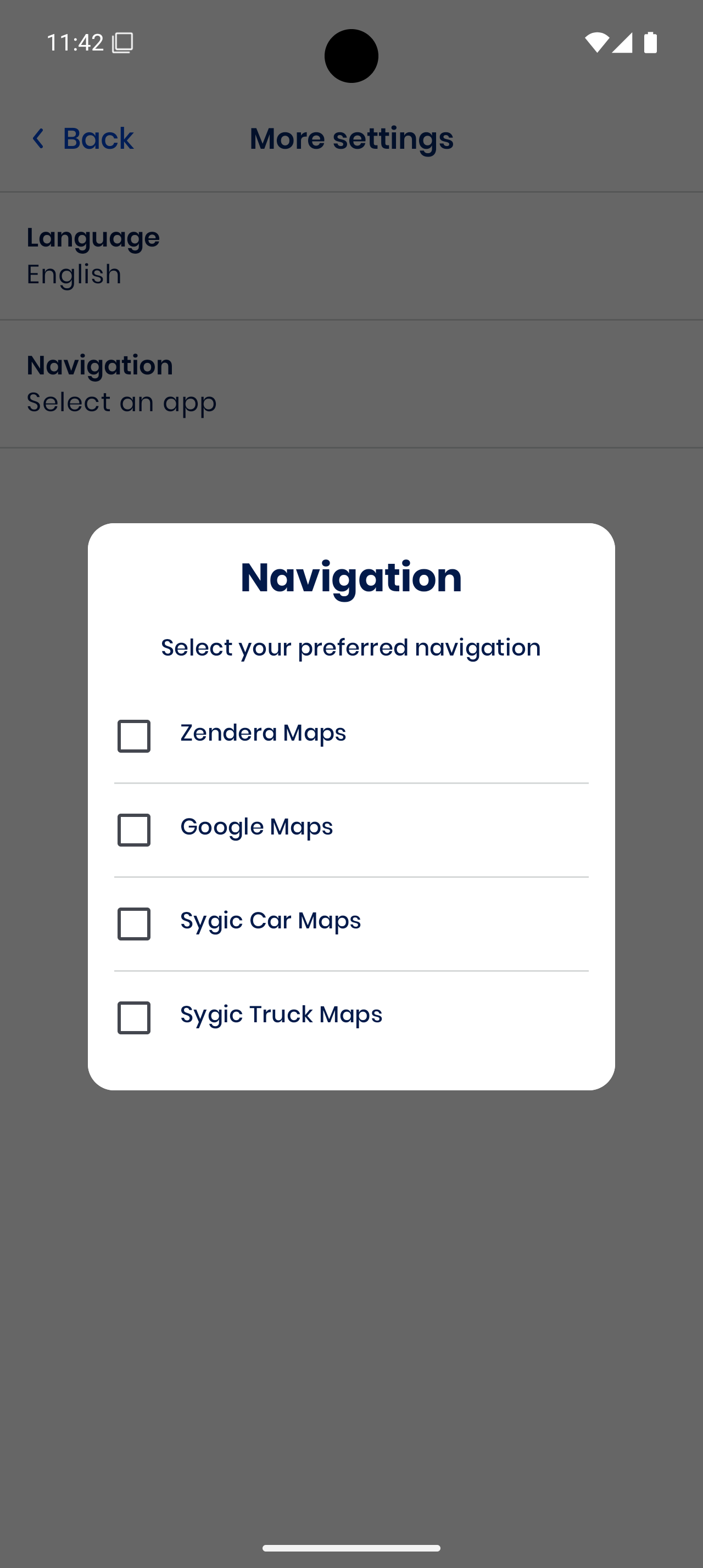
- Tap “More settings” → “Navigation app”
- Choose: Google Maps, Zendera Maps, or Sygic Car/Truck Maps
Check Orders
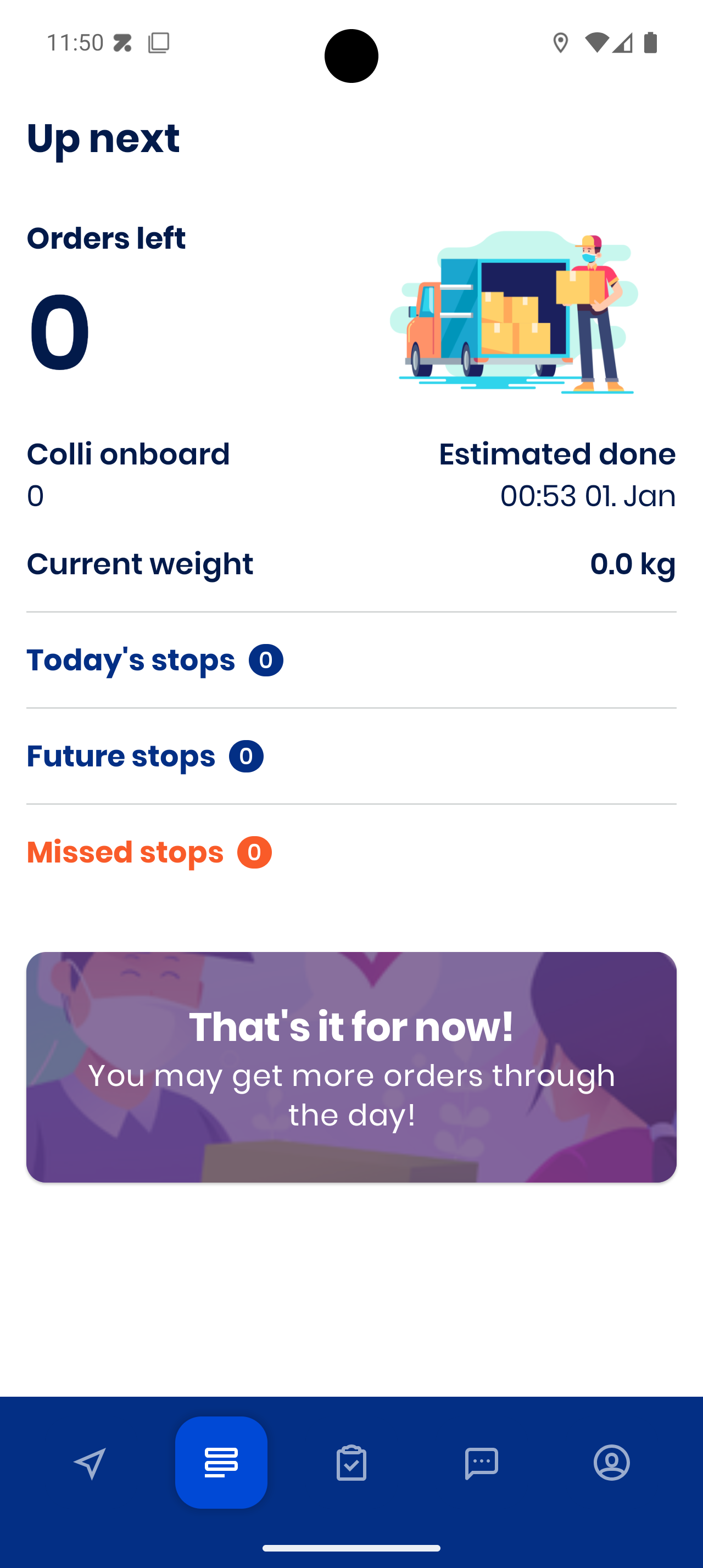
Open Up Next to see:
- Orders left
- Colli onboard
- Today’s, future, and missed stops
💤 If empty, wait for dispatch to assign jobs
At Each Stop
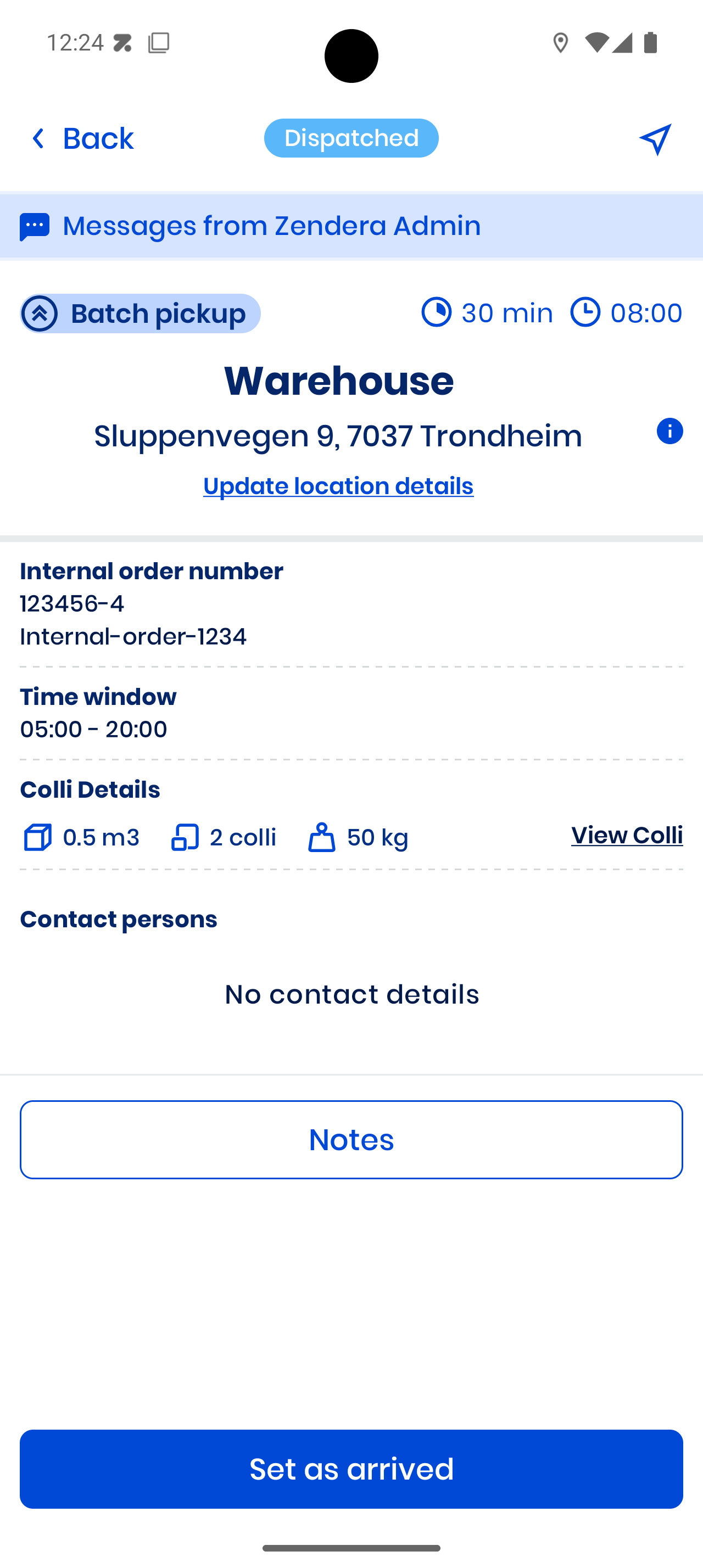
Arrive: Tap the stop card → “Set as arrived”
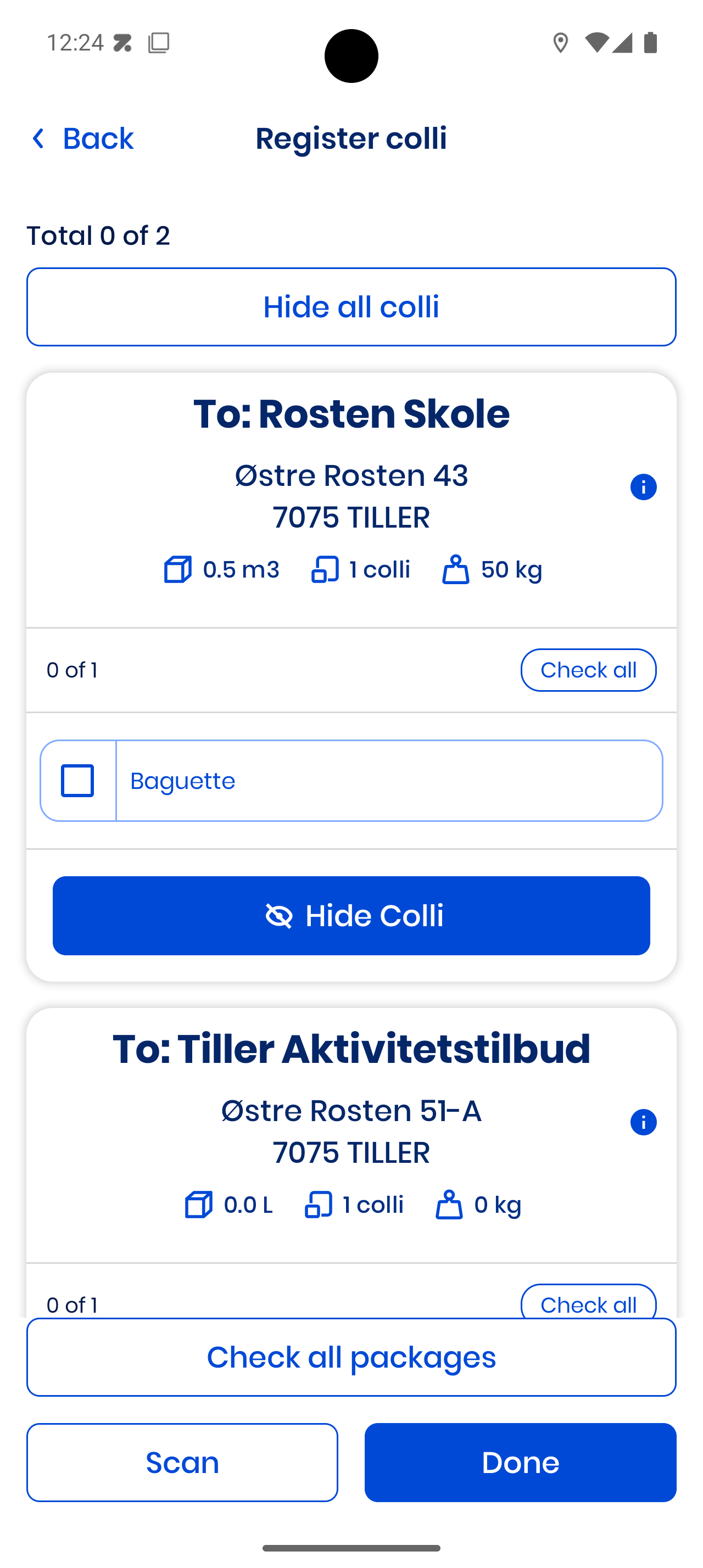
Register colli: Tick manually or Scan barcodes
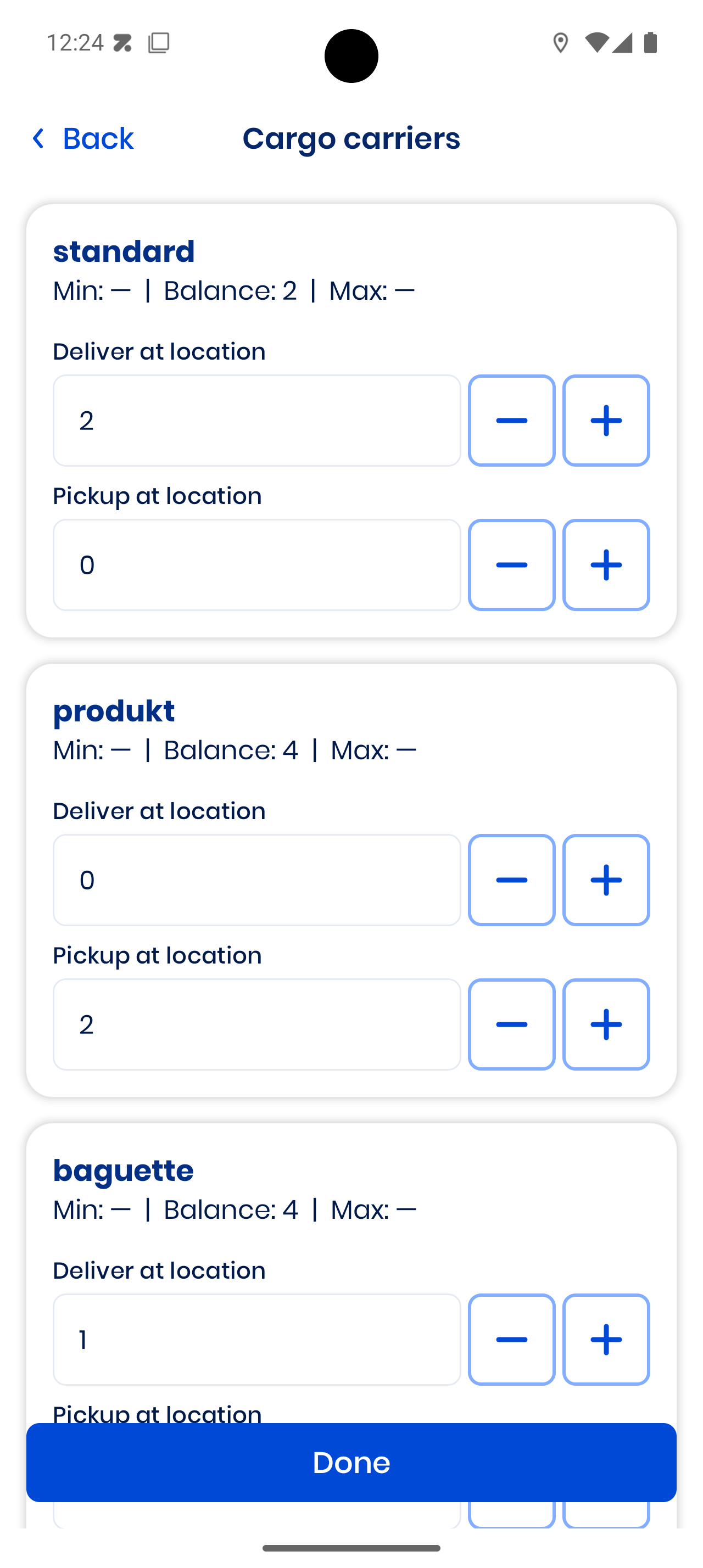
Register cargo carriers if needed (cages, boxes)
Follow any special notes for the delivery
Complete the Stop
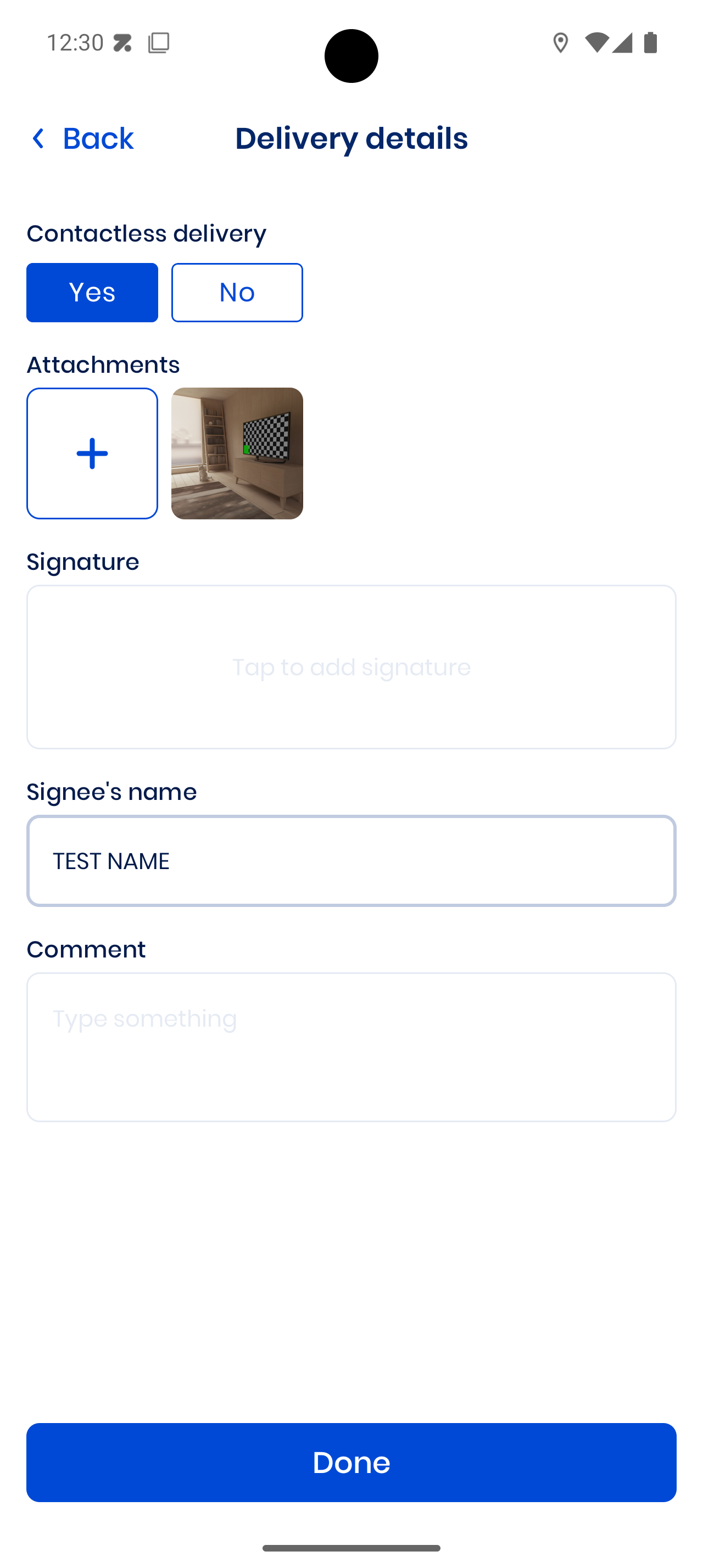
Make sure all steps are complete:
- Colli (completed)
- Cargo Carrier (completed)
- Proof of Delivery (completed)
Take a photo or get a signature
Tap “Complete Stop”
Review & Messages
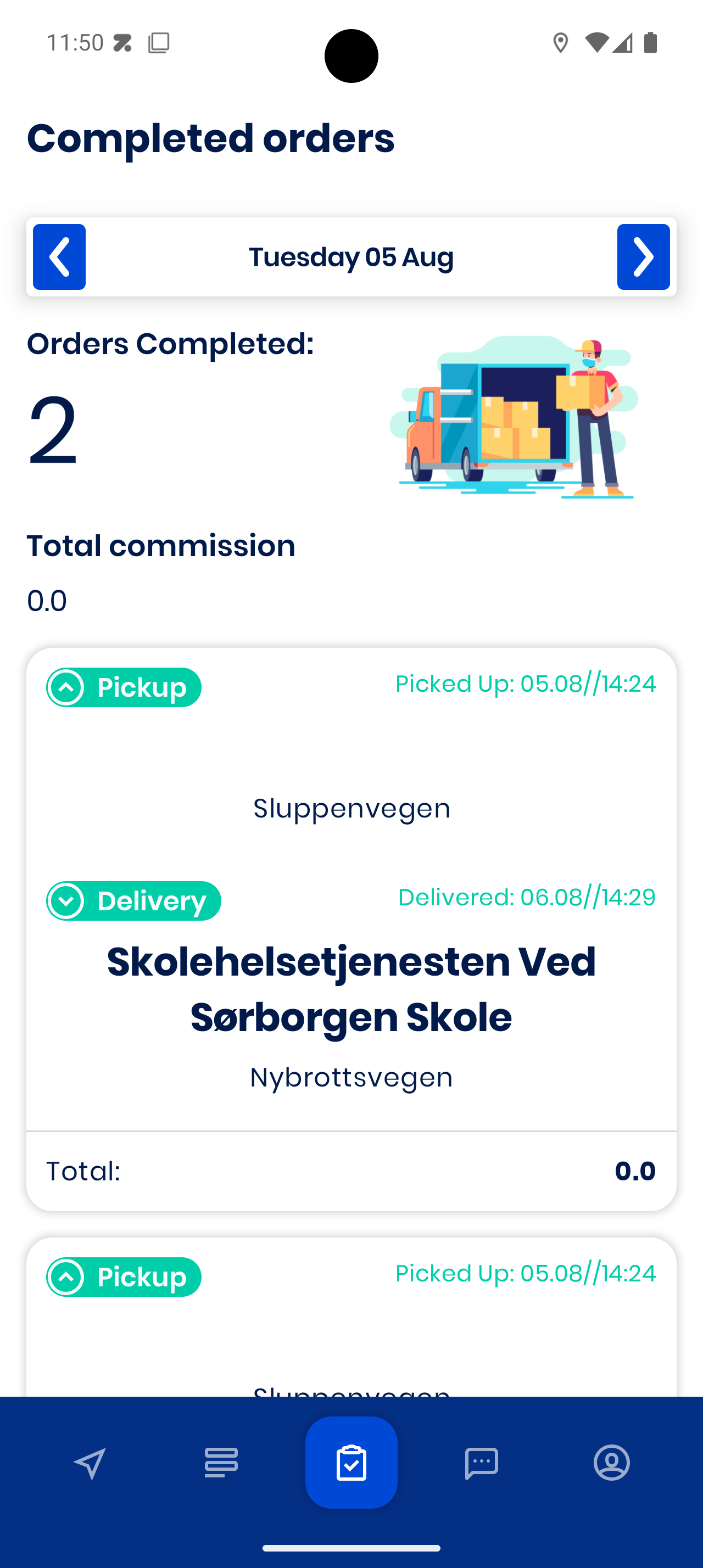
📂 Completed Orders tab → See details or update location info
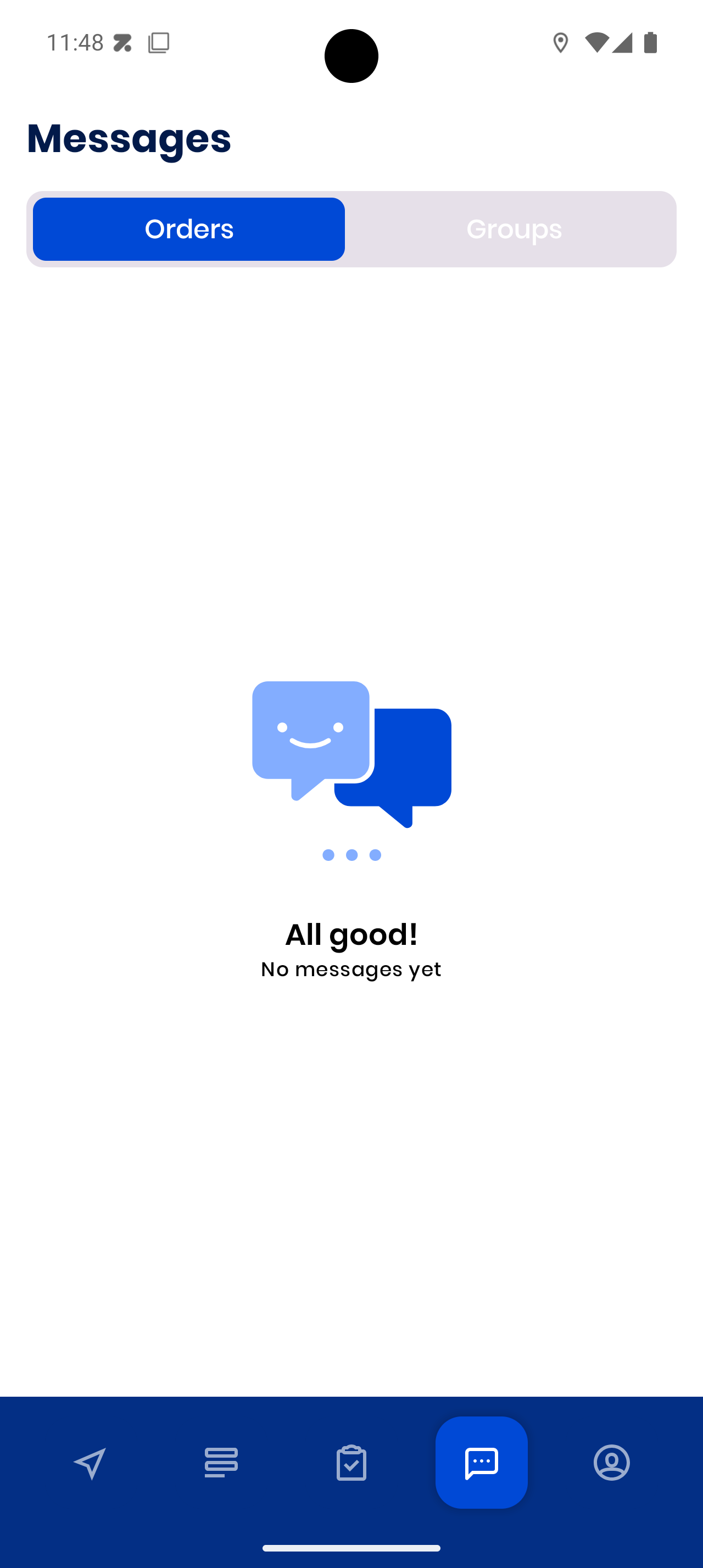
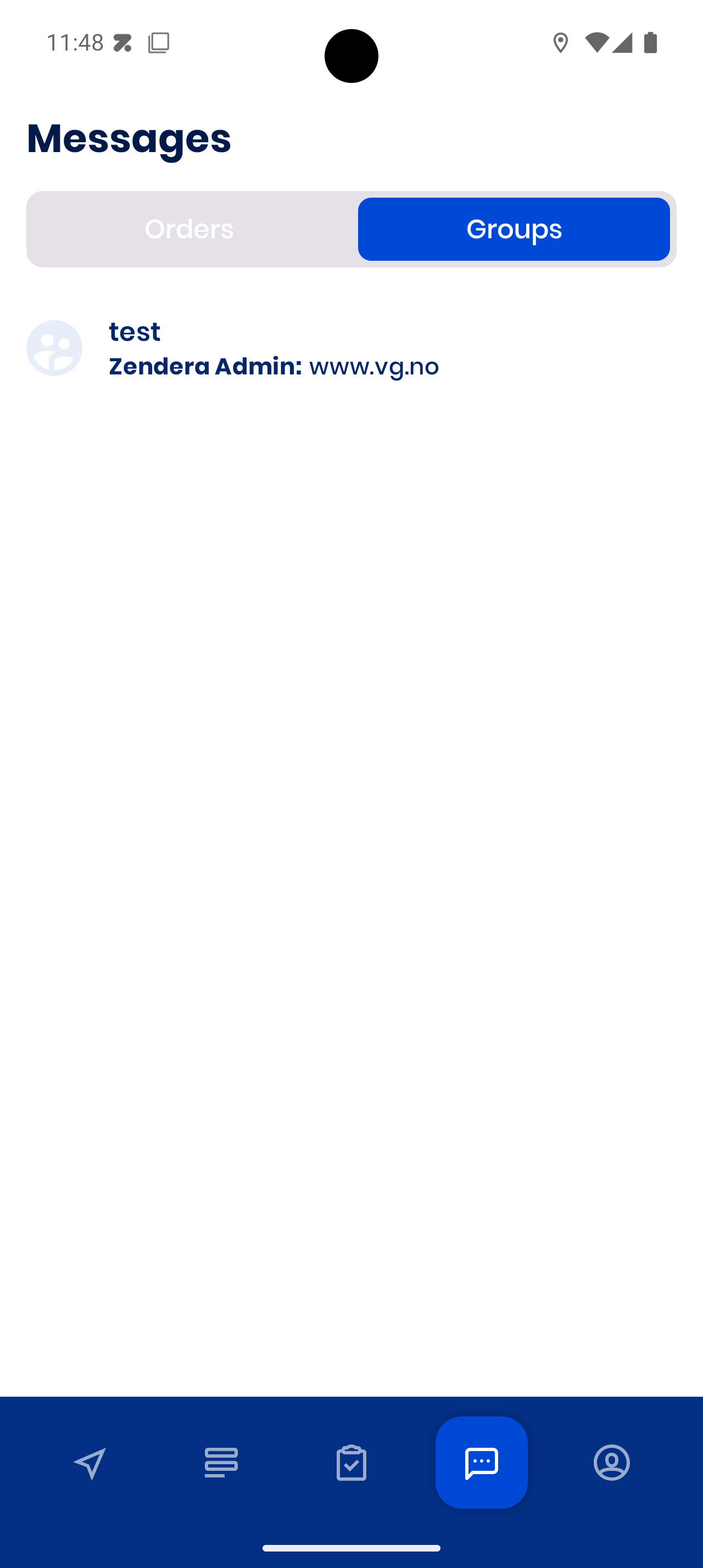
Stay connected:
- Orders tab → Messages about specific jobs
- Groups tab → Team updates
Daily Success Tips
Essential Habits:
-
Always go online before your shift
-
📷 Scan packages when possible — faster, fewer errors
-
🔋 Keep your phone charged — live tracking depends on it
-
Read order notes — special delivery instructions matter
-
🔄 Complete steps in order — don’t skip ahead in the workflow
Quick Troubleshooting:
-
No orders? → Check you’re online and shift is active
-
Can’t find address? → Use the address update feature in app
-
Navigation issues? → Verify your navigation app setting
-
Problems? → Use Messages tab to contact dispatch early
Need More Help?
📖 Full Guide: Check out the complete driver guide for detailed instructions with all screenshots.
Support: Use the Messages tab in the app to contact dispatch anytime.
Related Resources
For Dispatchers Managing You:
- Single Driver View - How dispatchers monitor your progress
- Driver Tasks - How dispatchers assign and track your work
For Customers Expecting Deliveries:
- Order Tracking - How customers track deliveries you’re completing
Help & Support:
- Driver Help - Detailed troubleshooting and FAQ
- System Status - Check if there are any system issues affecting the app
You’re ready to drive! Drive safe. Deliver smart.
Remember: Safety first, efficiency second. Take your time to learn the app - you’ll get faster with practice.