Tasks
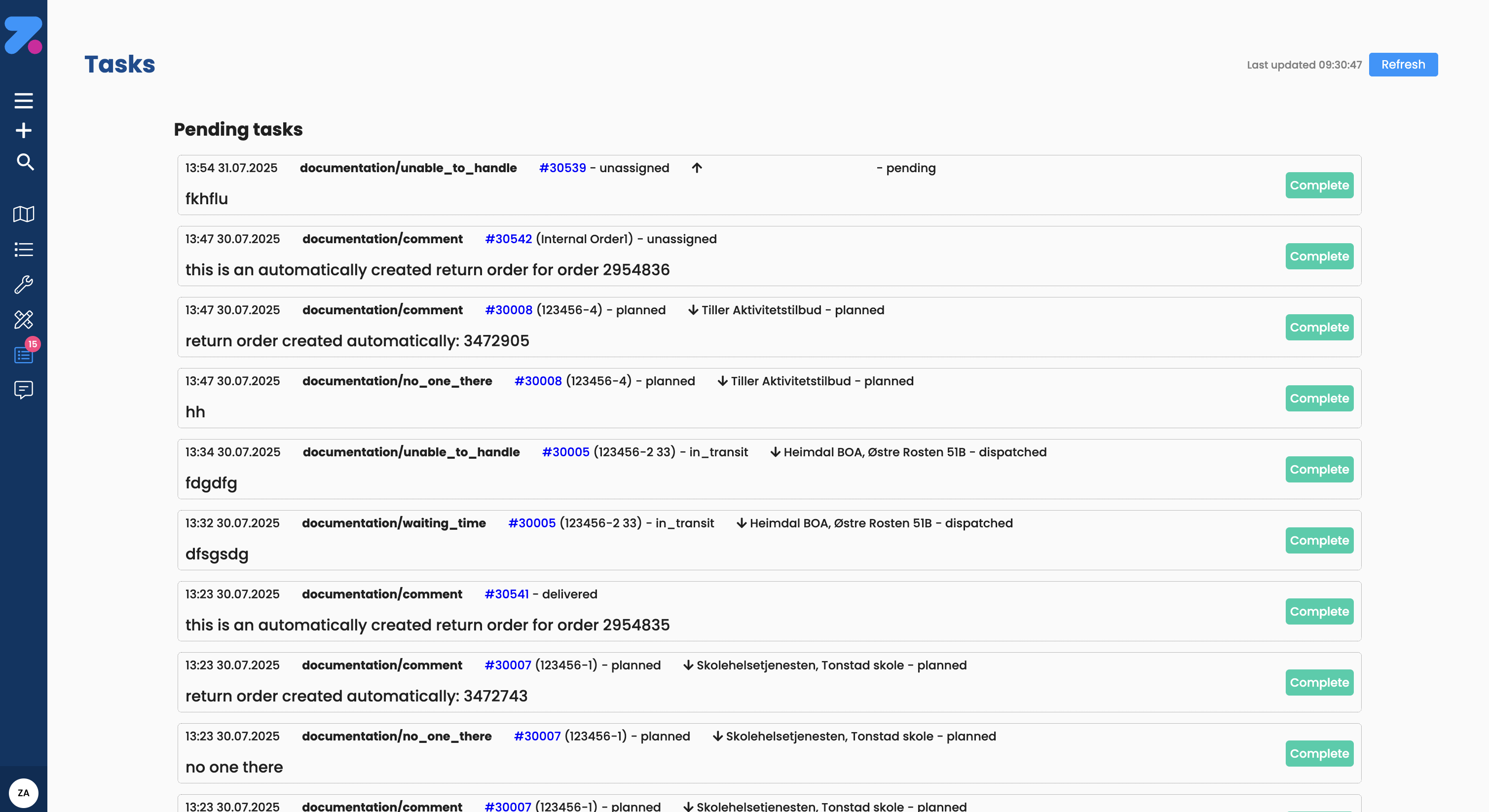
Tasks is where you see all the documentation, notes, and inputs that drivers add to orders during their workday — plus system-generated notes the office needs to look at. Examples include comments left at delivery, “no one there” reports, damage reports, and automatic notes when a driver changes the quantity of a product.
Use this page to keep on top of anything the drivers flag from the field, and to mark each item as handled.
How to open Tasks
Click Tasks in the left sidebar (the icon with the box + three dots and horizontal lines).
Page layout
| Area | What it shows |
|---|---|
| Pending Tasks card | Total count of tasks that still need attention. |
| Completed card | Total count of tasks already marked as finished. |
| Task Types card | A breakdown of pending tasks by type (e.g. Comment 32, Damage 7, No one there 13). |
| Search bar | Free-text search across tasks, orders, and locations. |
| Filters button | Open the filter panel to narrow the list. |
| Pending Tasks list | The list of tasks waiting to be handled. |
| Auto-refresh toggle (top right) | Turn auto-refresh on or off (or press Alt+R to refresh manually). |
Task types
The most common task types you’ll see:
- Comment — a free-text note the driver left at the stop (e.g. Delivered to Morgan).
- Damage — the driver reported damaged goods.
- No one there — the driver couldn’t deliver/pick up because no one was at the location.
- Contactless Delivery Proof — contactless delivery documentation.
- Return Goods — return goods documentation.
- Waiting Time — delays and waiting time issues.
- Unable to Handle — situations the driver cannot complete.
- Other — system-generated notes, often when a driver changed the quantity of a product (e.g. Driver changed order product Pallet — chilled/dry: quantity changed from 25 to 18) or when a return order was created automatically.
The task type is shown as a coloured chip at the top of each card.
Track & Trace events
Add-on Feature
Track & Trace irregularities and reports require the Track & Trace add-on feature to be enabled.
- Track & Trace Irregularities — customer-reported issues and exceptions.
- Track & Trace Reports — delivery confirmation reports from recipients.
How to read a task card
Each task in the list shows:
- Type chip — the kind of task (Comment, Damage, No one there, Other).
- Time and date — when the task was created.
- Direction — ↑ Pickup or ↓ Delivery, plus the location name.
- Status chips — order status (e.g. Complete, Delivered).
- Reference number — the customer reference or internal number.
- Description — the driver’s note or the system message.
- Order link (e.g. #679770) — opens the underlying order in a new view.
- Complete button — marks the task as handled (moves it to Completed).
How to handle a task
- Read the description on the card.
- If you need more context, click the #order number link to jump to the order.
- Take any action that’s needed (call the customer, adjust the order, create a return, etc.).
- Click Complete to mark the task as handled.
The card moves out of Pending Tasks and the Completed counter goes up.
How to search and filter
- Search box — type any text to match tasks, order numbers, or location names.
- Filters button — opens additional filters (e.g. by task type, date range, status).