Driver App Guide
Welcome to the Zendera Driver App!
This guide walks you through the full driver flow — from logging in to
completing deliveries.
The app is the same on Android and iPhone: get it from Google Play on Android or the
App Store on iPhone.
Logging in
You can log in two ways — with SMS or with email and password.
Log in with SMS:
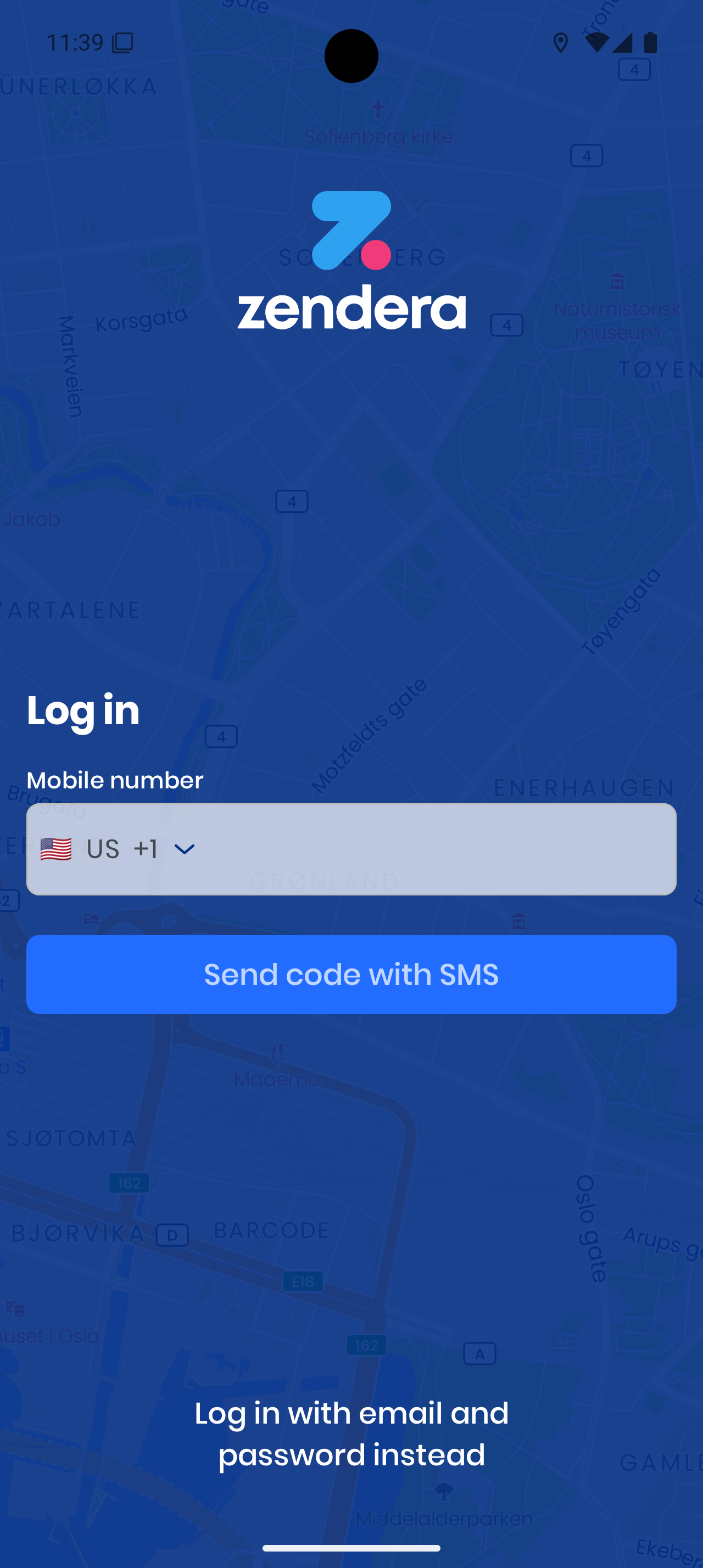
- Select your country code.
- Enter your mobile number.
- Tap Send code with SMS.
- Enter the code you receive under Code from SMS and tap Confirm code.
Log in with Email:
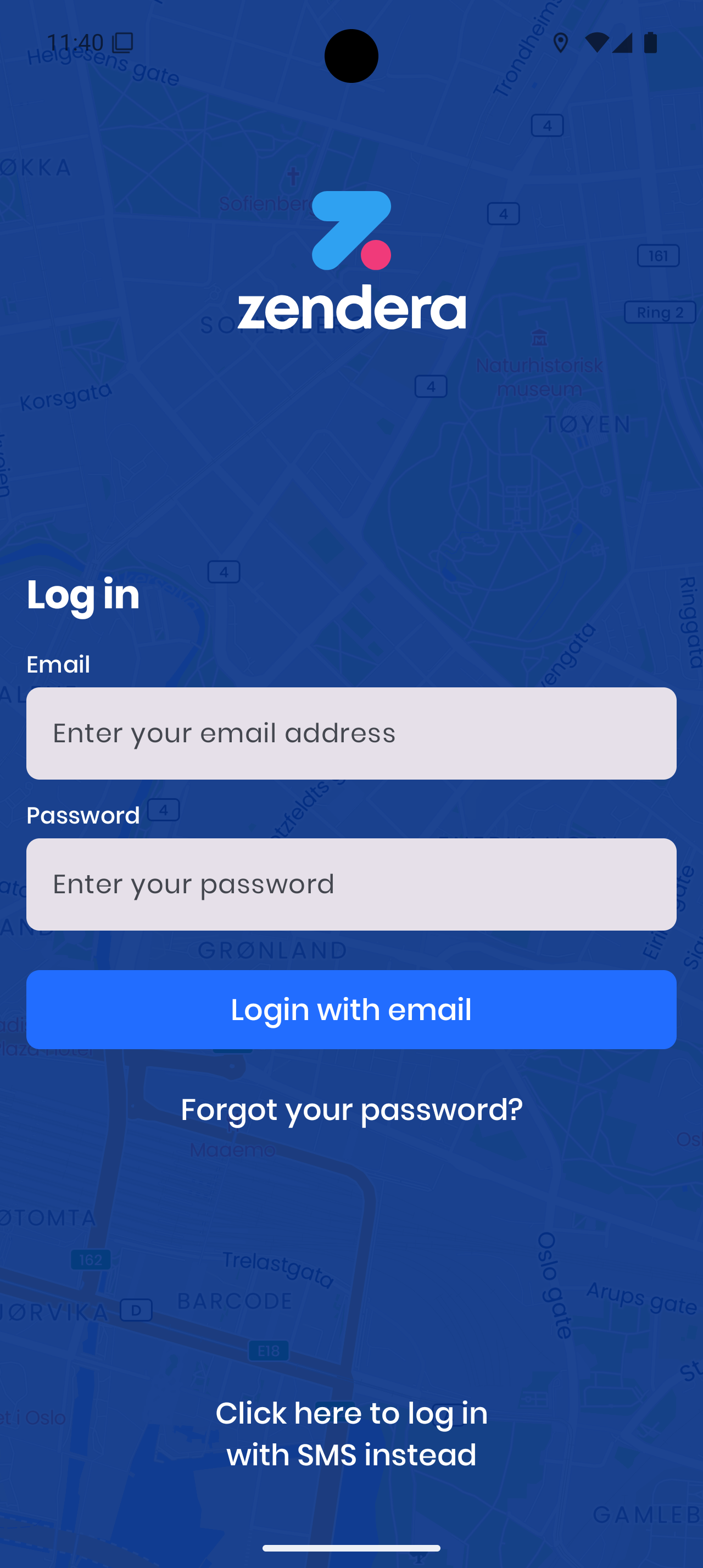
- On the login screen, tap Log in with email and password instead.
- Enter your email address.
- Enter your password.
- Tap Login with email.
- If you forgot your password, tap Forgot your password?, enter your email and tap Reset my password — you’ll get a link by email.
To switch back, tap Click here to log in with SMS instead.
If you see This account is not set up as a driver, your account doesn’t have the Driver role yet. Ask your dispatcher to give it the Driver role, then log in again.
Allowing location
Before the app asks for your location, it shows Location is required to use Zendera and explains what your location is used for. Tap Allow location, then allow it in your phone’s prompt.
Your location is collected while you are online — also when the app is in the background or the screen is off. On Android, a notification is shown the whole time. Collection stops when you go offline.
Your Account
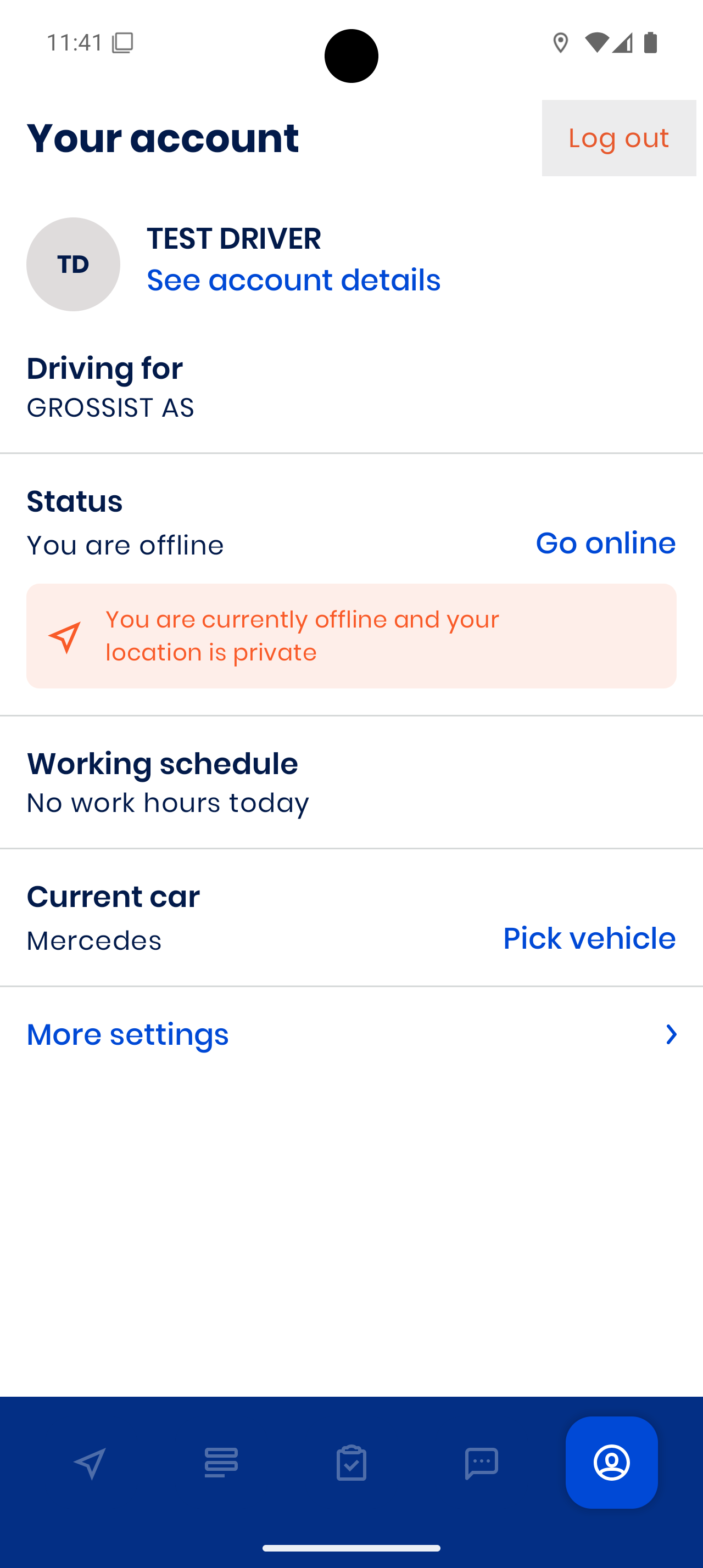
On Your account you can:
- Go online / Go offline – This controls if you’re available for orders. If you go offline with dispatched orders, choose Let them be and go offline or Unassign them.
- See your working schedule – Shows your planned hours for the day.
- Pick your current car – Tap Current car to choose the vehicle you’re driving.
- Open More settings – Change language, navigation, and more.
- See account details – Your name, phone number, email and skills.
You can’t log out while you’re online — go offline first.
Settings & Navigation
More settings:
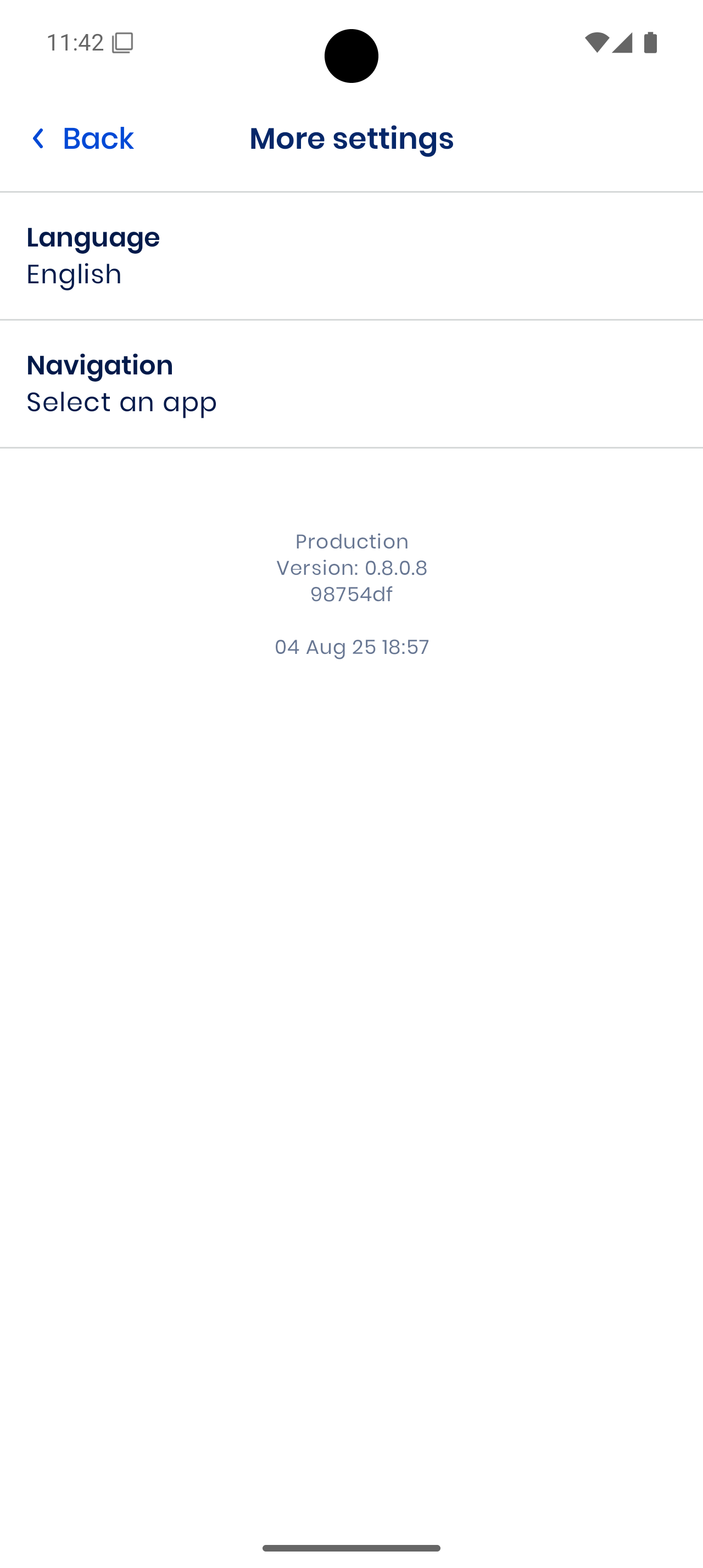
- Language – English, Norsk, Danish or Icelandic.
- Navigation – The app that opens when you navigate to a stop.
- Clear Data – Removes cached session data.
- Share logs – Shown only when log sharing is switched on; shares the app’s logs so issues can be diagnosed.
- Barcode scanner – Shown on Zebra devices only, for the Zebra scanner settings.
The app version is shown at the bottom.
Choosing navigation:
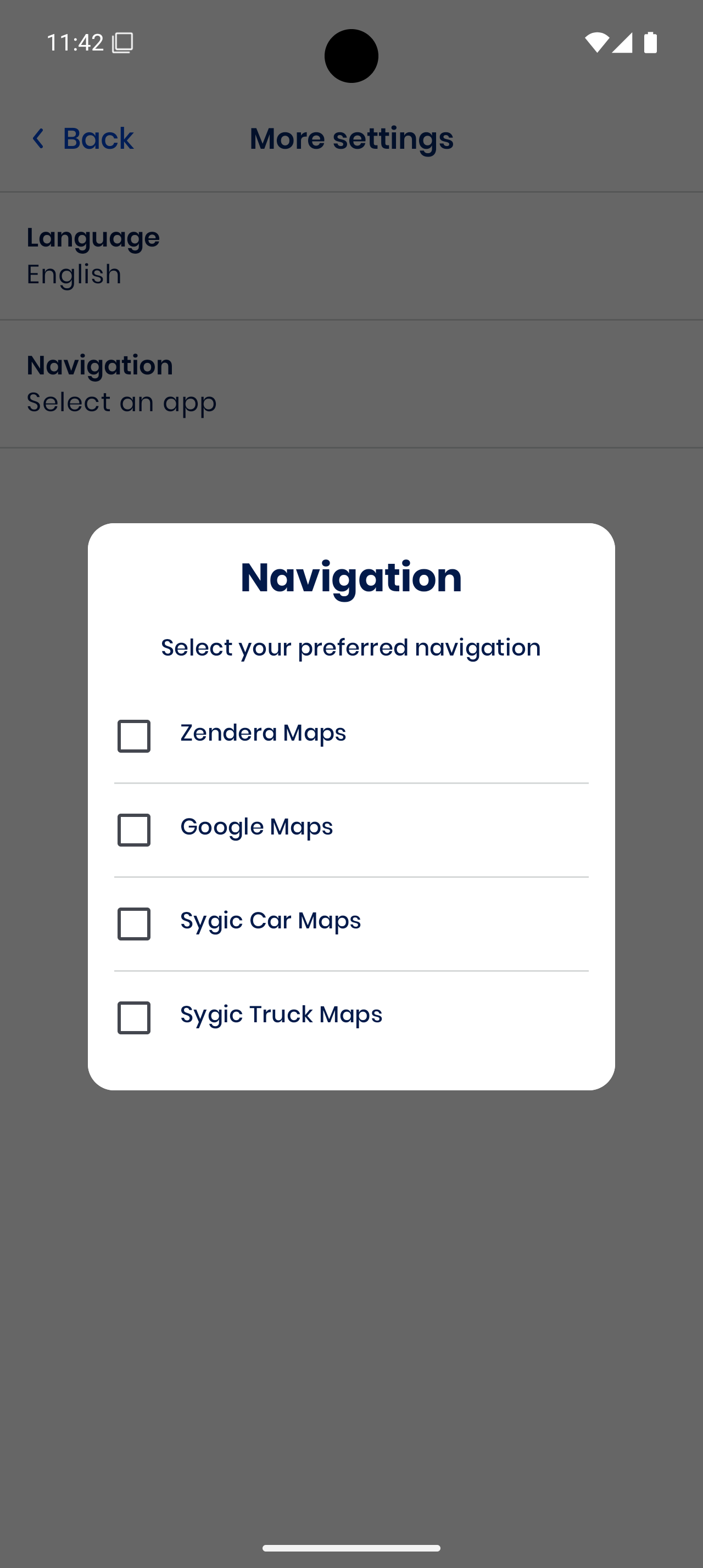
Tap Navigation and pick your preferred app:
- Google Maps
- Apple Maps (iPhone only)
- Sygic Car Maps
- Sygic Truck Maps
Google Maps is the default on Android and Apple Maps is the default on iPhone.
Getting around the app
The bar at the bottom has five icons: the Map, Up next (your upcoming orders), Completed orders, Messages and Your account.
On the Map tab you see your next stop. Tap Navigate to location to open your navigation app.
Assigned Orders
When you have no orders:
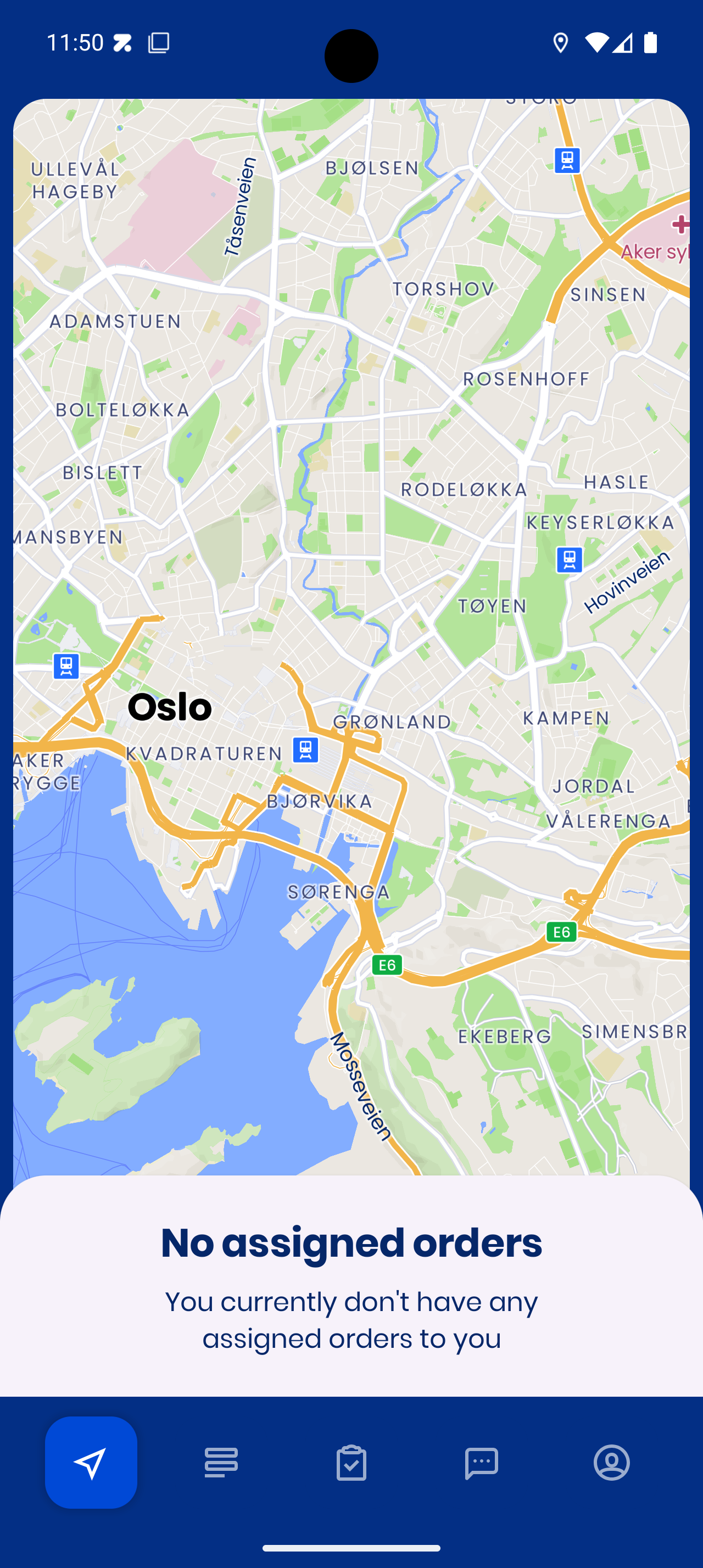
When orders are assigned, Up next lists them:
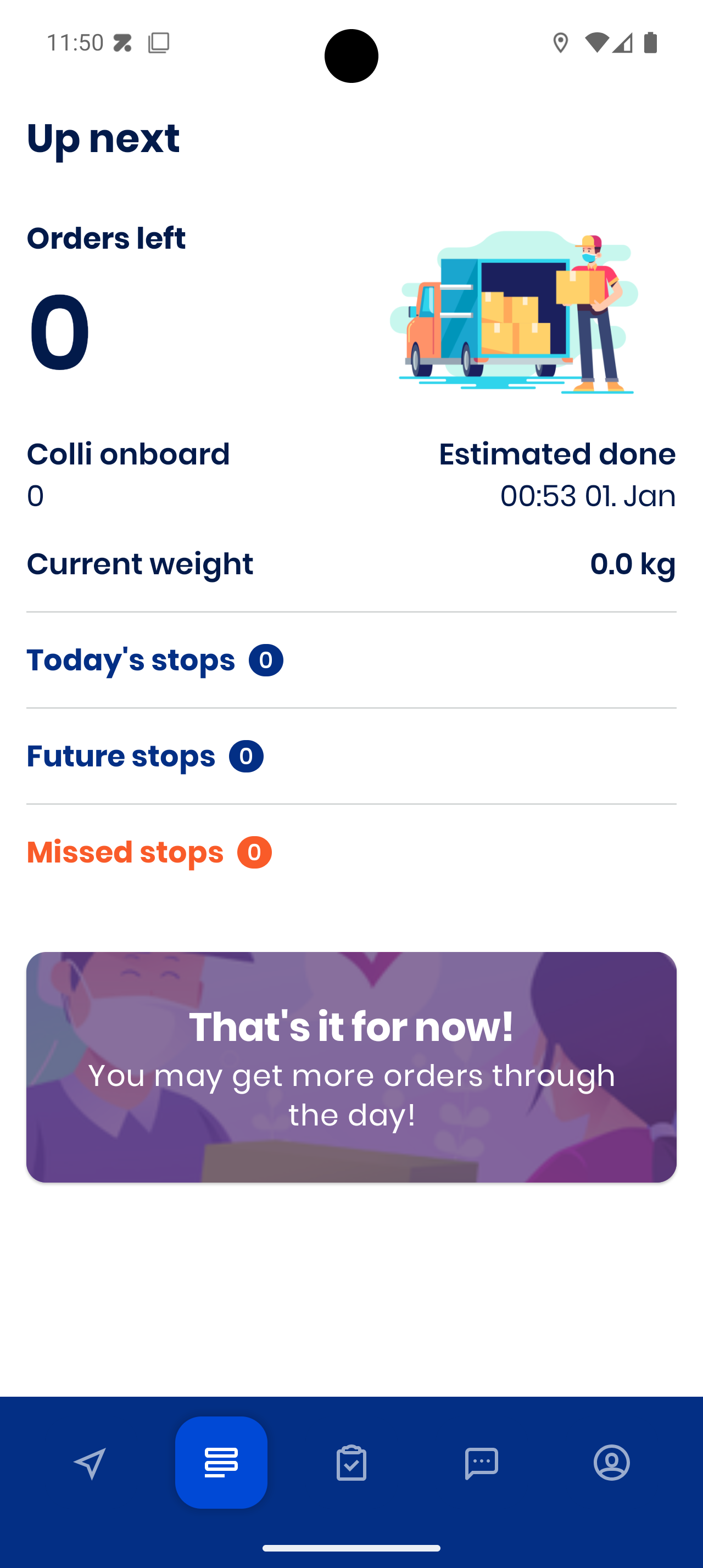
You’ll see:
- Orders left
- Colli onboard (packages)
- Current weight
- Estimated done
- Your stops, grouped into Today’s stops, Future stops and Missed stops
Starting a Stop
Tap on a stop card to see details:
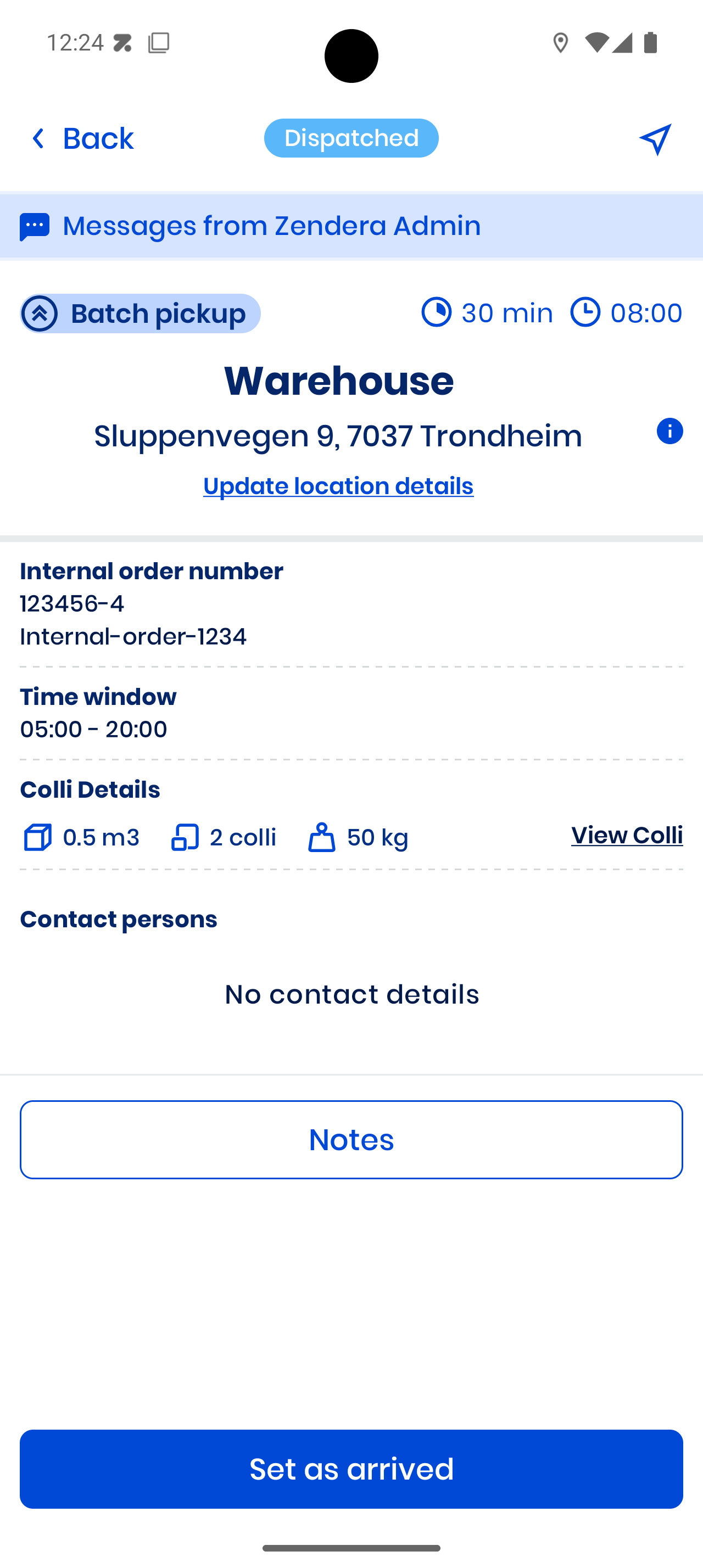
- Check address and time window
- See colli details
- Read the customer’s instructions — you can select and copy the text
- Tap a contact’s phone number to call, or their email to open your mail app
- Tap Set as arrived when you reach the location. If the stop has information you must confirm, it’s shown first — tap Seen.
Registering at the stop
After you arrive, tap Register. A sheet opens with what this stop needs: Colli, and Cargo Carrier and Proof of Delivery when the stop requires them. Complete Stop becomes available when everything is done. Swipe the sheet down to close it.
Registering Colli (Packages)
Tap Colli to open Register colli:
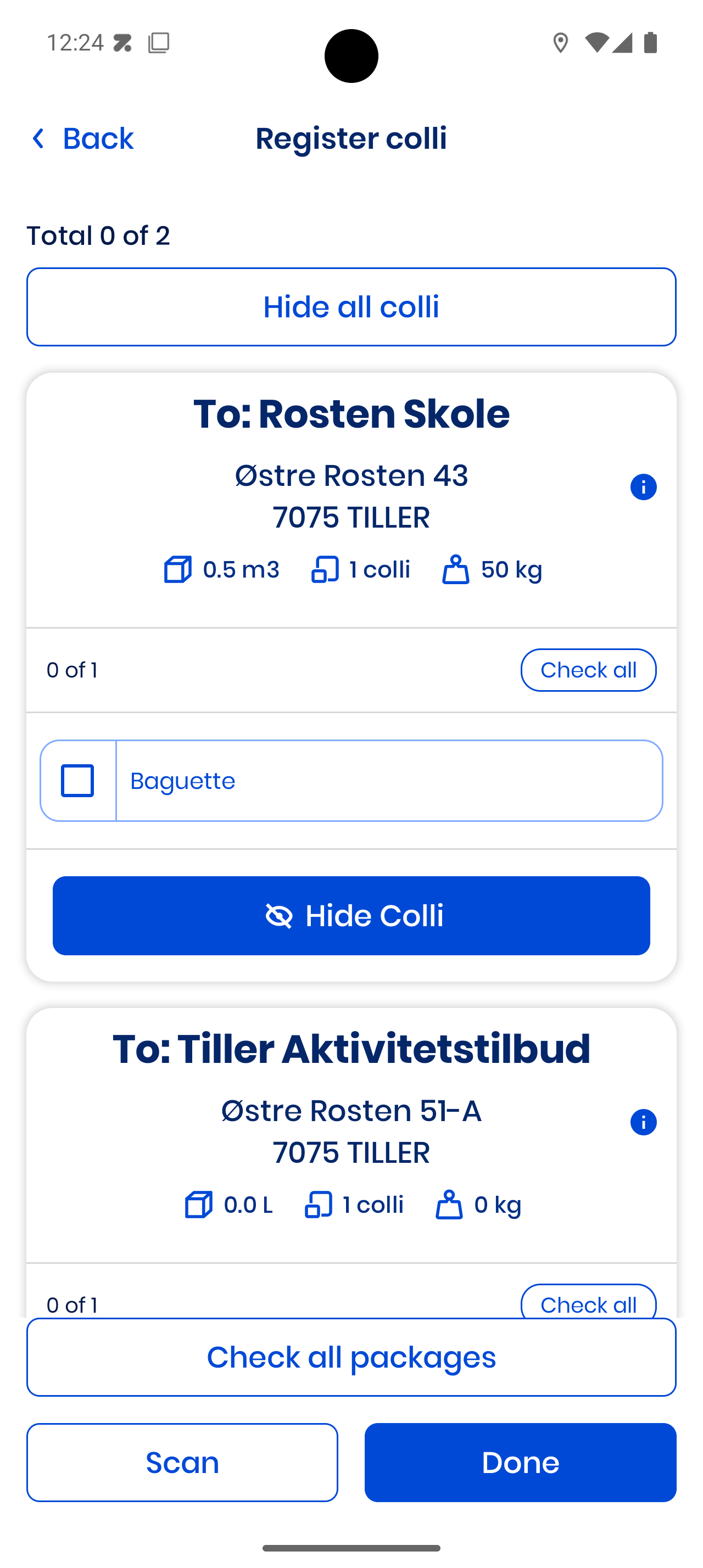
- Check items manually or tap Check all packages
- Tap Scan to scan barcodes — only codes inside the square are read
- Tap Done when finished
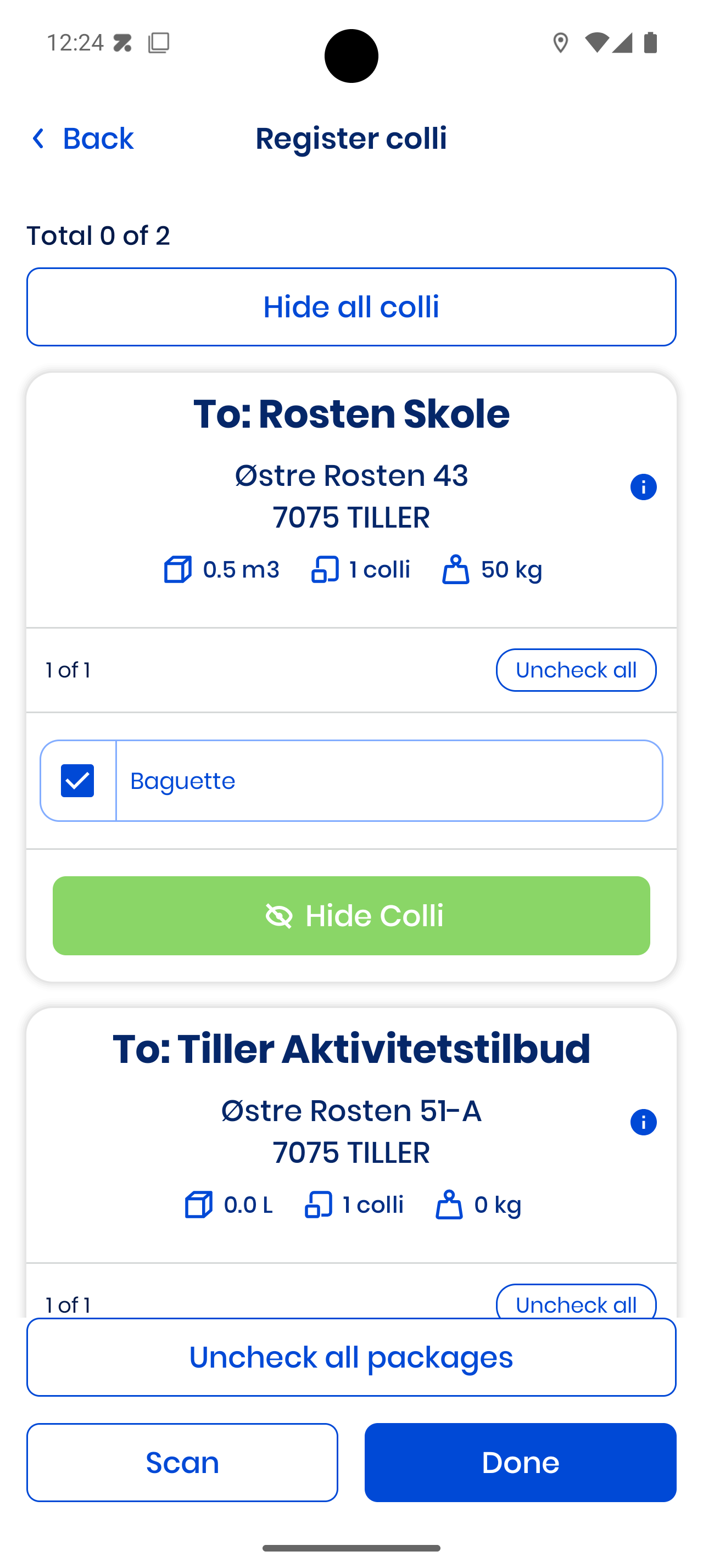
Example with checked colli:
Registering Cargo Carriers
Some stops require you to register cargo carriers like cages or boxes:
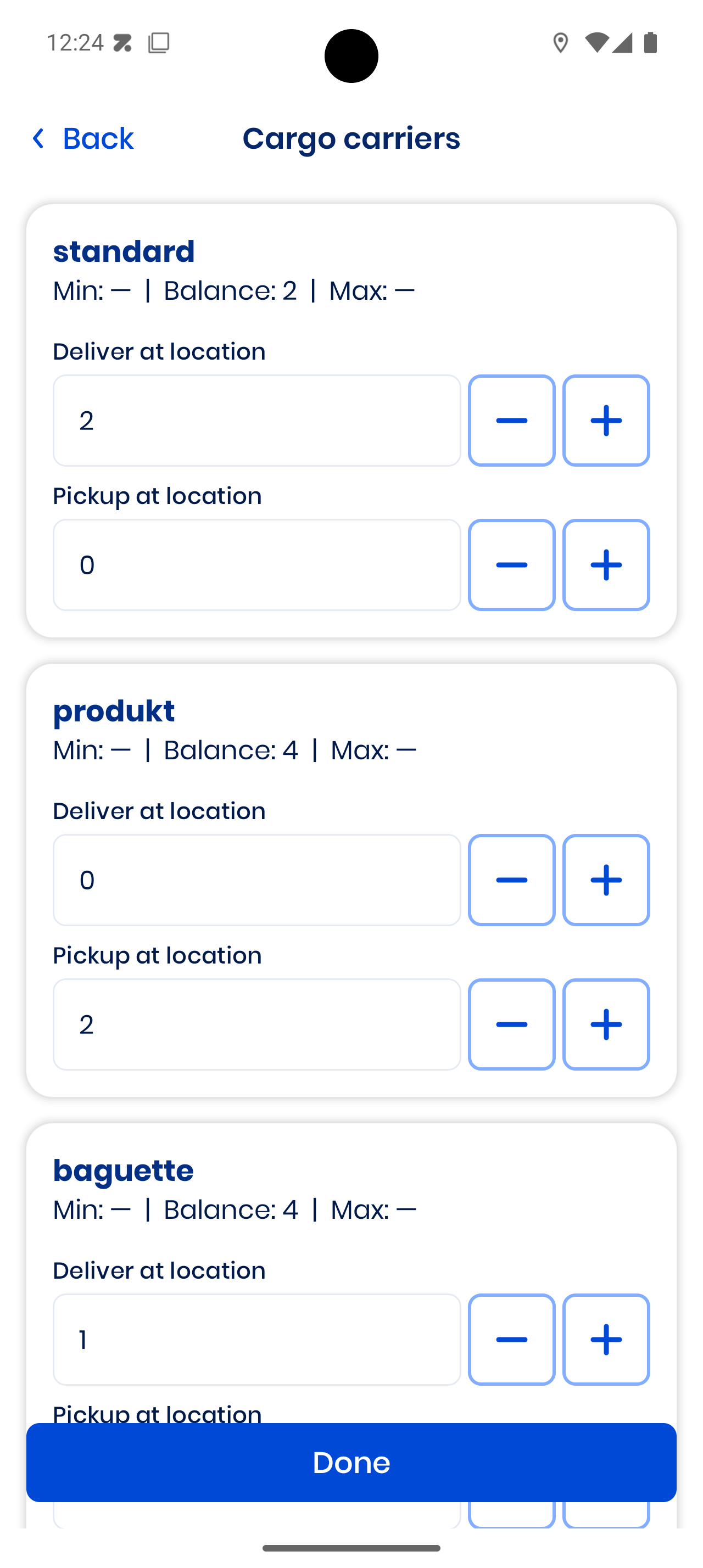
- Enter how many you deliver and how many you pick up
- Tap Done to save — going back without tapping Done discards your counts
- If the numbers are outside the limits, or unusually large, you’ll be asked to leave a Comment before you can save
Completing a Pickup
When all steps are done for a pickup stop:
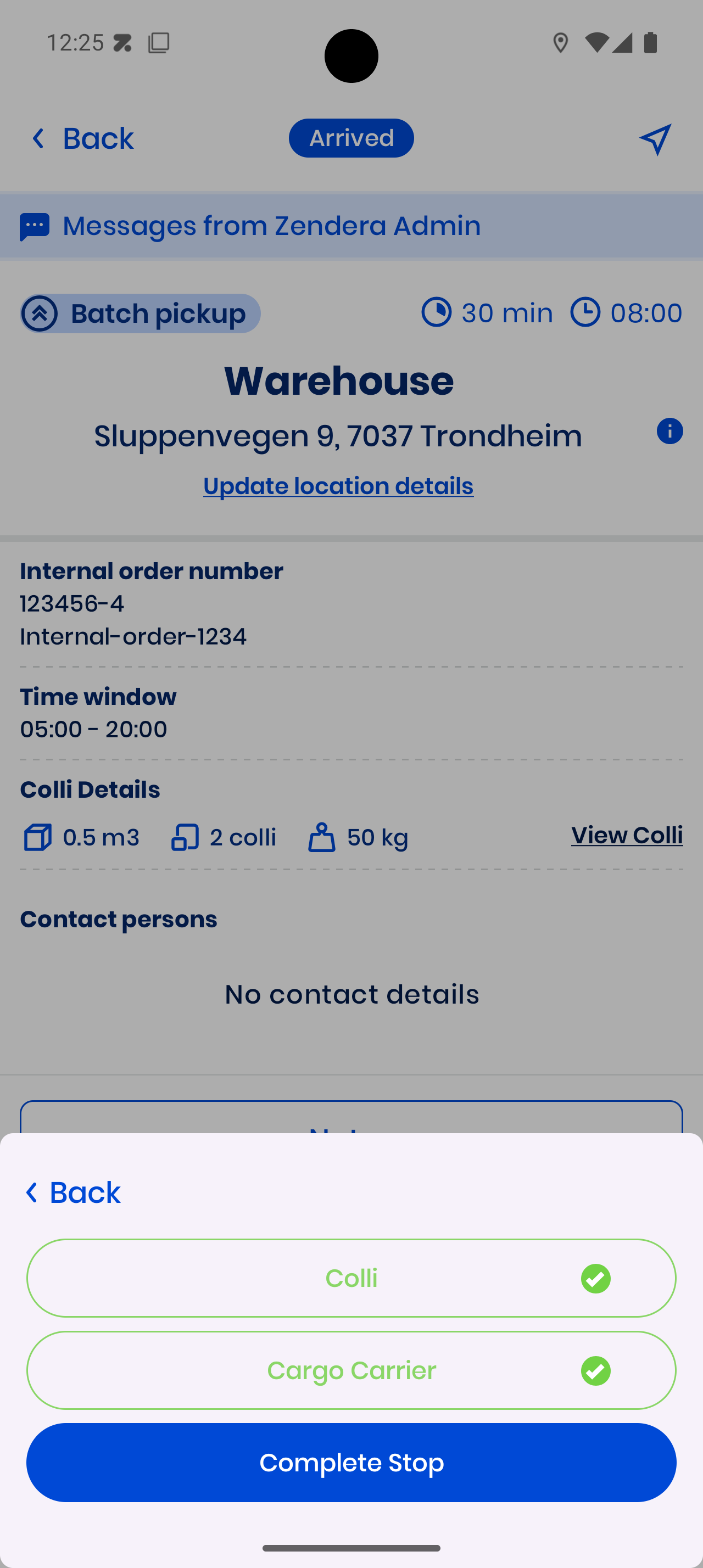
Press Complete Stop to finish.
Completing a Delivery
Deliveries may require proof — either a photo or signature. Tap Proof of Delivery:
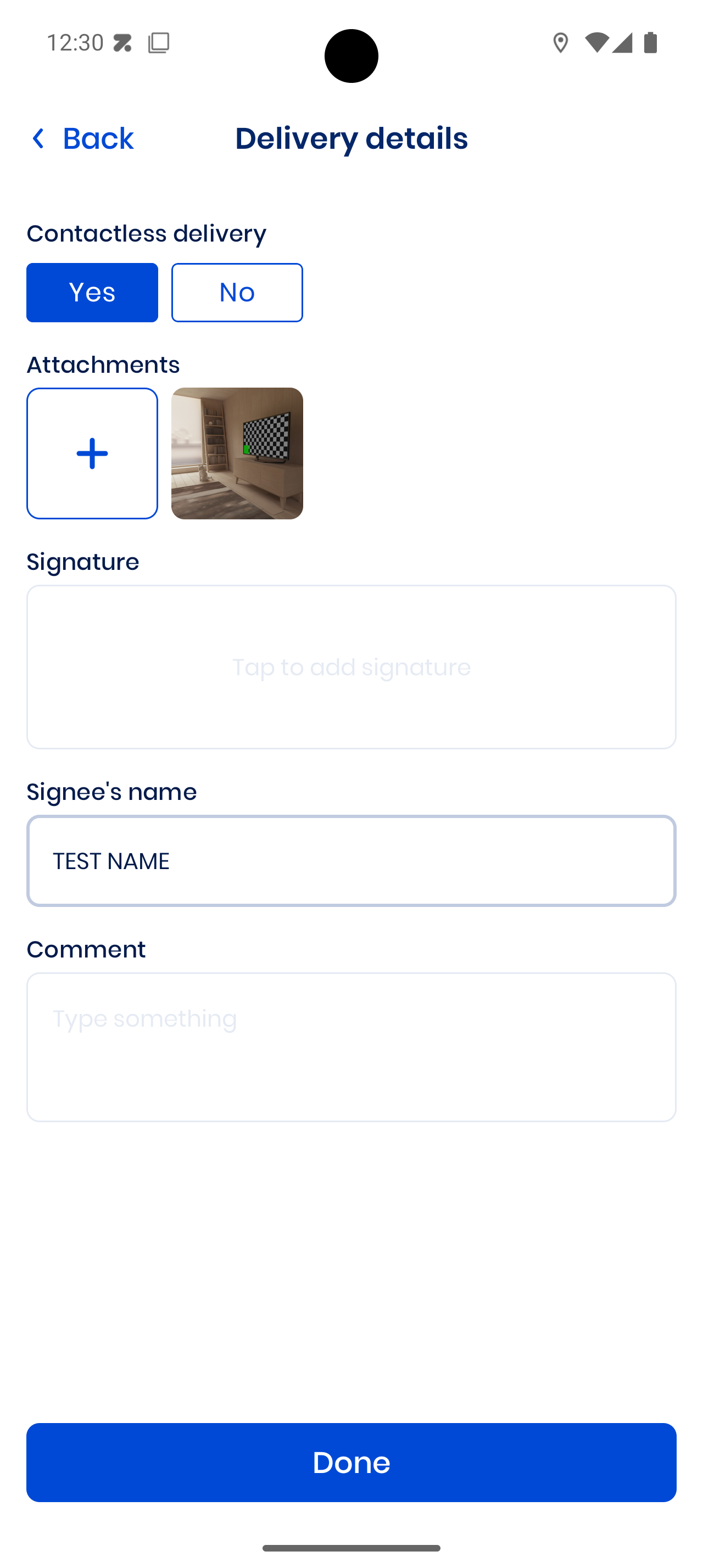
- For a Contactless delivery, add photos under Attachments.
- Otherwise, enter the Signee’s name and tap Tap to add signature. The screen turns sideways; the customer signs inside the box and taps Done (Clear starts over).
Once all required steps are checked:
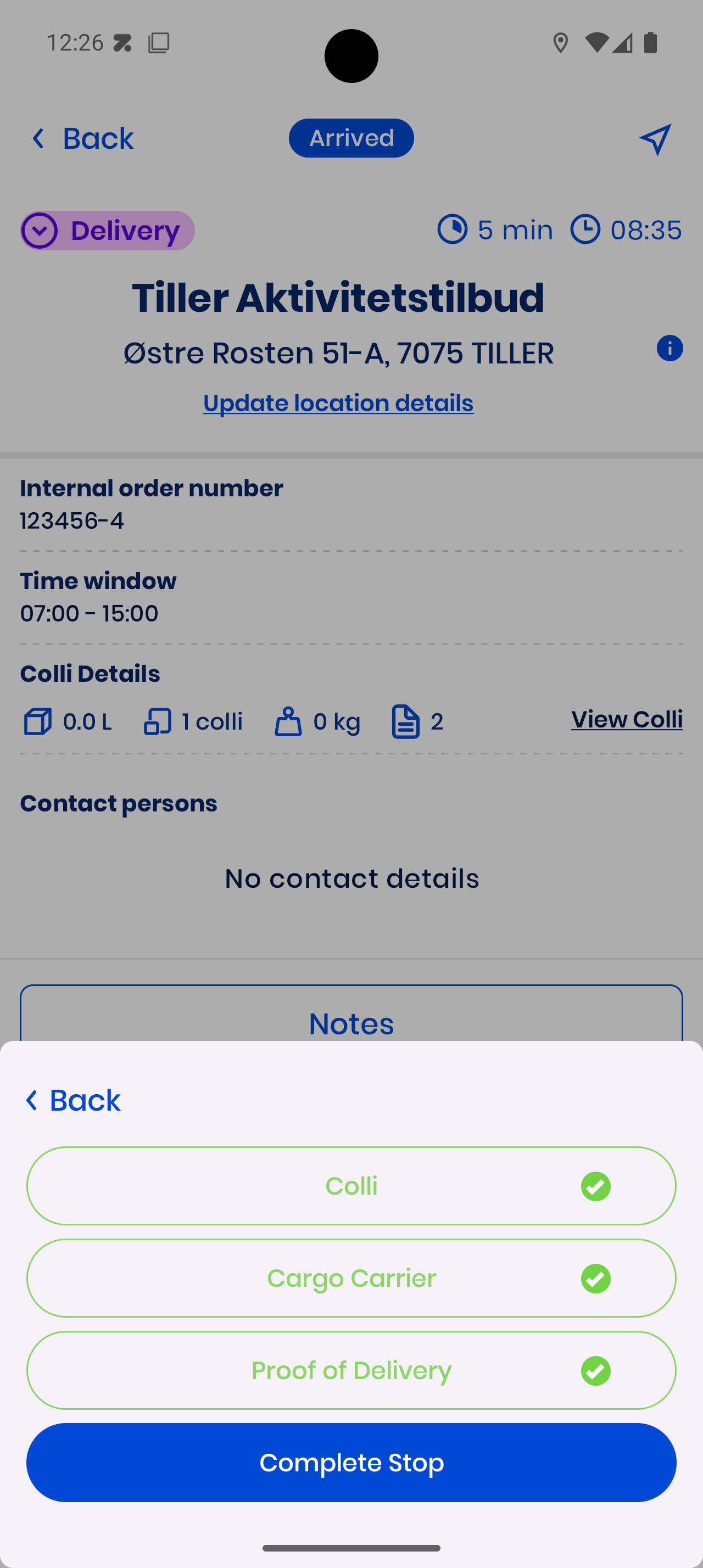
Tap Complete Stop.
No internet? The app shows Waiting for internet connection and submits the stop automatically once you’re connected again.
Notes
Use Notes on a stop to tell dispatch something happened:
- Tap Notes, then Add new note.
- If the stop has several locations, choose the ones the note is about.
- Choose the type: Damage, Comment, No one there, Will need to wait, Can’t handle or Return Goods.
- Fill in the details and tap Done.
If a note’s photos or signature didn’t upload, the app tells you — let dispatch know. If the stop has documents attached, open them with Files.
Finished Stops & Completed Orders
When a stop is done, it moves to Completed orders, which shows Total commission at the top:
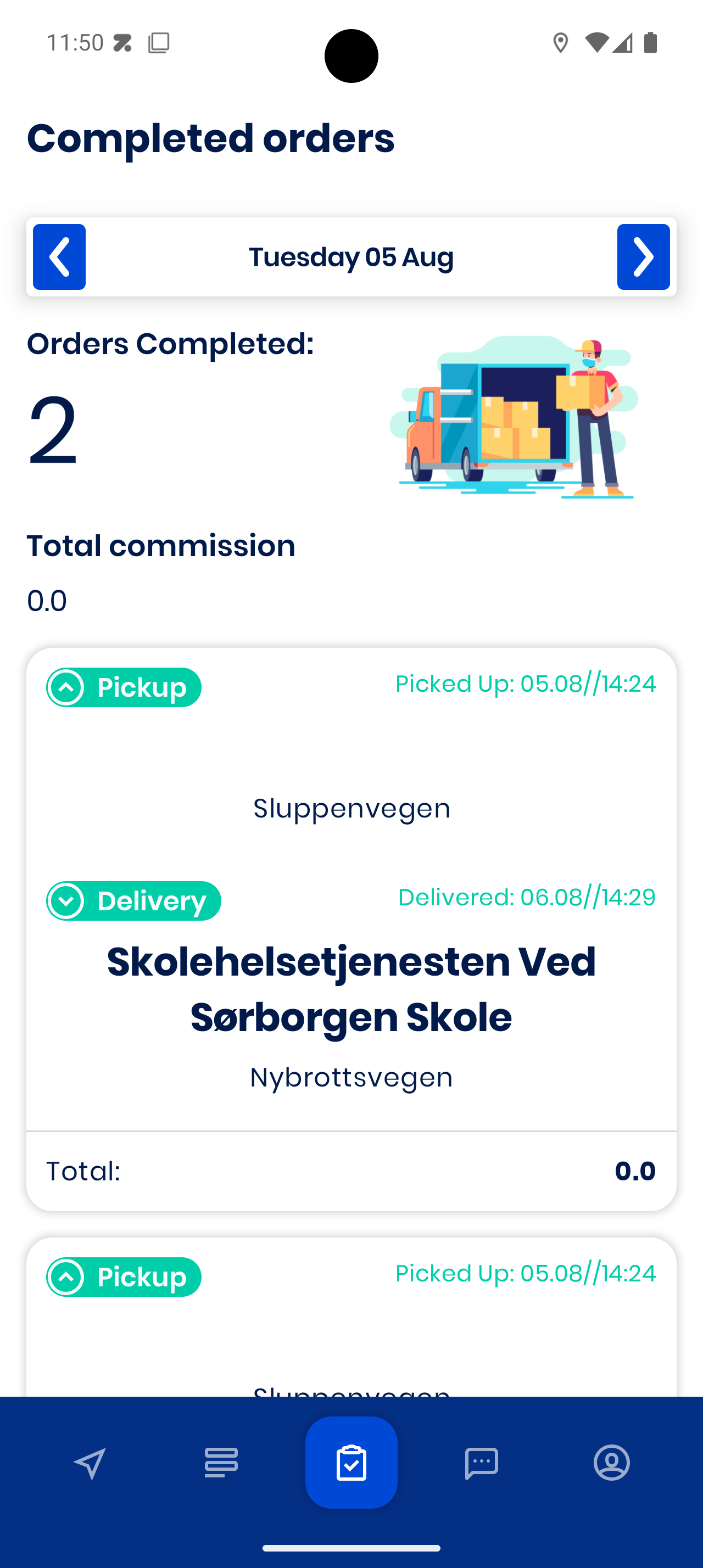
Tap an order for full details:
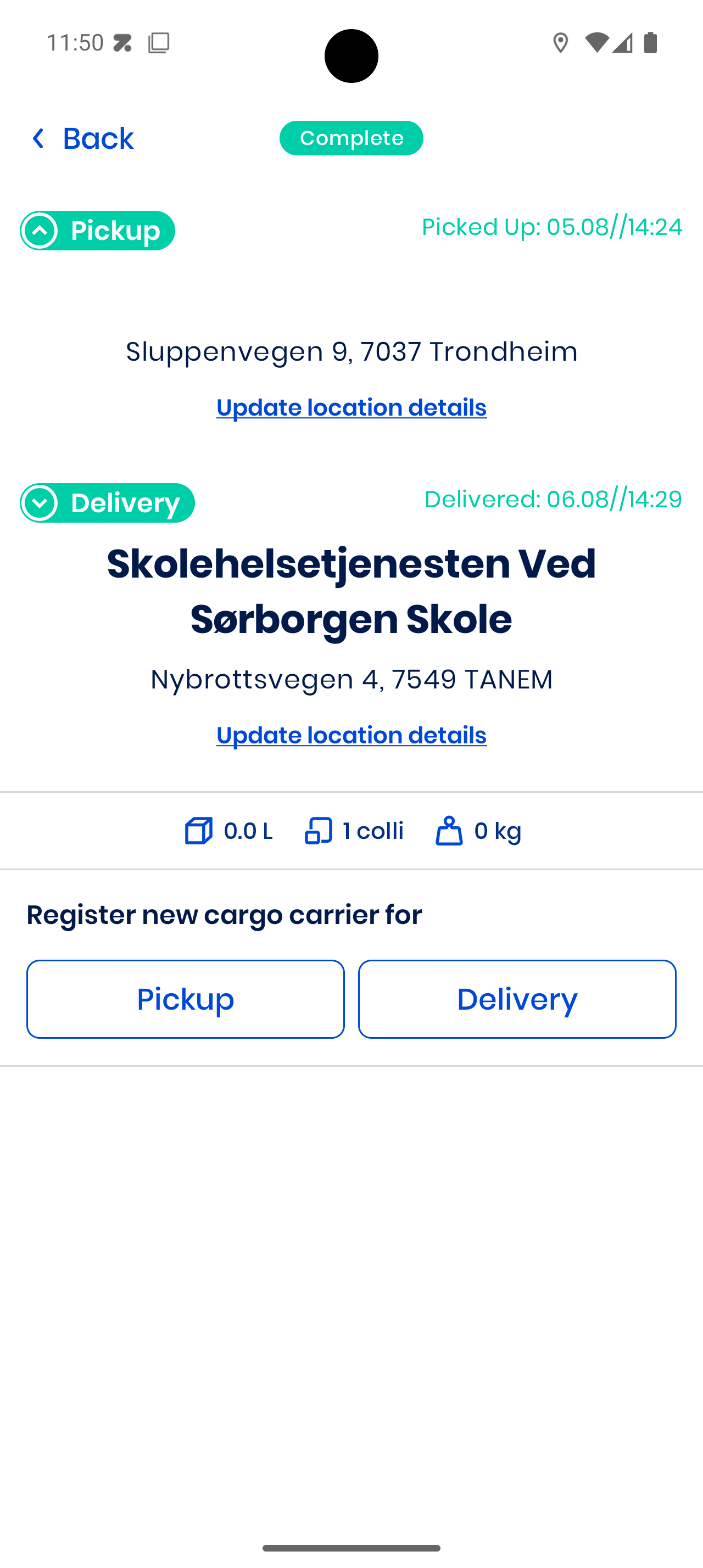
You can still tap Update location details if needed.
Messages
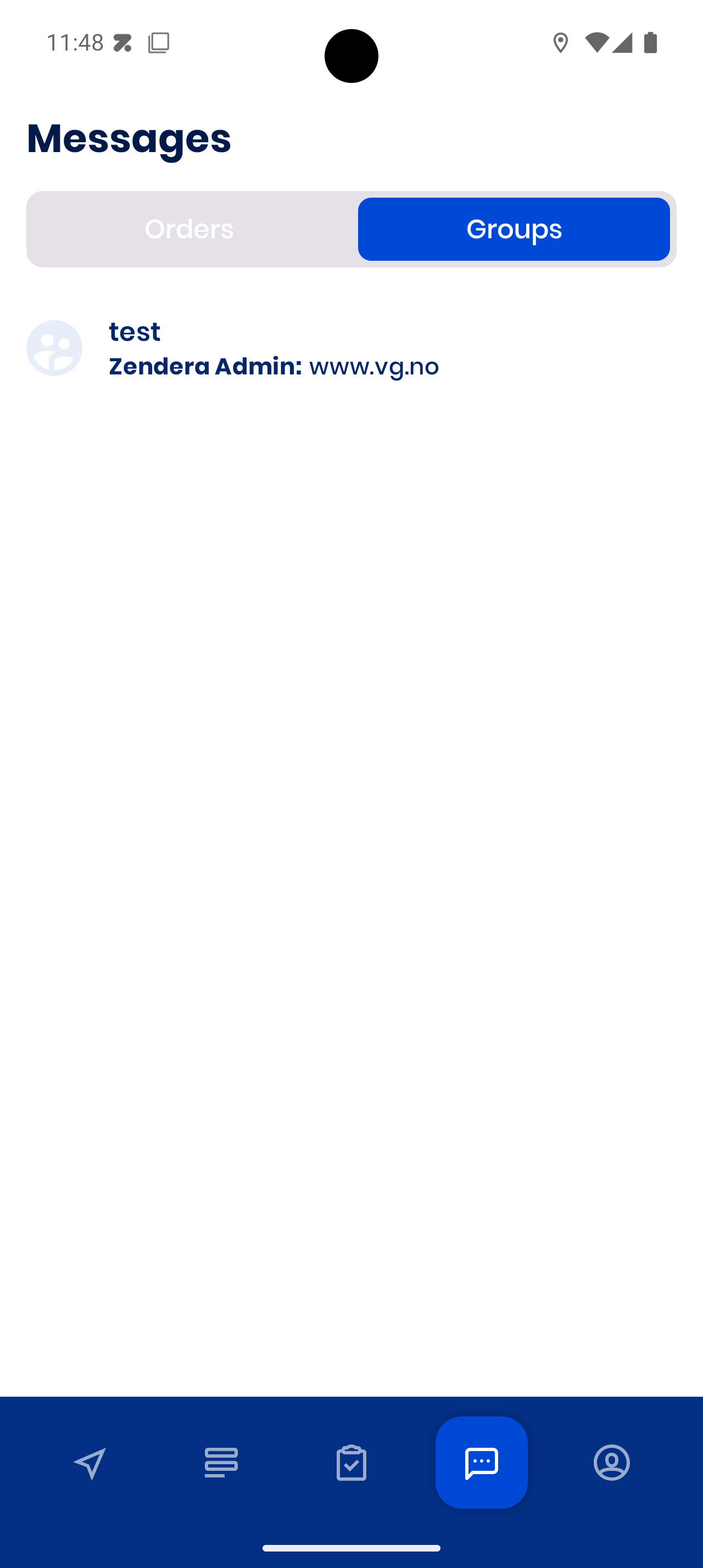
Stay in touch through the Messages tab. Tapping a chat notification opens it.
-
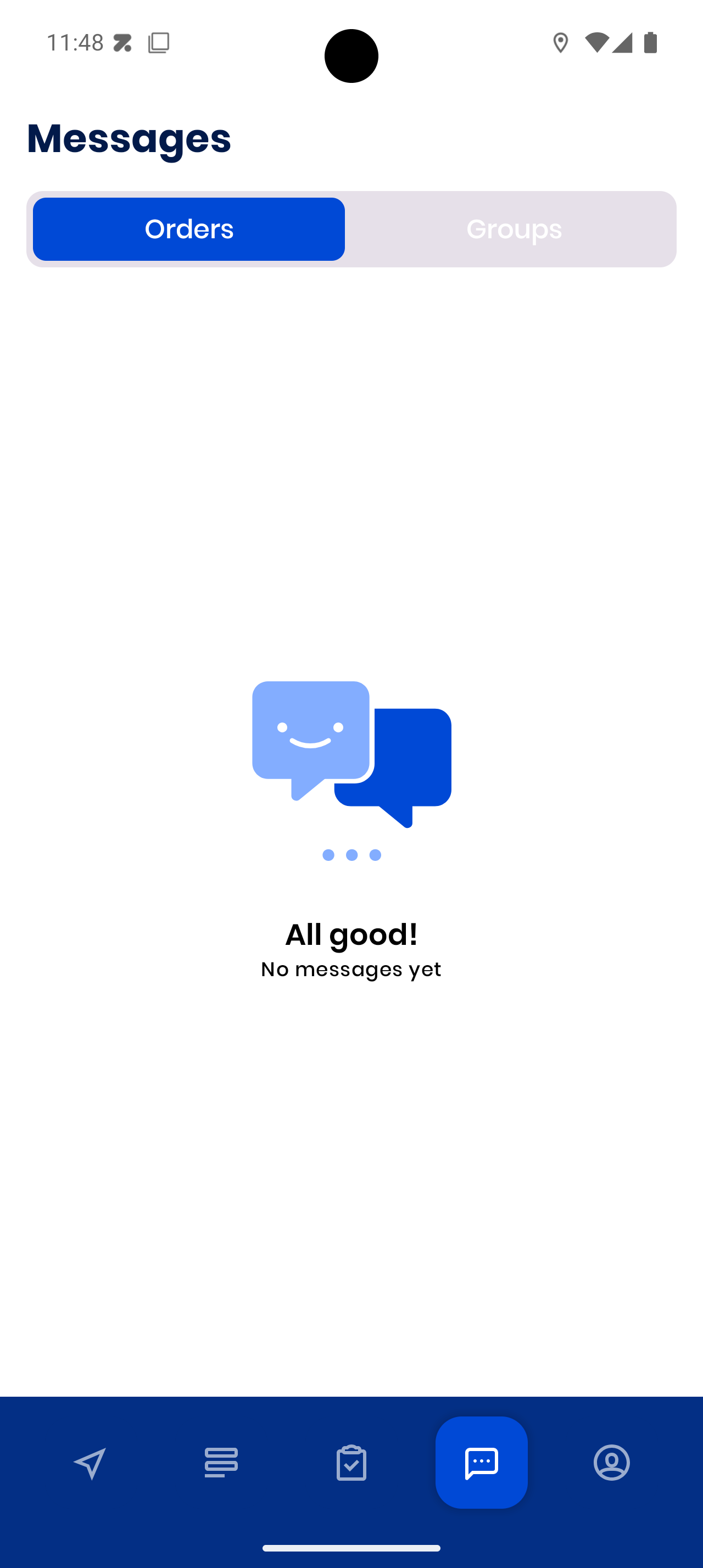
Orders tab for messages linked to specific orders:
-
Groups tab for group communication:
If there’s nothing new:
All good! No messages yet.
Pro Tips for Smooth Driving
- Always go online before your shift — otherwise you won’t get orders.
- Check your navigation setting in the morning so you don’t waste time switching mid-route.
- Scan packages when possible — it’s faster and avoids mistakes.
- Complete each step (Colli → Cargo Carrier → Proof of Delivery) before hitting Complete Stop.
- Keep your phone charged — live tracking depends on it.
- Read order notes — sometimes there are special delivery instructions.
- Update location details if you notice a wrong address — this helps everyone.
- Communicate early — if something goes wrong, use the Messages tab to let dispatch know.
You’re now ready to handle your day from start to finish with Zendera.
Drive safe and deliver smart!