Draft Orders
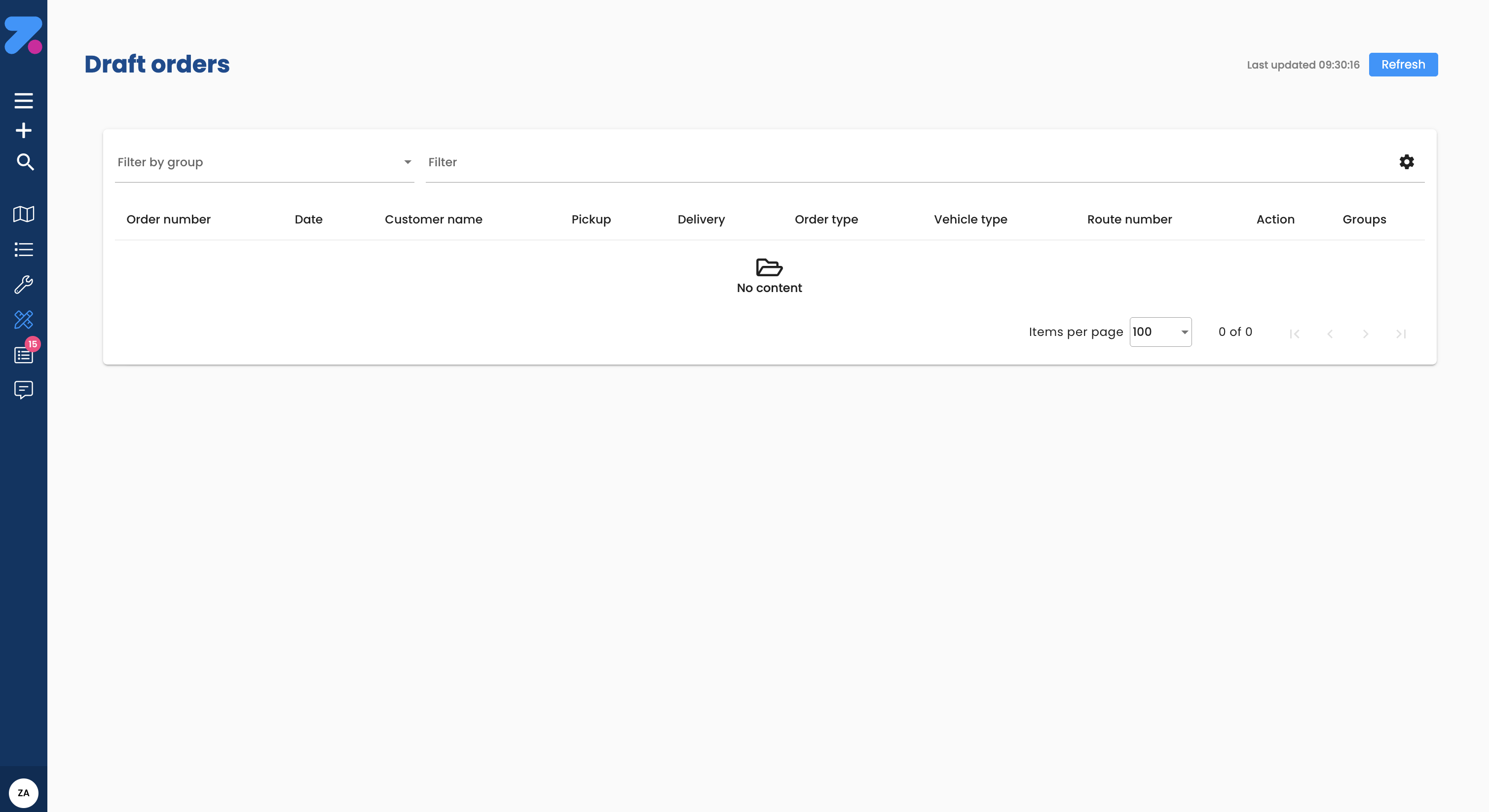
Draft Orders holds orders that arrived incomplete and need a human to finish them before they can be planned. A draft is not a real order yet — it won’t appear on a driver’s route until it’s completed.
Where drafts come from
Most drafts come from CSV imports (or API imports) where one or more required fields didn’t match what Zendera expected. Common reasons:
- Unknown customer reference.
- Missing or invalid time window.
- Invalid vehicle type or product unit.
- Missing internal order number.
You can also save a draft manually from the Create new order form if you want to come back to it later.
How to open Draft Orders
Click Draft Orders in the left sidebar.
How to read a draft
Open any draft from the list. The form looks like a normal order form, but the fields with problems are highlighted in red with a short explanation of what’s missing or invalid.
The red highlights are your to-do list — fill in or fix each one, and the draft is ready to convert.
How to convert a draft into a real order
- Open the draft.
- Fix every highlighted field.
- Click Convert to order.
If everything checks out, the draft becomes a real order in Order Control and the optimizer takes over from there. If something is still wrong, the form shows new red highlights — fix and try again.
How to discard a draft
If you don’t need the draft (e.g. it was an import mistake or a duplicate):
- Open the draft.
- Click Discard.
Discarded drafts are removed and won’t be auto-recreated.
How to handle drafts in bulk
If a CSV import created many drafts of the same kind (e.g. all missing the same customer reference), the fastest path is usually:
- Fix the underlying data — for example, add the missing customer in Customers.
- Discard the drafts.
- Re-run the import.
This is faster than fixing each draft one at a time.
Common draft issues
Unknown location names:
- Check spelling matches exactly with your Locations database
- Location names are case-sensitive
Missing time windows:
- At minimum, add pickup earliest and delivery latest times
- Use format: YYYY-MM-DD HH:MM:SS
Invalid addresses:
- Ensure complete address with street, postal code, and city
- Verify the address can be geocoded/located on map
What’s next
- To re-import after fixing the underlying data, see Creating orders.
- To review converted orders, see Order Control.