Reports
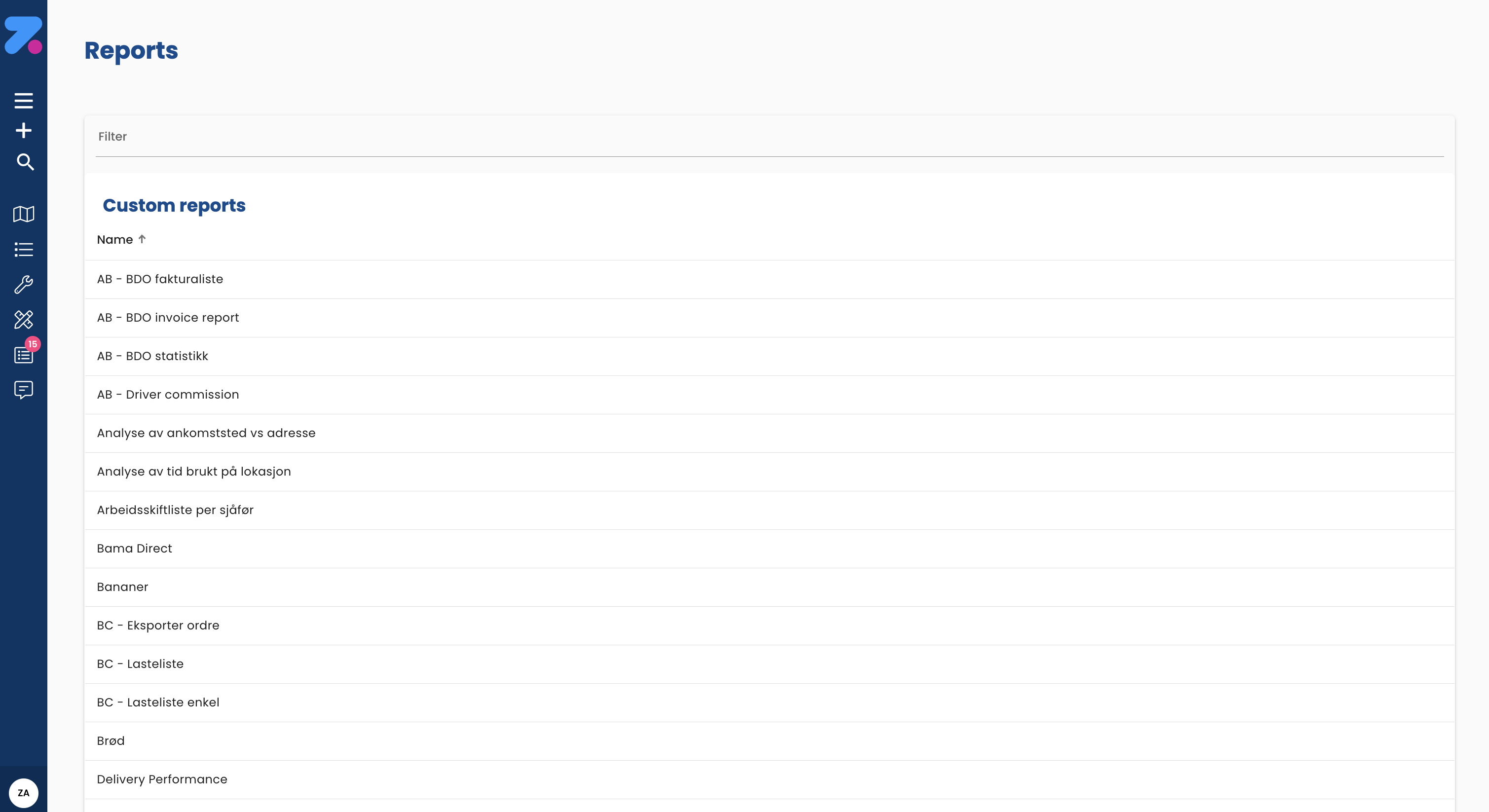
Reports is where you generate exports and summaries — for ops review, finance, or sharing with customers. Zendera ships with default reports for common needs and lets you build custom reports with a visual query designer.
For trend dashboards (KPIs over time), see Analytics.
How to open Reports
Click Reports in the left sidebar.
How to run a default report
- Open Reports → Default reports.
- Pick a report from the list — examples:
- Orders by status.
- On-time delivery.
- Driver performance.
- Carrier balance (carriers out vs. in per customer — see Cargo carriers).
- Custom field acknowledgments — who confirmed what, and when.
- Set filters (date range, customer, driver, etc.).
- Click Run.
- Download as PDF or XLSX from the top right.
How to build a custom report
- Open Reports → Custom reports → New report.
- In the query designer:
- Tables — pick which entities to query (orders, stops, drivers, customers).
- Columns — pick the fields to show.
- Filters — set conditions (e.g. status = Complete, date in last month).
- Sort and group — optional.
- Click Preview to see results.
- Save the template (give it a name) so you can re-run it.
- Run, then export.
How to schedule a report
If your org has scheduled-task support enabled:
- Open the report template.
- Click Schedule.
- Pick frequency (daily, weekly, monthly), time, and recipients.
- Save.
The report runs and emails out to recipients on the schedule. For recurring orders (not reports), see Recurring Orders.
How to run a custom field acknowledgment report
If you use custom field acknowledgments (driver-confirmed checkboxes in the mobile app), you can audit them:
- Reports → Custom field acknowledgments.
- Set:
- Date range.
- (Optional) which custom field definition.
- (Optional) which location.
- Run.
The output shows who acknowledged what and when. Outstanding (un-acknowledged) required fields are listed with their order/stop.
How to export invoices
If your org generates invoices in Zendera:
- Per invoice — open it → Download PDF.
- Bulk — in the invoices view, select rows → Export to XLSX.
If your accounting system needs invoice data automatically, ask your IT team about a webhook or API integration (Settings → Webhooks).
Common gotchas
- Custom report timeouts. Custom report runs across very large date ranges can be slow or time out. Narrow the range or filter by customer/driver.
- Acknowledgment counts only completed acknowledgments. Pending or untouched required fields show as outstanding, not as “in progress”.
- Default reports vs. custom reports — default reports are fixed templates, fast and reliable. Custom reports are flexible but easier to misconfigure.
What’s next
- For trend dashboards (on-time %, fill rate over time), see Analytics.
- For setting up the custom fields used in acknowledgment reports, see Settings.
- For driver costs that feed margin reports, see Drivers → Costs.