Quick Start Guide
Complete driver workflow from start to finish. Perfect for your first day on the road!
Before You Start
Before You Start Checklist
Make sure you have:
- Downloaded the Zendera app — from Google Play on Android or the App Store on iPhone
- Received your login credentials from dispatch
- Your phone is charged and ready
Log In
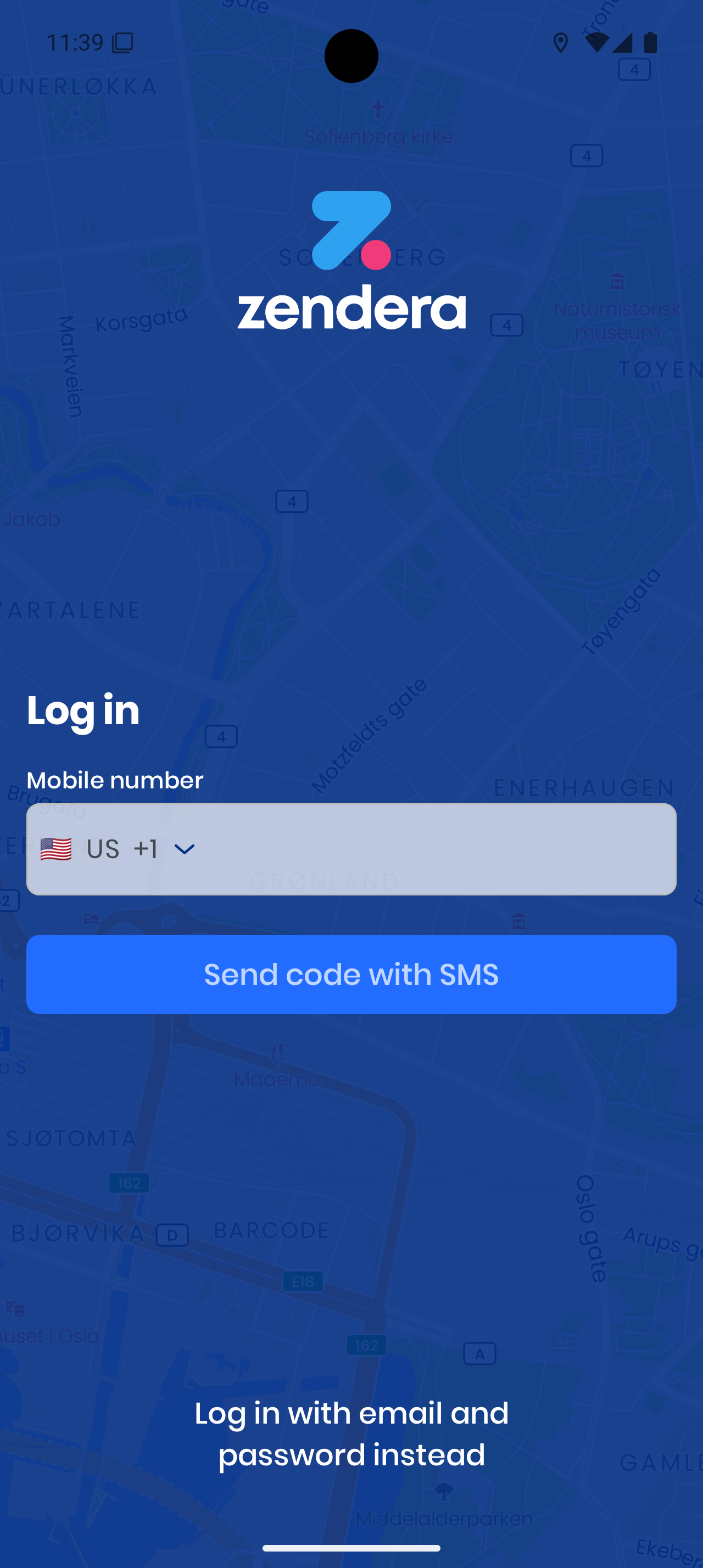
SMS Login (Recommended):
- Select your country code
- Enter your phone number
- Tap Send code with SMS
- Enter the code you receive and tap Confirm code
Email Login: Tap Log in with email and password instead, enter your email + password → Login with email (If you forgot your password, tap Forgot your password?)
Location: When the app shows Location is required to use Zendera, tap Allow location and allow it in your phone’s prompt.
Go Online & Setup
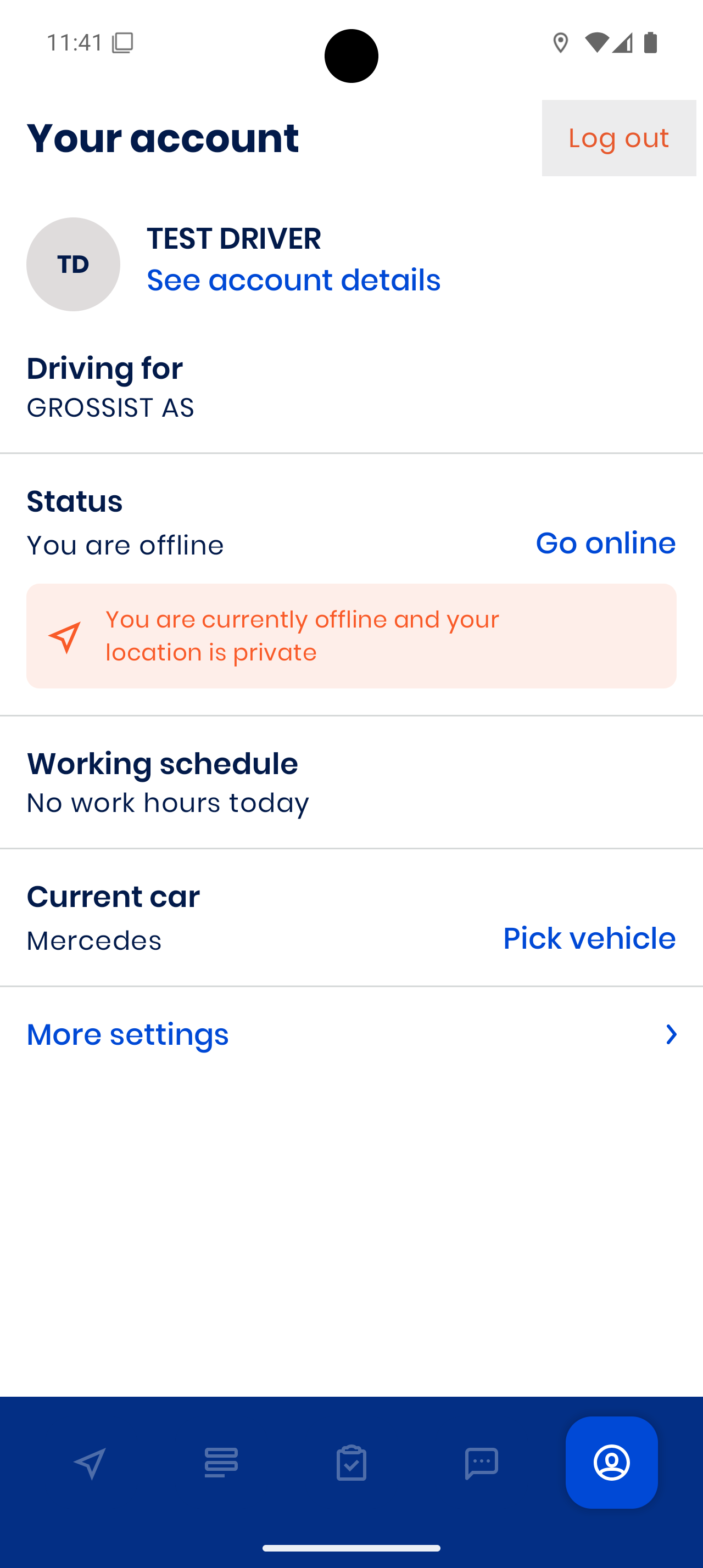
From Your account, tap Go online
🚗 Pick the correct vehicle under Current car
📅 Check your working schedule
Important: You won’t receive orders until you’re online!
Navigation Setup:
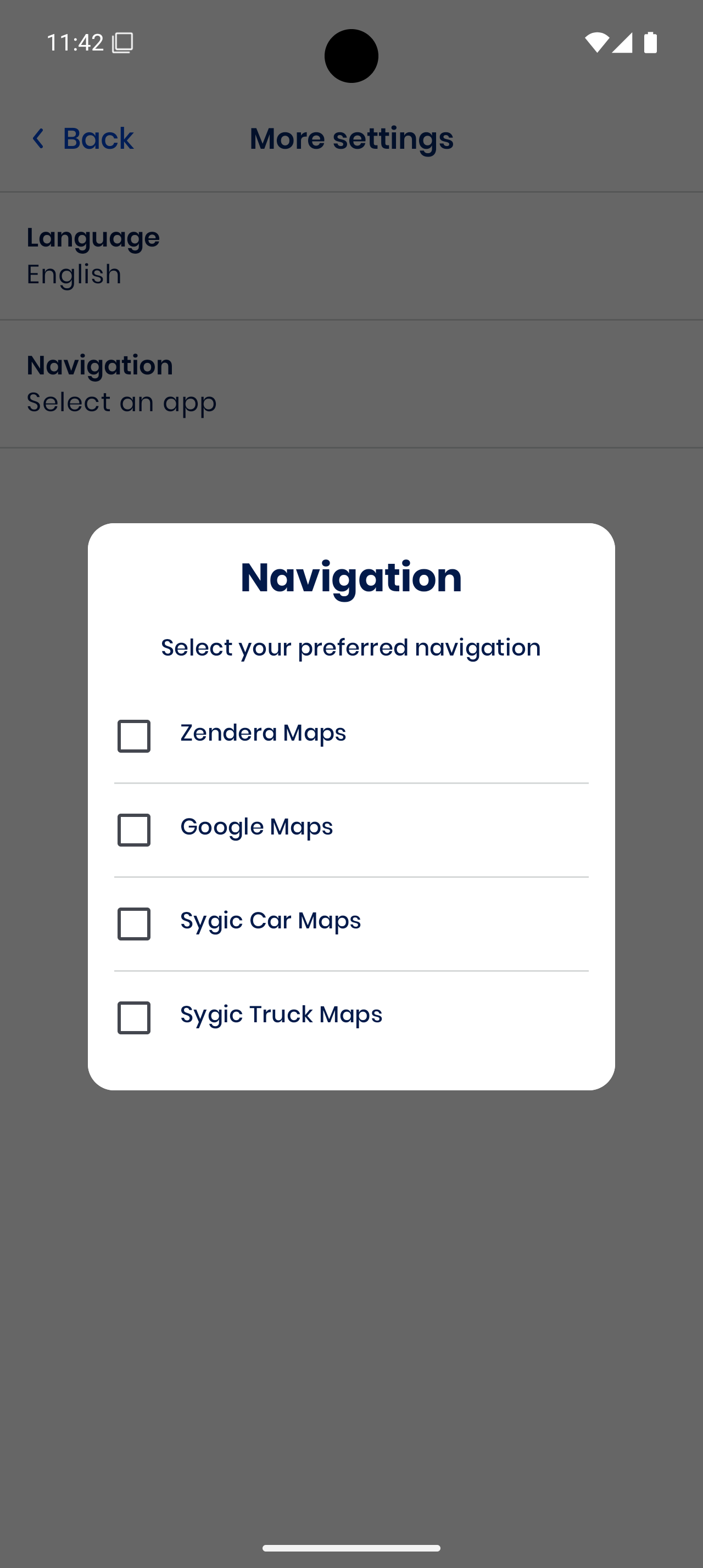
- Tap More settings → Navigation
- Choose: Google Maps, Sygic Car Maps or Sygic Truck Maps — or Apple Maps on iPhone
Check Orders
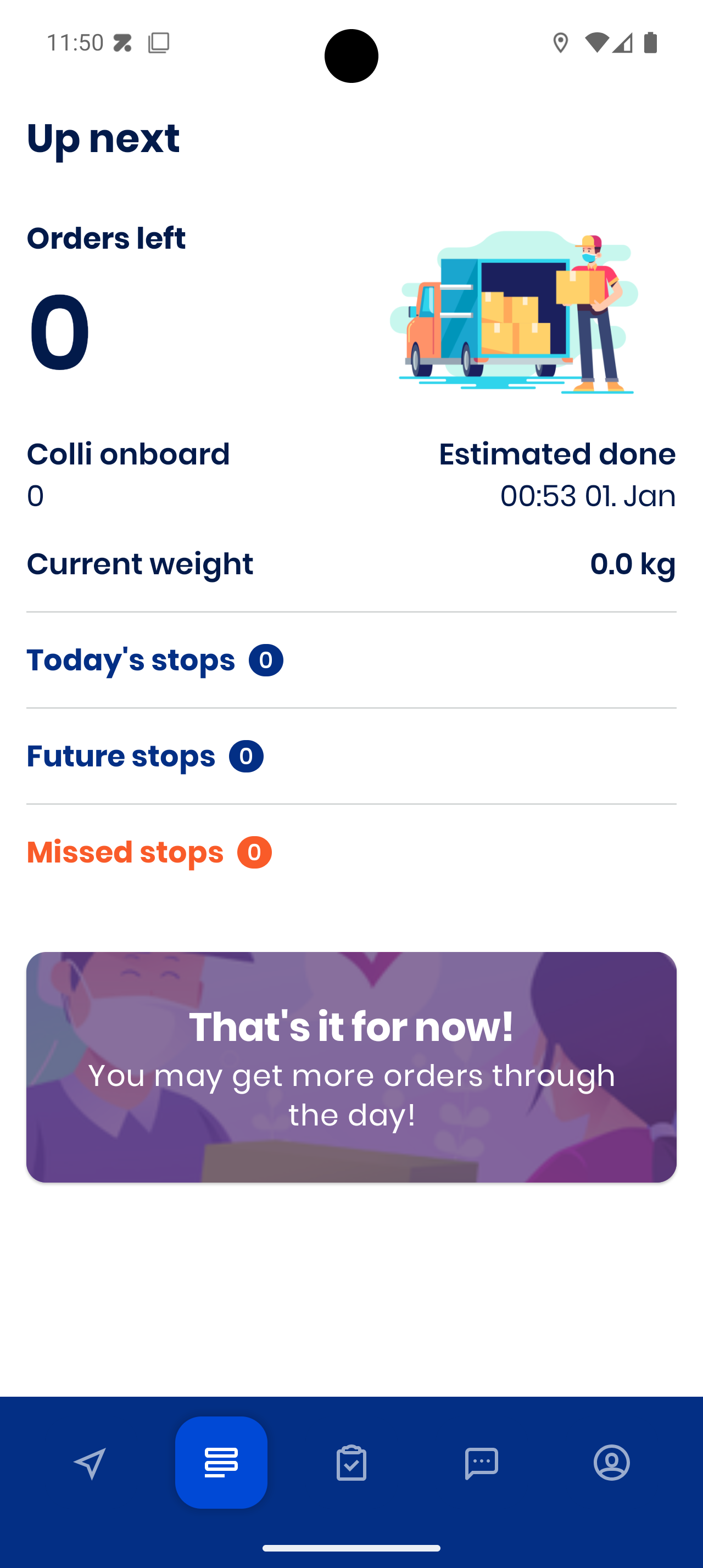
Open Up next to see:
- Orders left
- Colli onboard
- Estimated done
- Today’s, future, and missed stops
💤 If empty, wait for dispatch to assign jobs
At Each Stop
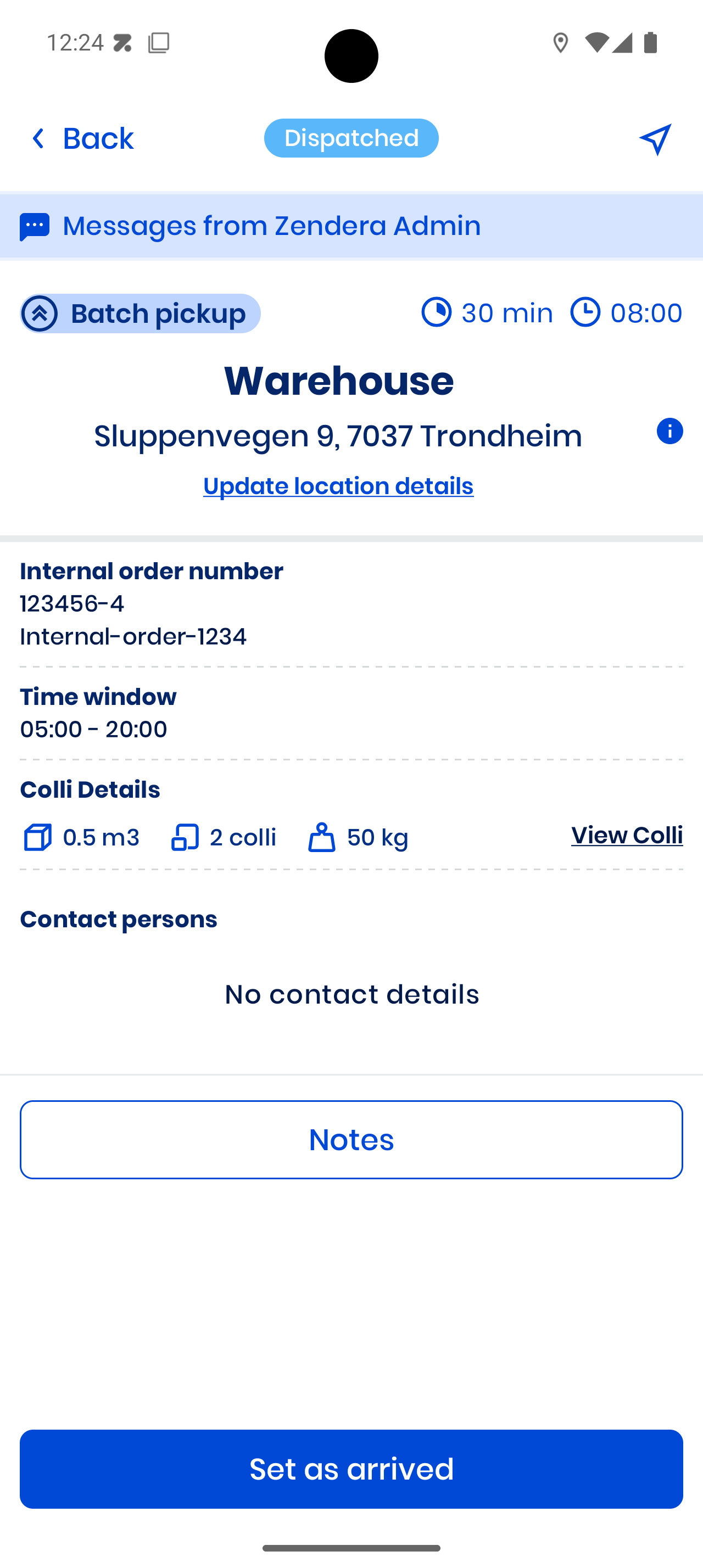
Arrive: Tap the stop card → “Set as arrived”
Register: Tap Register and work through the sheet: Colli, plus Cargo Carrier and Proof of Delivery when the stop needs them
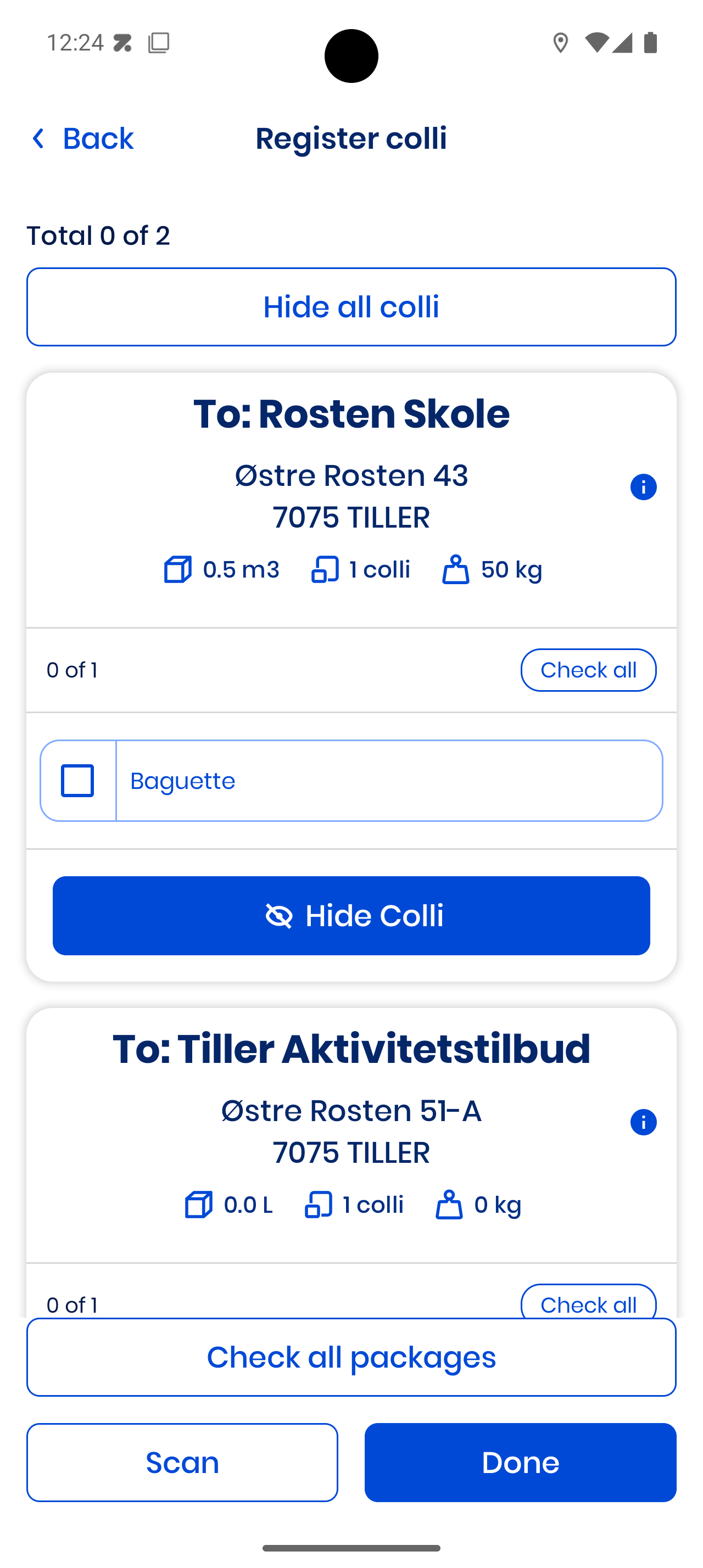
Register colli: Tick manually or Scan barcodes, then tap Done
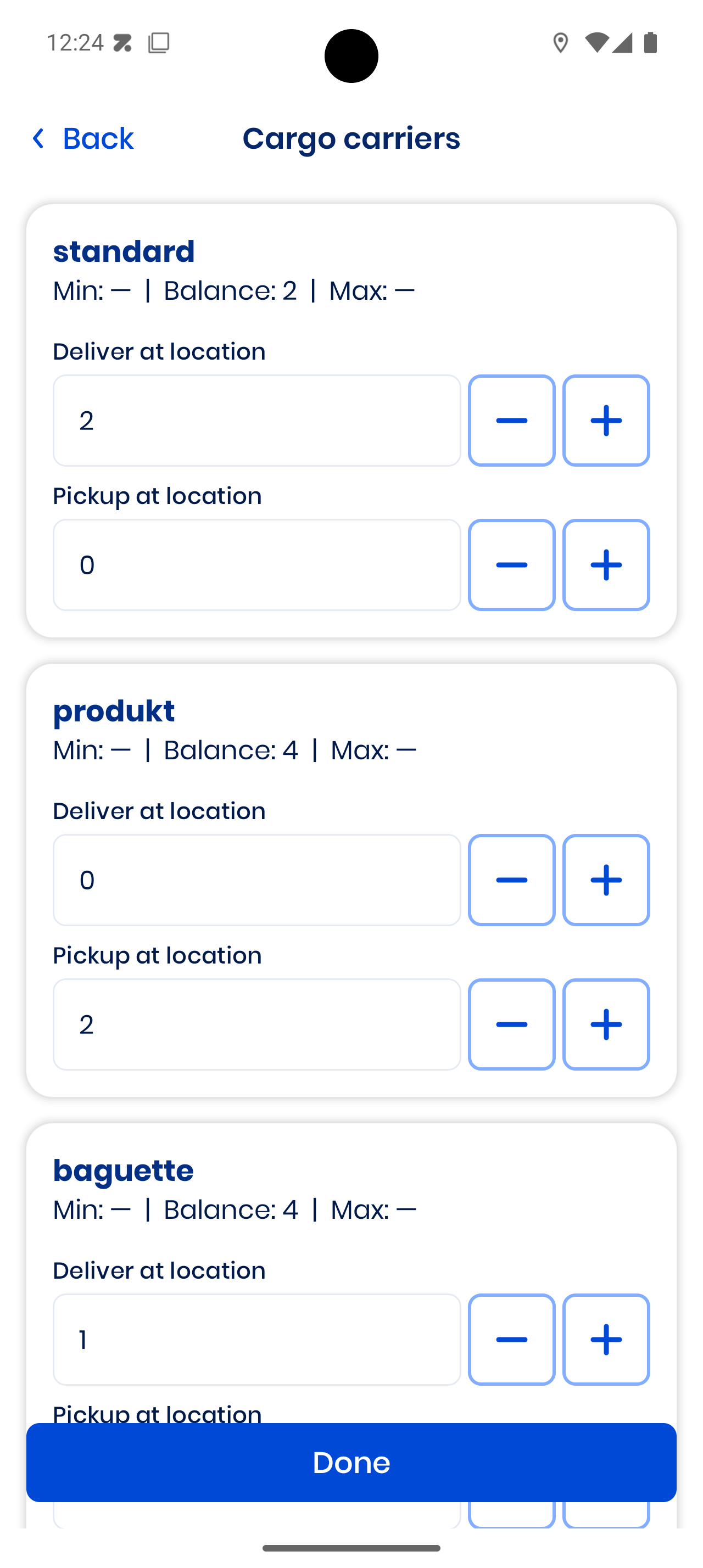
Register cargo carriers if needed (cages, boxes) — only Done saves your counts
Follow any special notes for the delivery, and use Notes to report problems (for example No one there or Can’t handle)
Complete the Stop
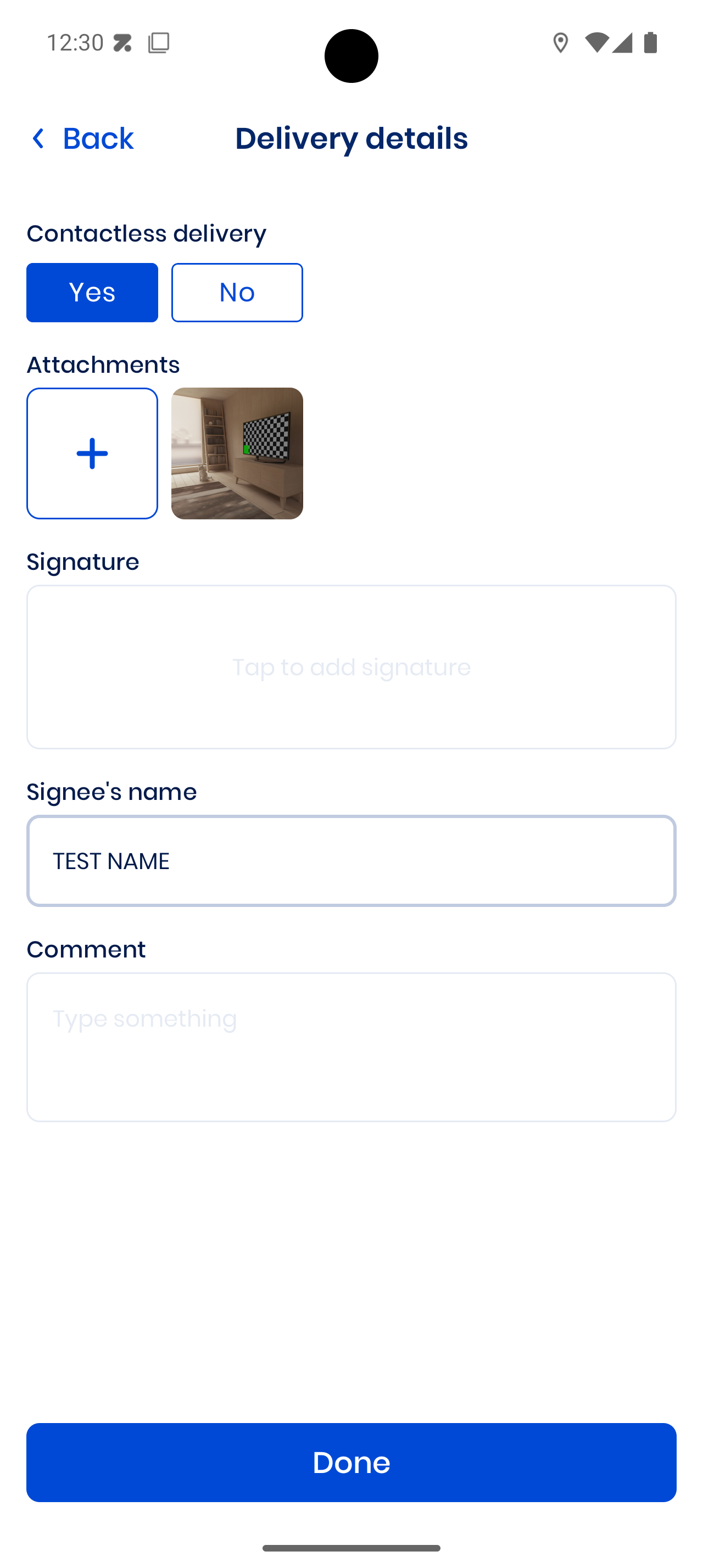
Make sure all steps are complete:
- Colli (completed)
- Cargo Carrier (completed)
- Proof of Delivery (completed)
Take a photo or get a signature — the screen turns sideways and the customer
signs inside the box
Tap Complete Stop
📶 No internet? The stop is submitted automatically when you’re back online.
Review & Messages
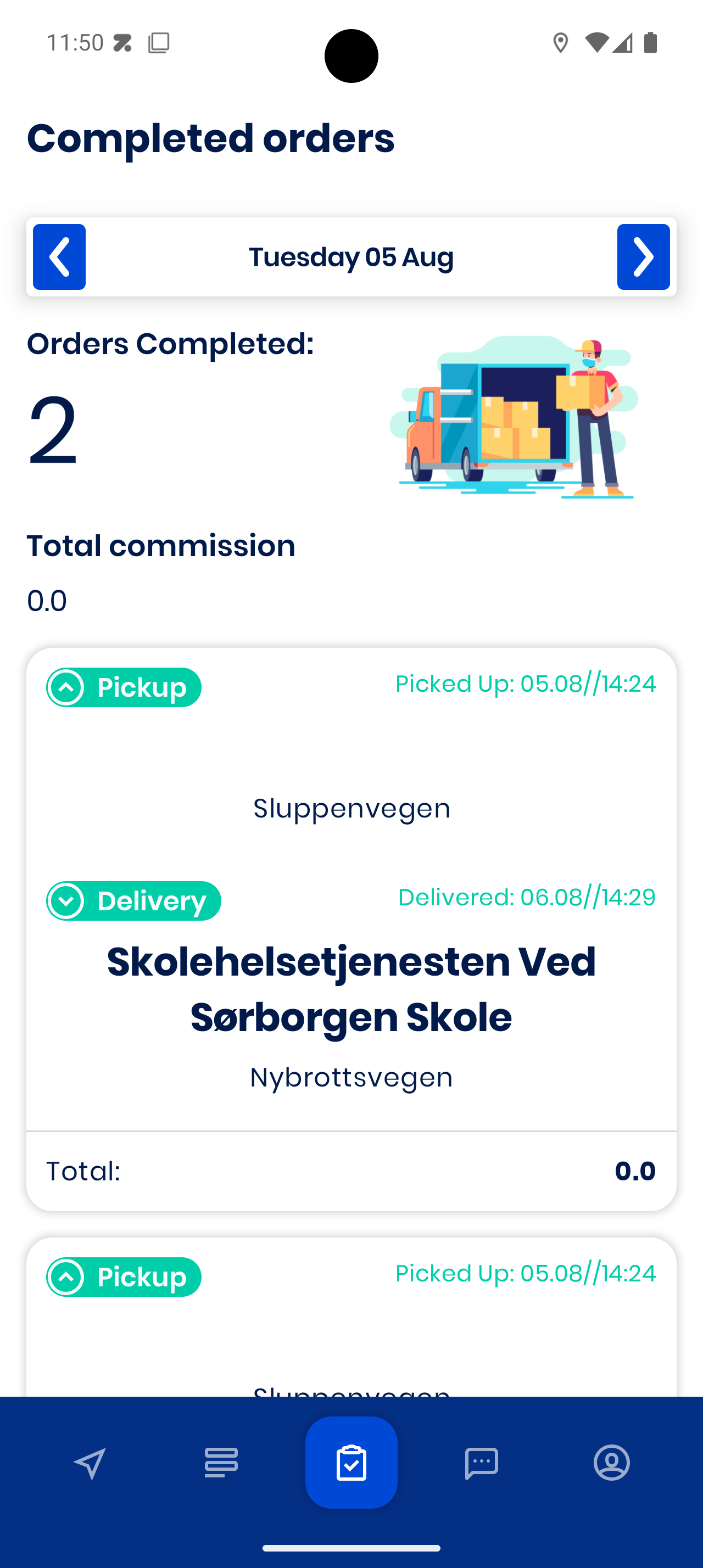
📂 Completed orders → See details, your total commission, or Update location details
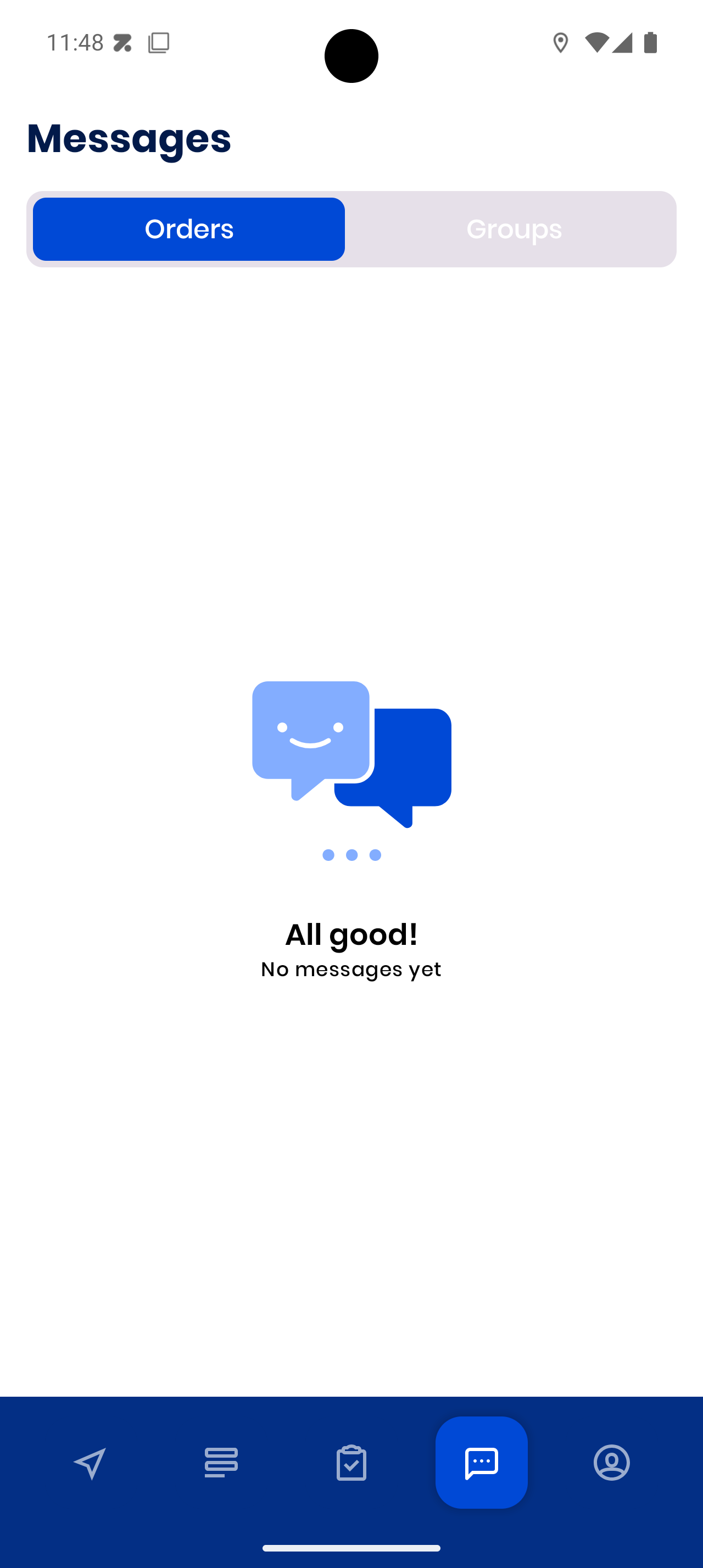
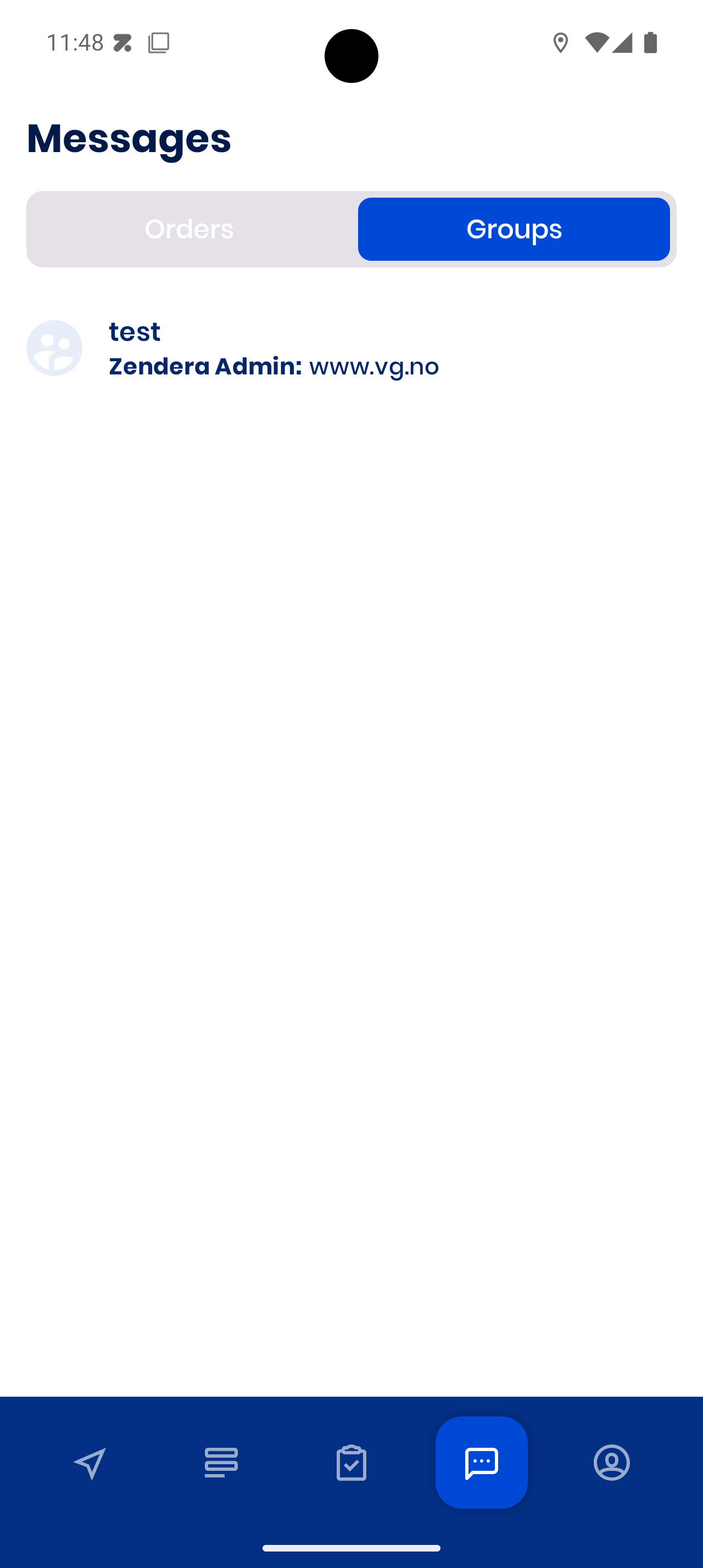
Stay connected:
- Orders tab → Messages about specific jobs
- Groups tab → Team updates
Daily Success Tips
Essential Habits:
-
Always go online before your shift
-
📷 Scan packages when possible — faster, fewer errors
-
🔋 Keep your phone charged — live tracking depends on it
-
Read order notes — special delivery instructions matter
-
🔄 Complete steps in order — don’t skip ahead in the workflow
Quick Troubleshooting:
-
No orders? → Check you’re online
-
Can’t find address? → Use Update location details in the app
-
Navigation issues? → Check More settings → Navigation
-
Problems? → Use Messages tab to contact dispatch early
Need More Help?
📖 Full Guide: Check out the complete driver guide for detailed instructions with all screenshots.
Support: Use the Messages tab in the app to contact dispatch anytime.
Related Resources
- Full App Walkthrough - Every screen of the driver app in detail
- Driver Tasks - How dispatchers assign and track your work
- Getting Started - First-time sign-in and the basics
Help & Support: Use the Messages tab in the app to reach dispatch, or email care@zendera.no.
You’re ready to drive! Drive safe. Deliver smart.
Remember: Safety first, efficiency second. Take your time to learn the app - you’ll get faster with practice.