Driver App Guide
Welcome to the Zendera Driver App!
This guide walks you through the full driver flow — from logging in to
completing deliveries.
The Android version can be downloaded from Google Play or App Store.
Logging in
You can log in two ways — with SMS or with email and password.
Log in with SMS:
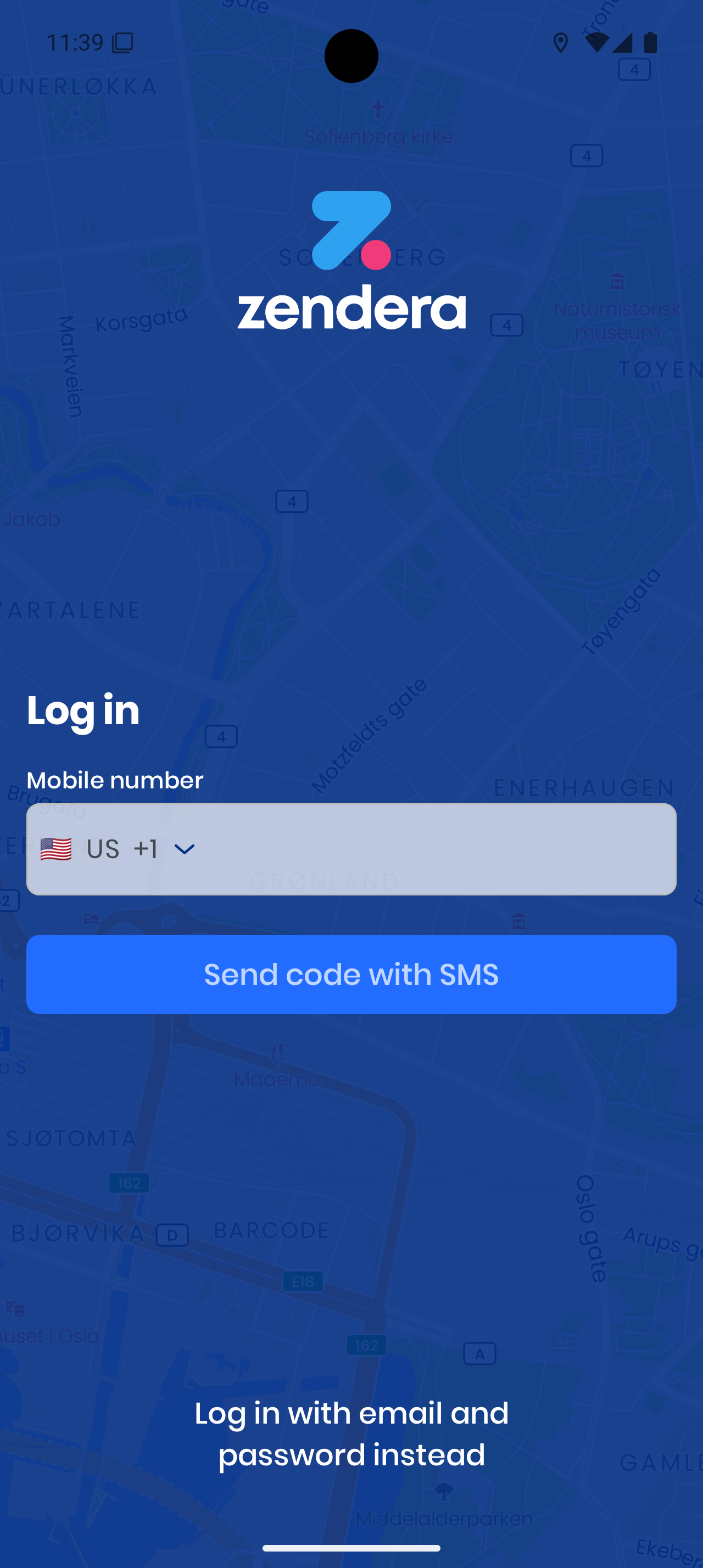
- Select your country code.
- Enter your mobile number.
- Tap Send code with SMS.
- Enter the code you receive.
Log in with Email:
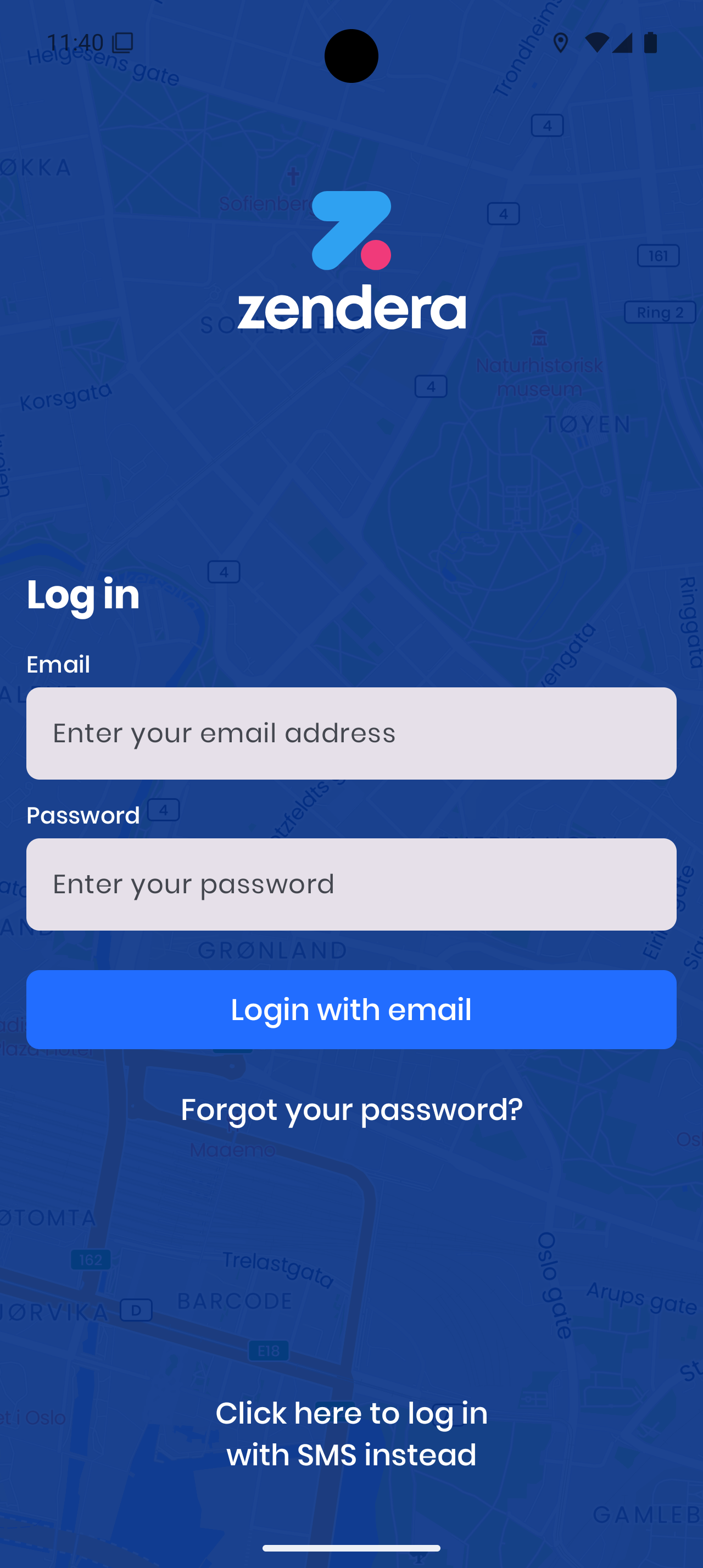
- Enter your email address.
- Enter your password.
- Tap Login with email.
- If you forgot your password, tap Forgot your password?.
Your Account
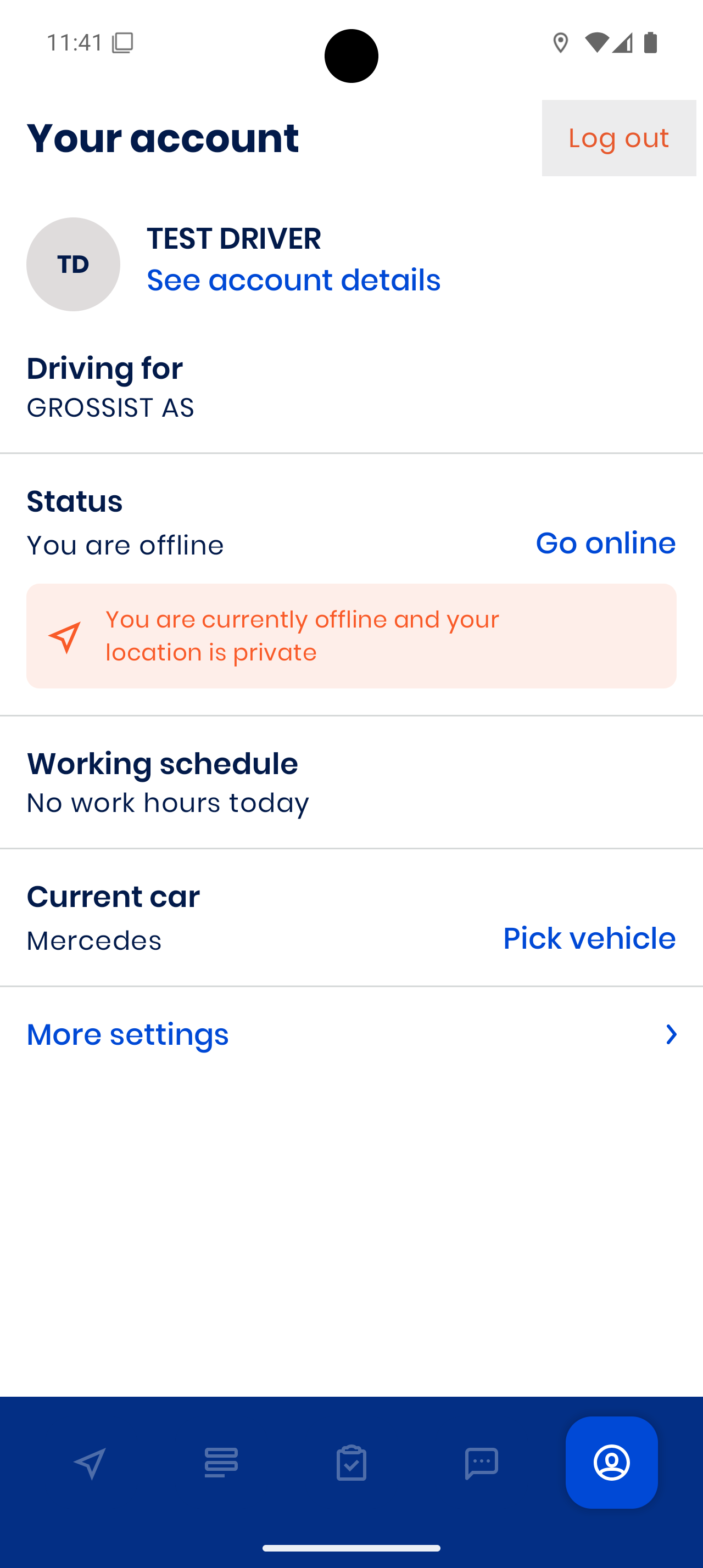
Here you can:
- Go online / offline – This controls if you’re available for orders.
- See your working schedule – Shows your planned hours for the day.
- Pick your current car – Make sure the correct vehicle is selected.
- Go to More settings – Change language, navigation, and more.
Settings & Navigation
More settings:
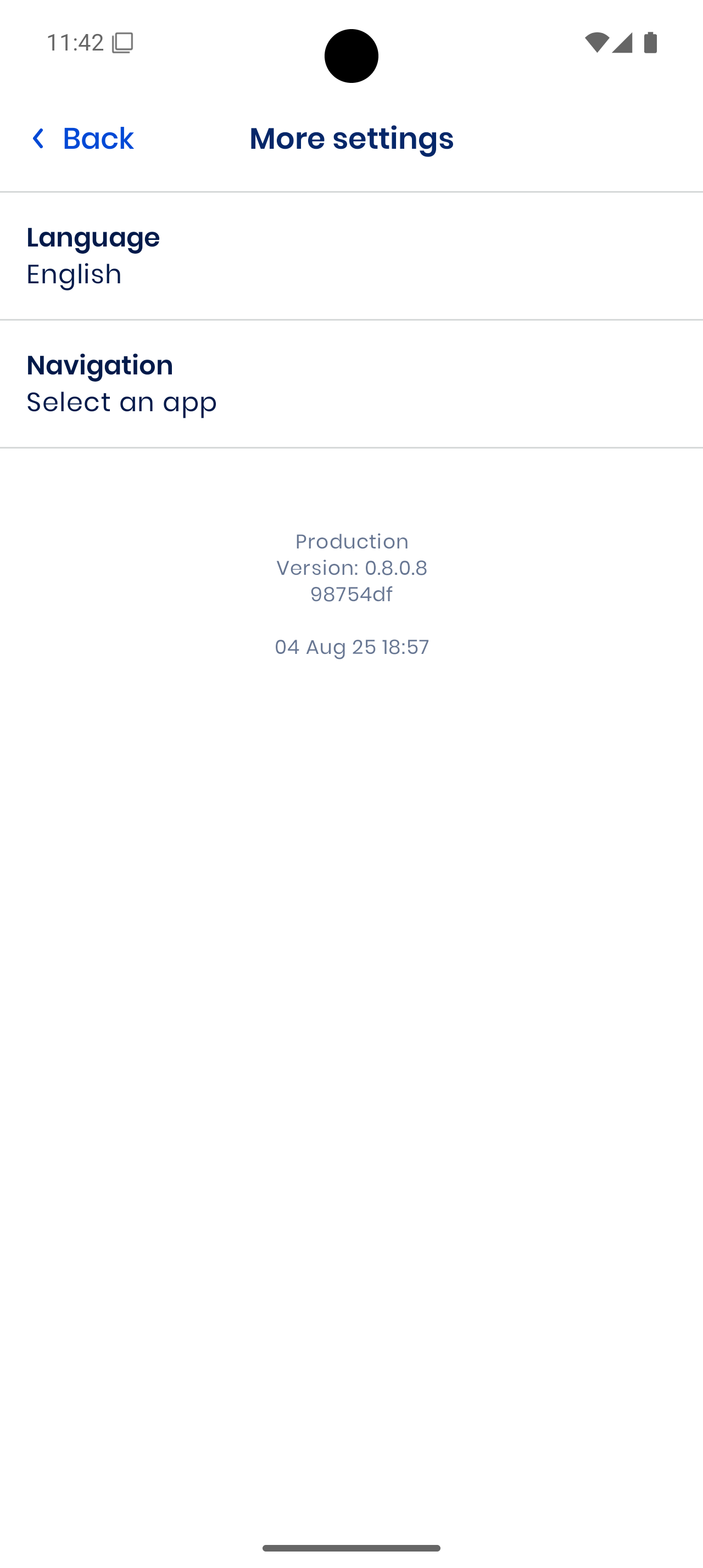
Here you can change Language and Navigation app.
Choosing navigation:
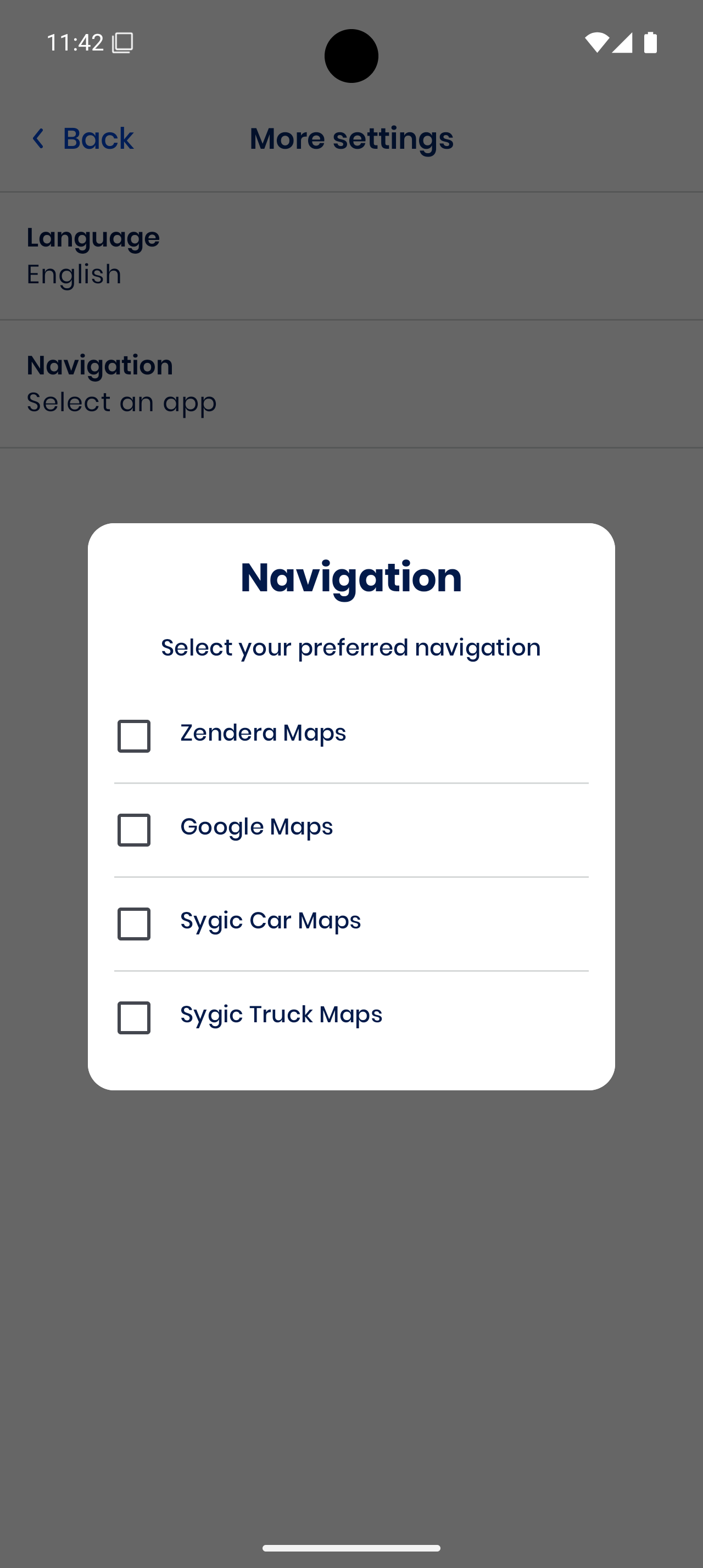
Pick your preferred app:
- Zendera Maps
- Google Maps
- Sygic Car Maps
- Sygic Truck Maps
Assigned Orders
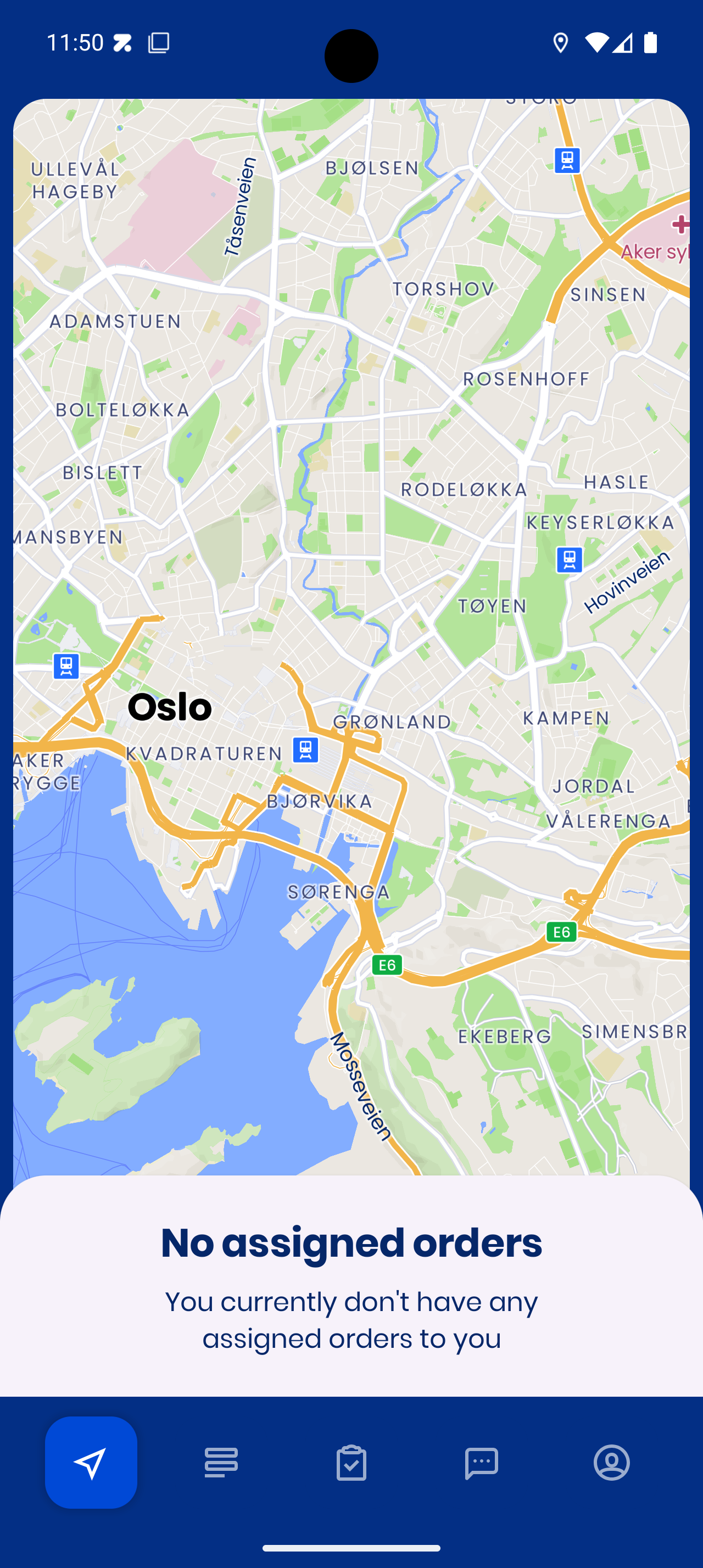
When you have no orders:
When orders are assigned:
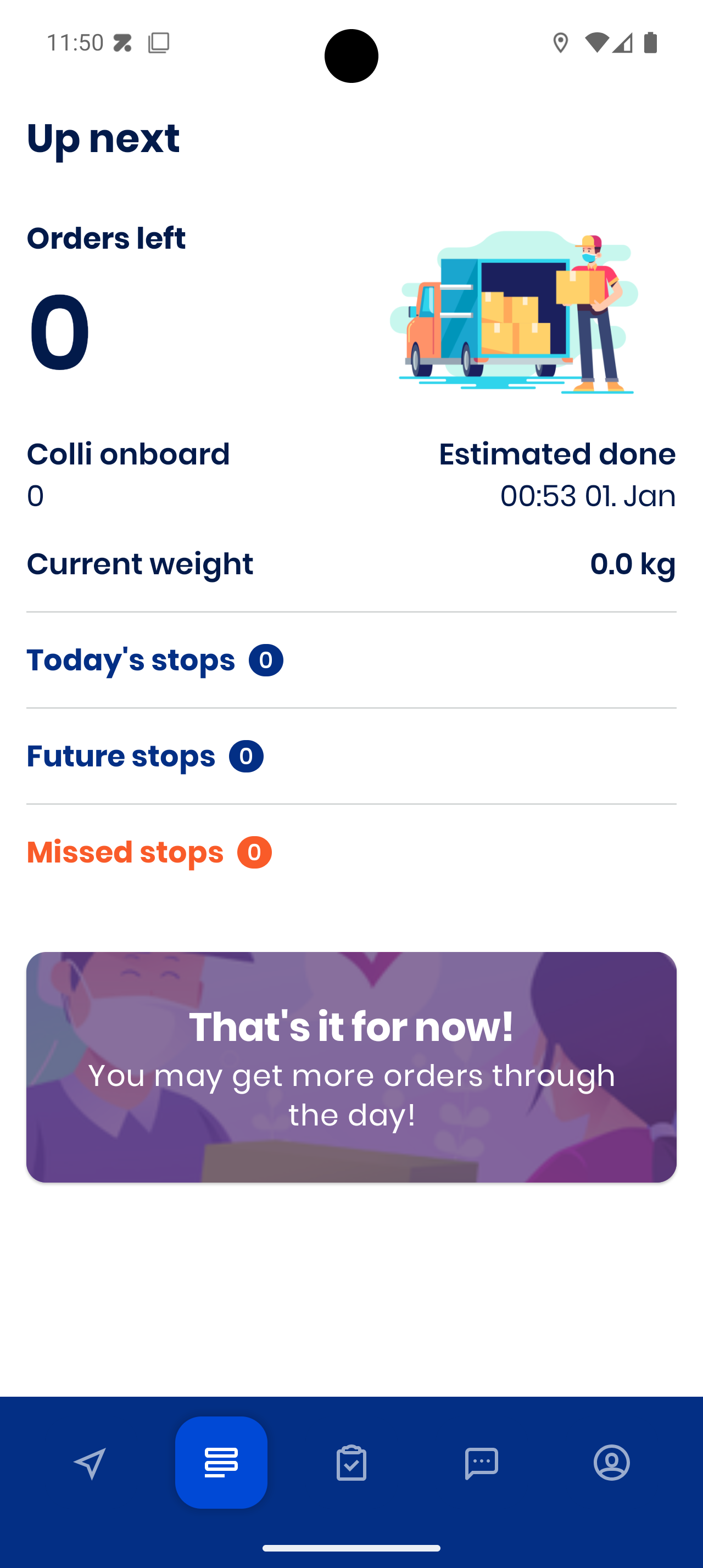
You’ll see:
- Orders left
- Colli onboard (packages)
- Weight onboard
- Estimated completion time
- Today’s, future, and missed stops
Starting a Stop
Tap on a stop card to see details:
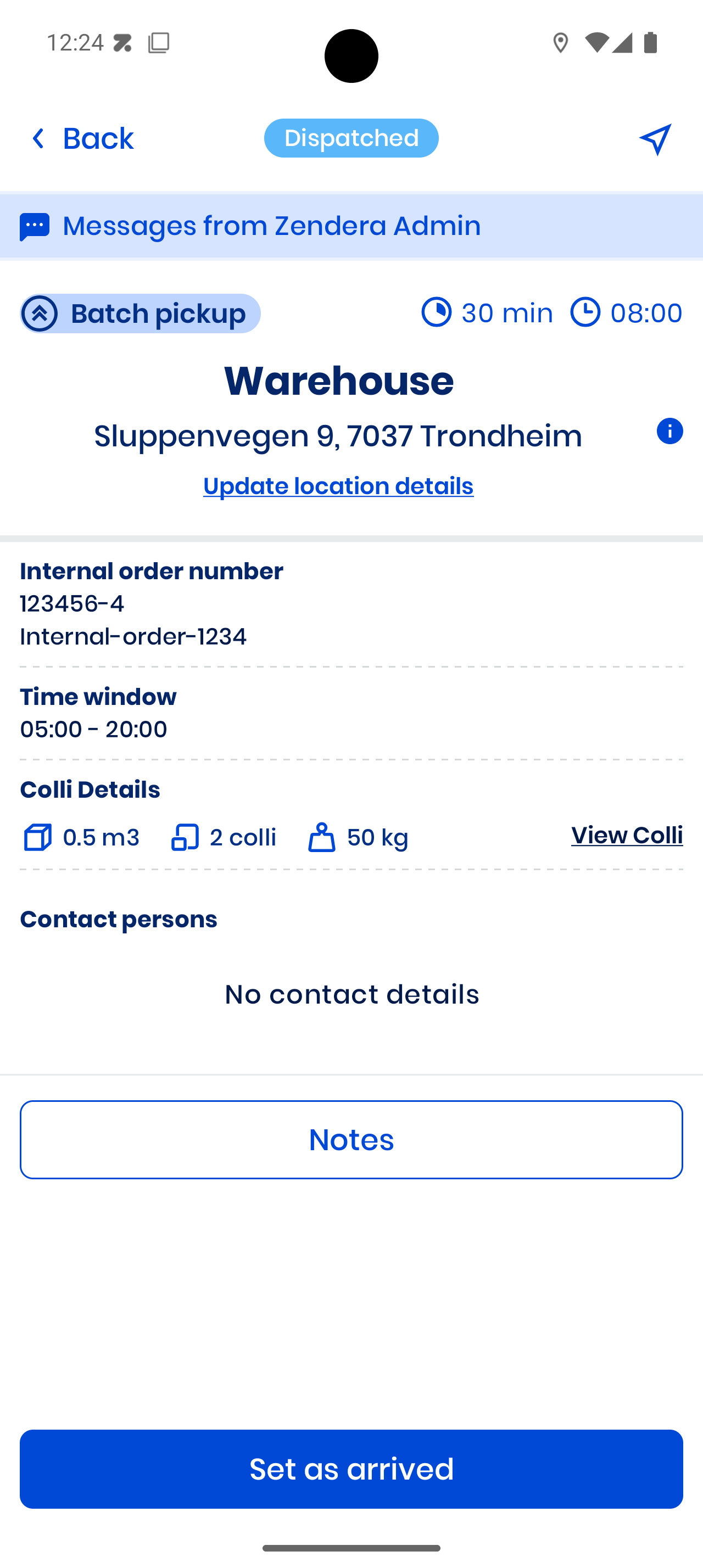
- Check address and time window
- See colli details
- Tap Set as arrived when you reach the location
Registering Colli (Packages)
When you arrive, you may need to register colli:
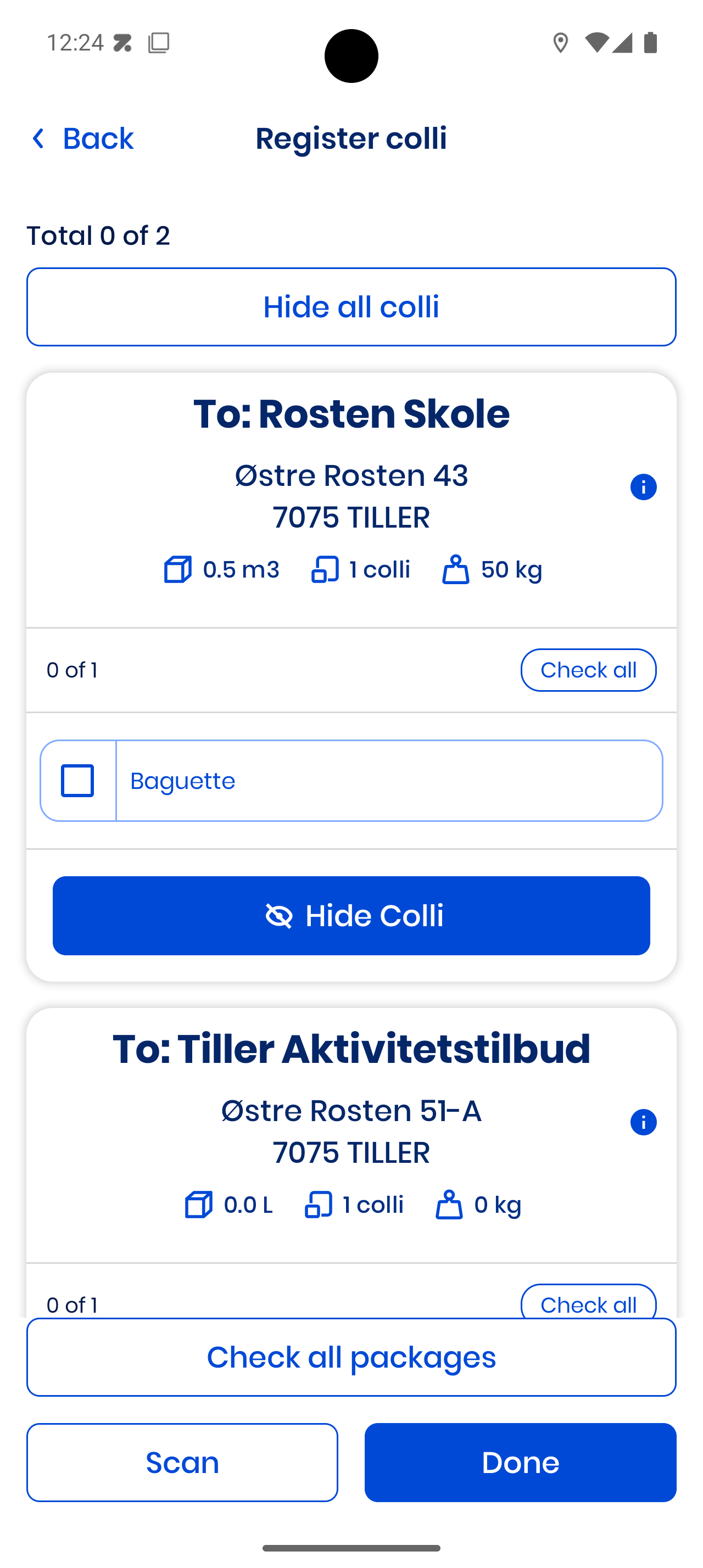
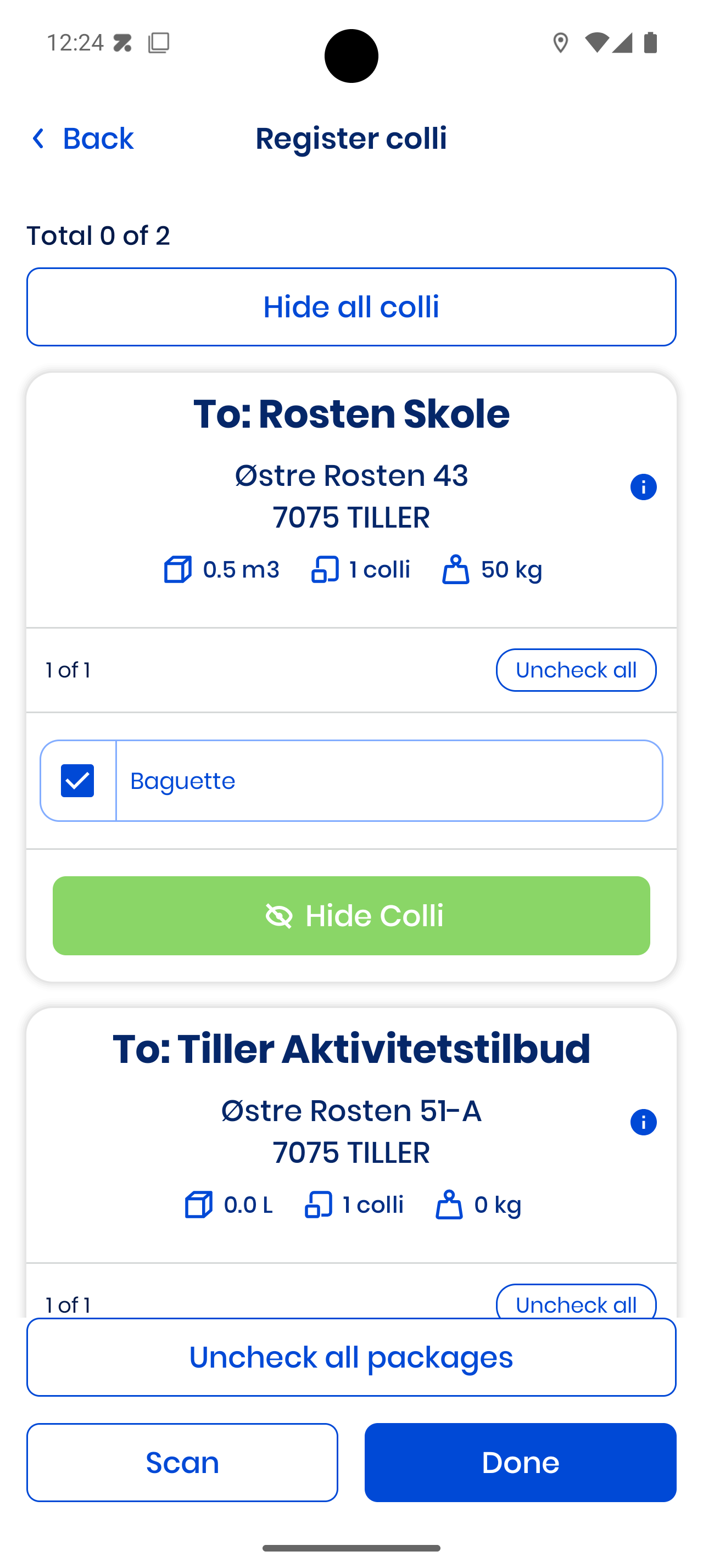
- Check items manually or tap Check all packages
- You can scan barcodes with Scan
- Tap Done when finished
Example with checked colli:
Registering Cargo Carriers
Some stops require you to register cargo carriers like cages or boxes:
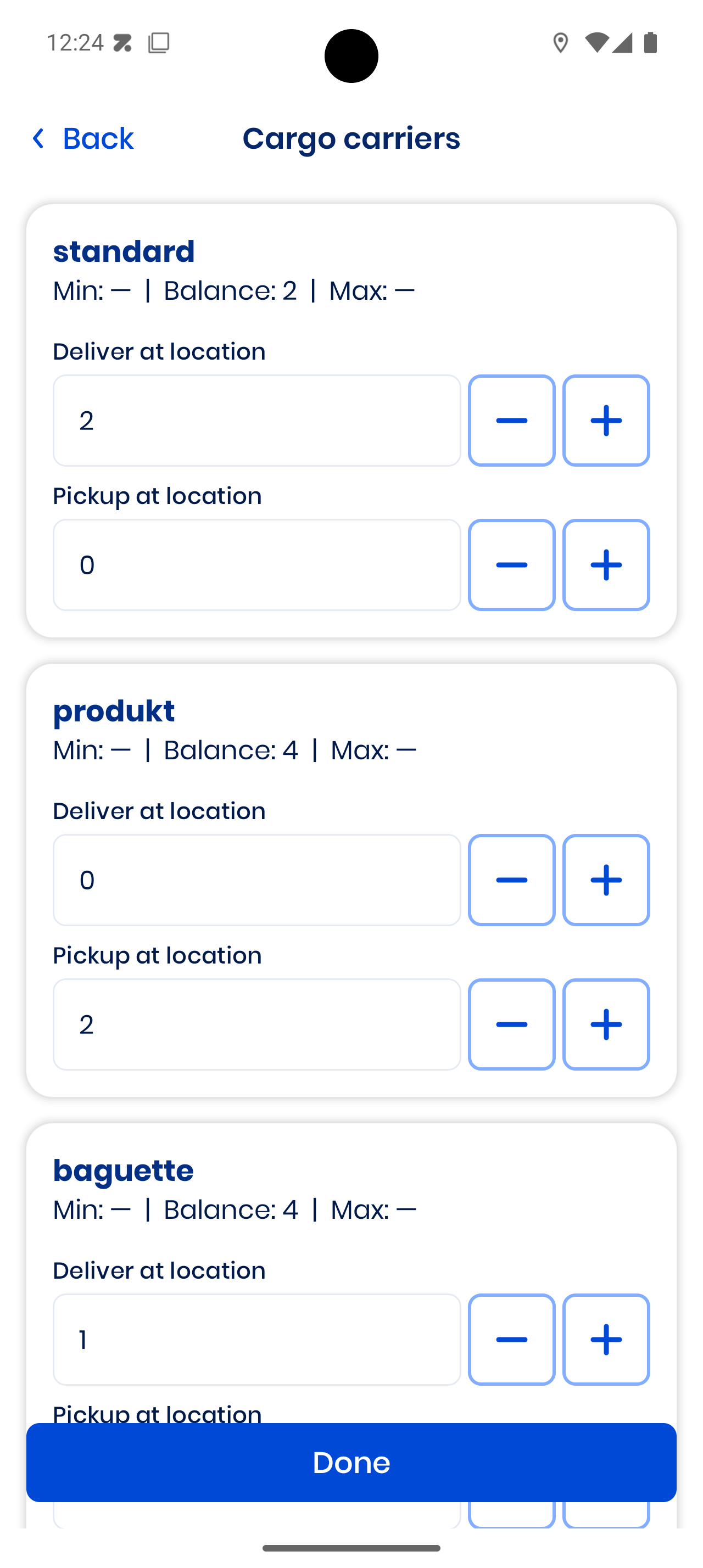
- Enter how many you deliver and how many you pick up
- Tap Done when ready
Completing a Pickup
When all steps are done for a pickup stop:
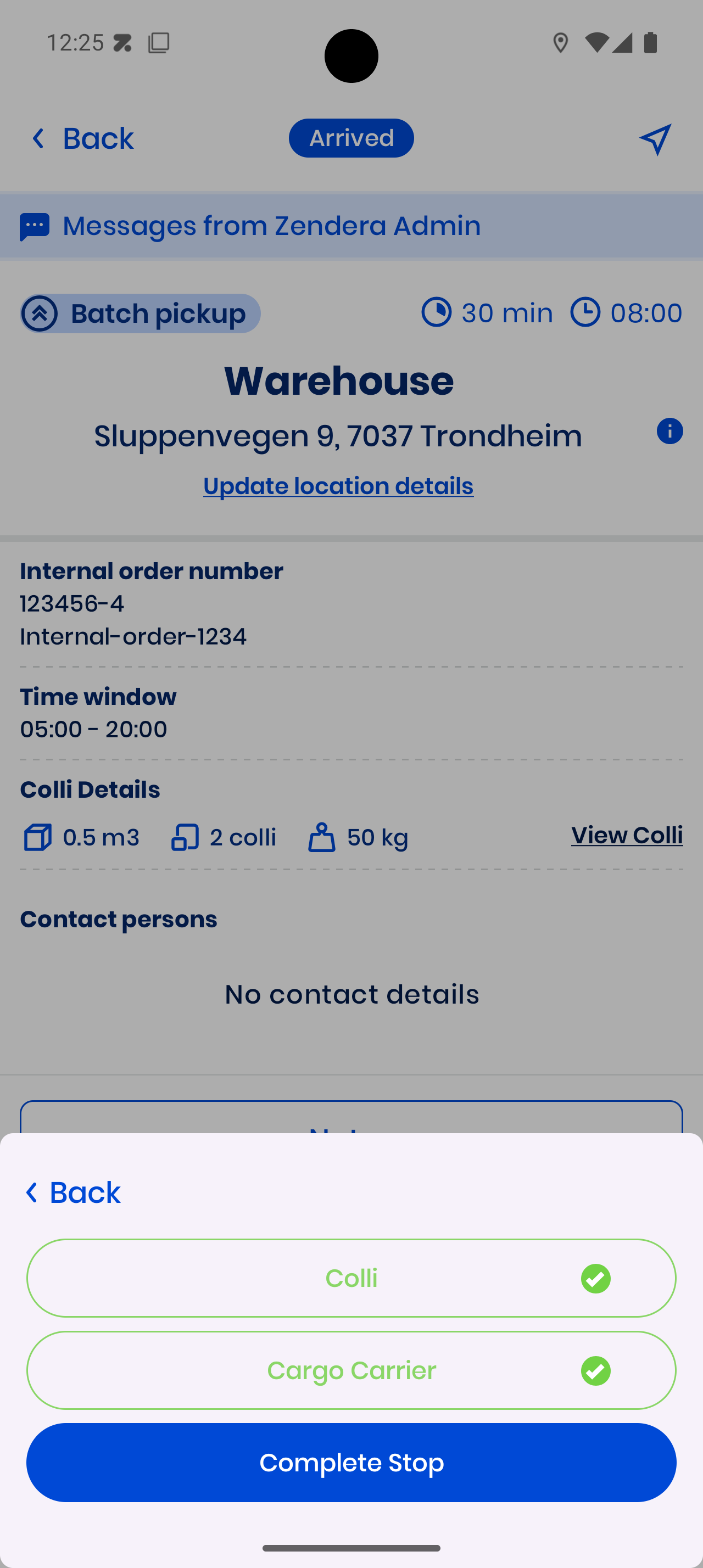
Press Complete Stop to finish.
Completing a Delivery
Deliveries may require proof — either a photo or signature:
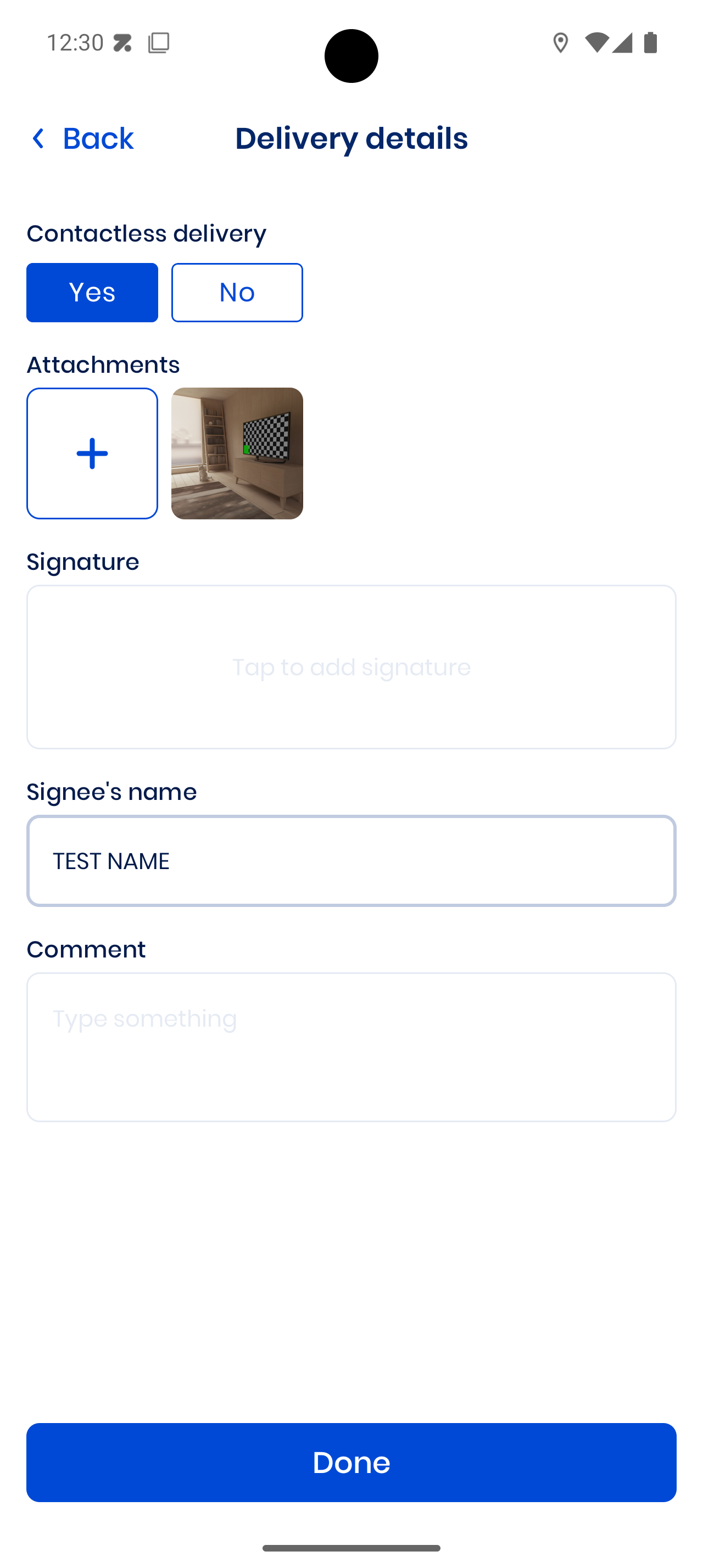
Once all required steps are checked:
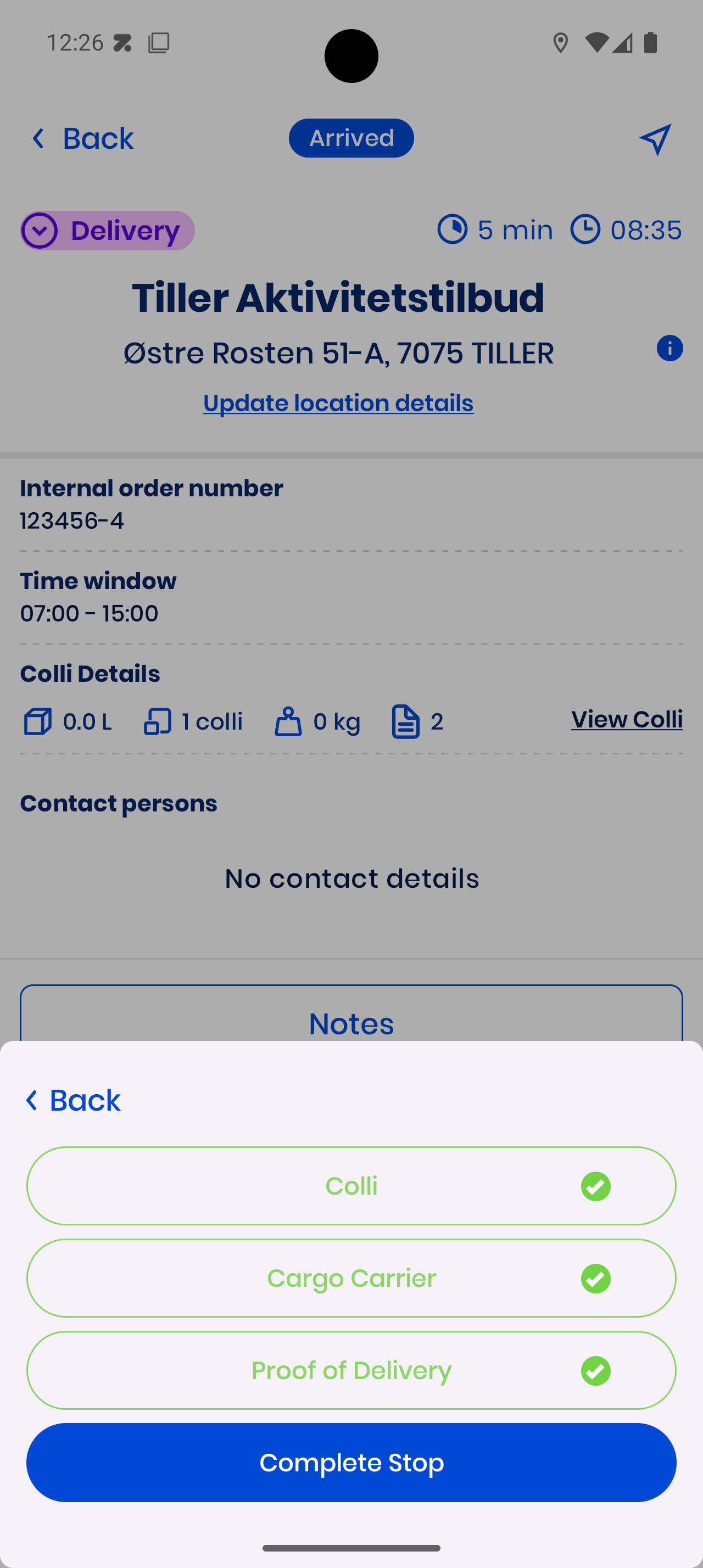
Tap Complete Stop.
Finished Stops & Completed Orders
When a stop is done, it moves to Completed Orders:
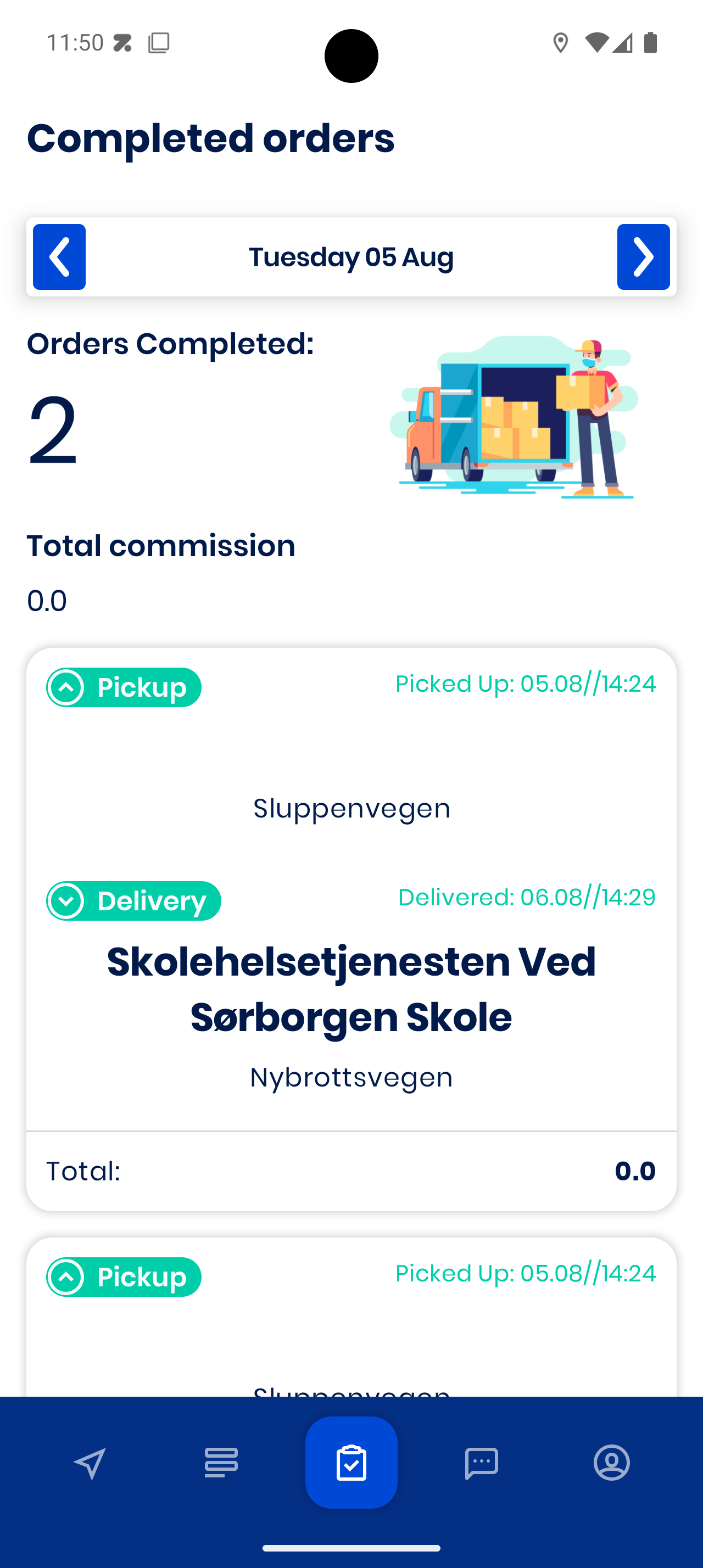
Tap an order for full details:
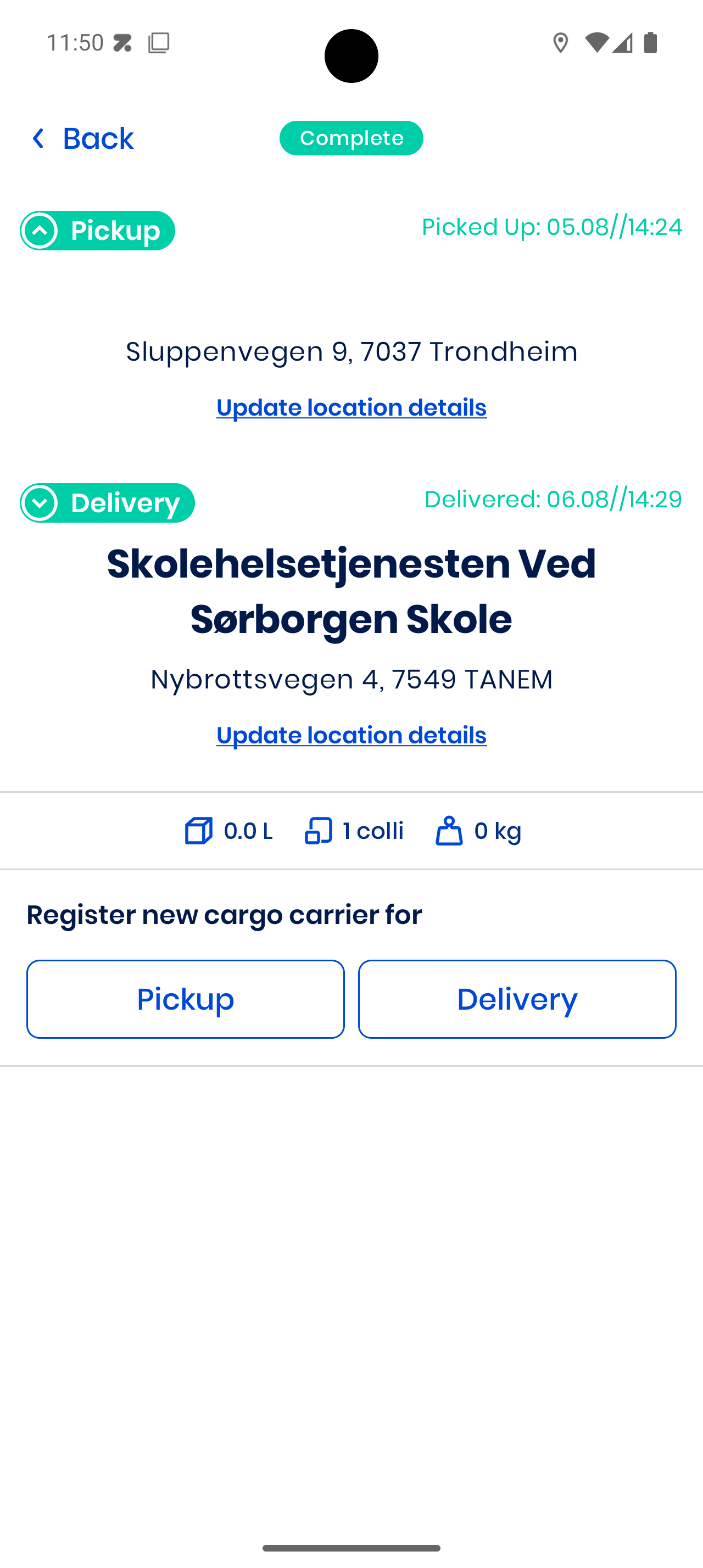
You can still update location details if needed.
Messages
Stay in touch through the Messages tab.
-
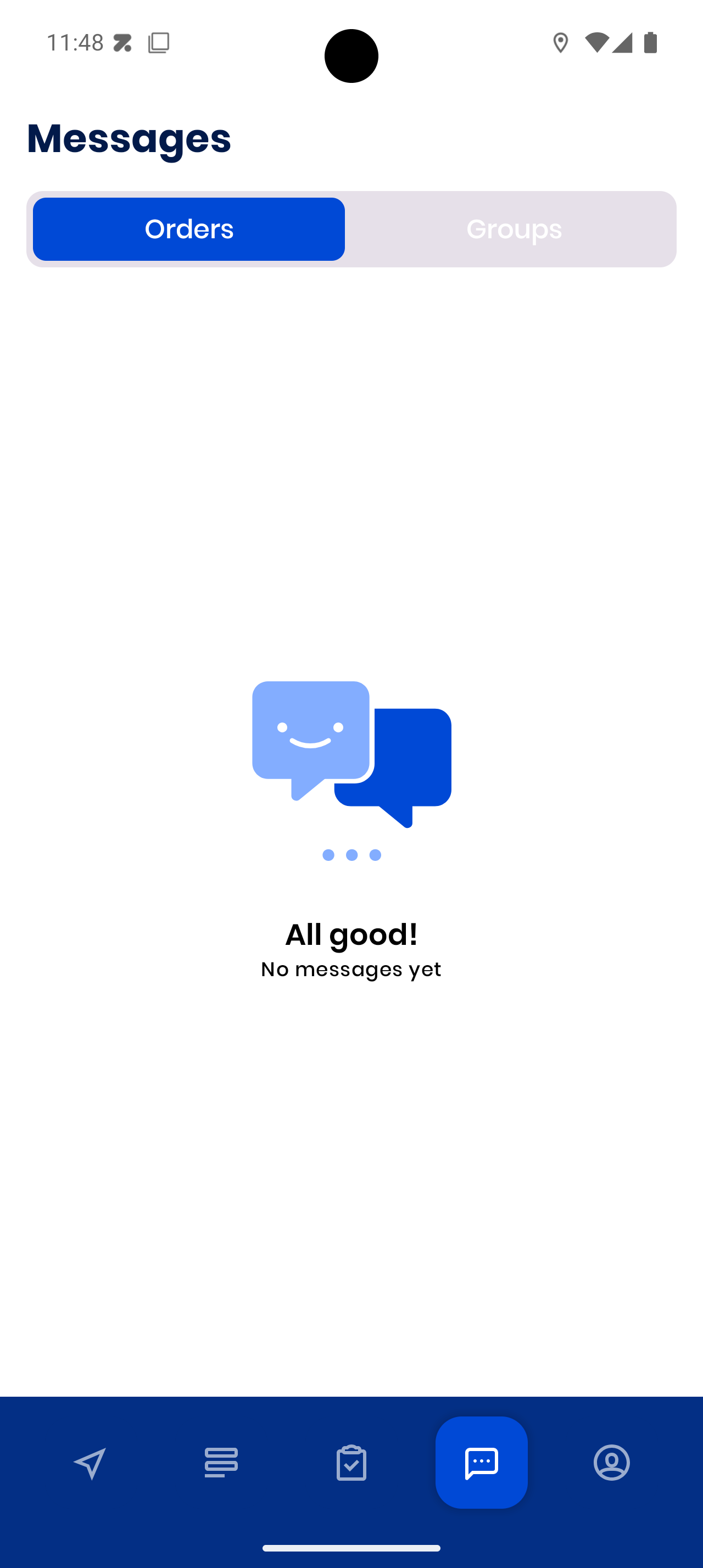
Orders tab for messages linked to specific orders:
-
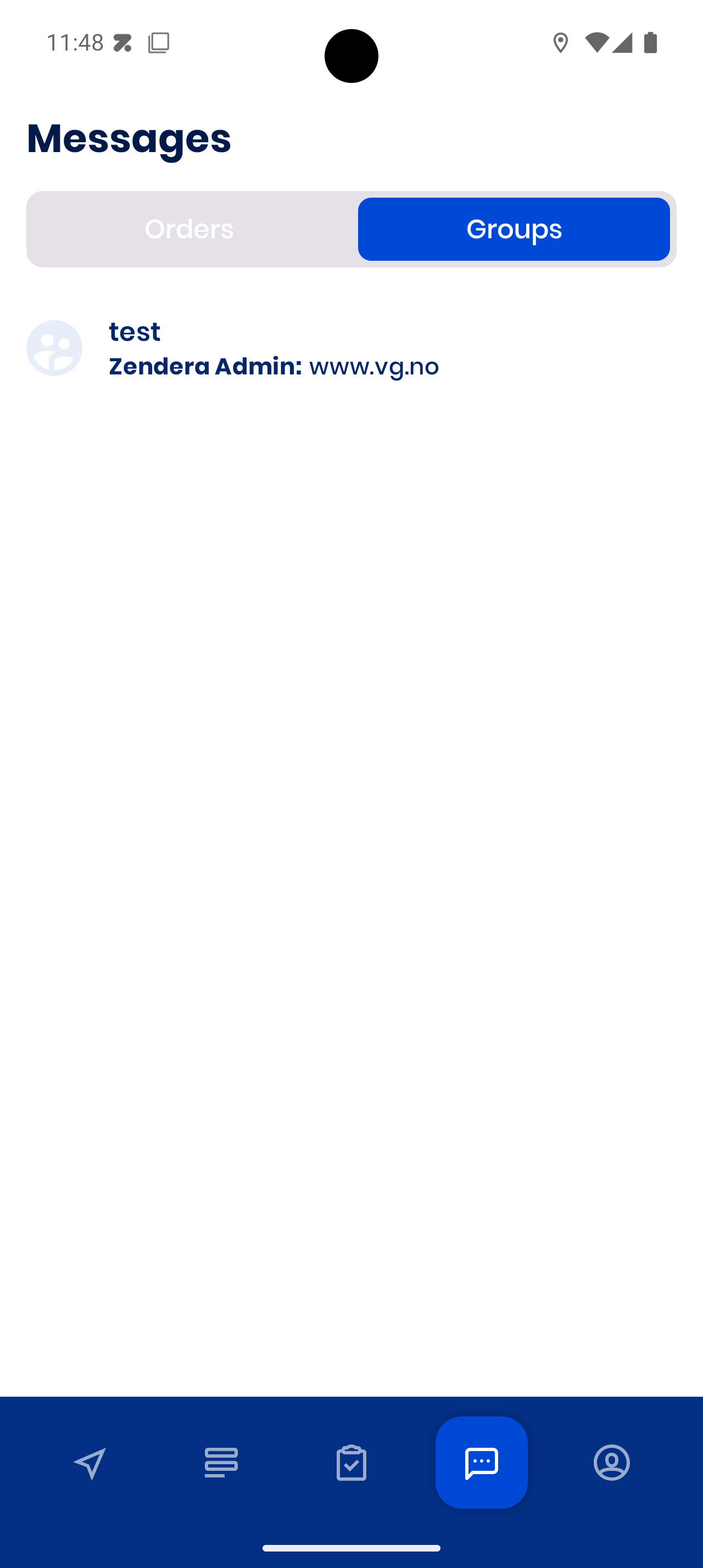
Groups tab for group communication:
If there’s nothing new:
All good! No messages yet.
Pro Tips for Smooth Driving
- Always go online before your shift — otherwise you won’t get orders.
- Check your navigation setting in the morning so you don’t waste time switching mid-route.
- Scan packages when possible — it’s faster and avoids mistakes.
- Complete each step in order (Colli → Cargo Carrier → Proof of Delivery) before hitting Complete Stop.
- Keep your phone charged — live tracking depends on it.
- Read order notes — sometimes there are special delivery instructions.
- Update location details if you notice a wrong address — this helps everyone.
- Communicate early — if something goes wrong, use the Messages tab to let dispatch know.
You’re now ready to handle your day from start to finish with Zendera.
Drive safe and deliver smart!