Three improvements
Clearer checks, calmer planning,
photos in the right order
Three smaller changes you'll notice in daily work: a clearer Receiver control card on the order page, a quick answer from the optimiser every time you save, and location images shown in the order you choose.
Hi there,
Not every improvement needs its own announcement. These three came from questions we hear often: what did the receiver actually say?, did the optimiser pick up my change? and why does the driver see the wrong photo first?
1 · Order details
Receiver control, at a glance
When receivers check their delivery in the tracking page, the result shows on the order in the Receiver control card. The card is redesigned so the answer comes first.
A summary at the top says whether everything was OK, or which products had issues, such as Damaged or Wrong quantity.
Checked by lists every check in time order: the person, when they checked, how many products, and whether they found anything.
The comment a receiver leaves at the end of the check is shown under their name, together with any photos they added.
Products without issues are folded into one line. Click Show to see the full list.
2 · Planning
A receipt for every change
When you change an order, lock a stop or re-optimise a route, the optimiser picks the change up in the background. Until now you had to look at the route afterwards to know what happened. Now a small card appears in the corner after you save and tells you.
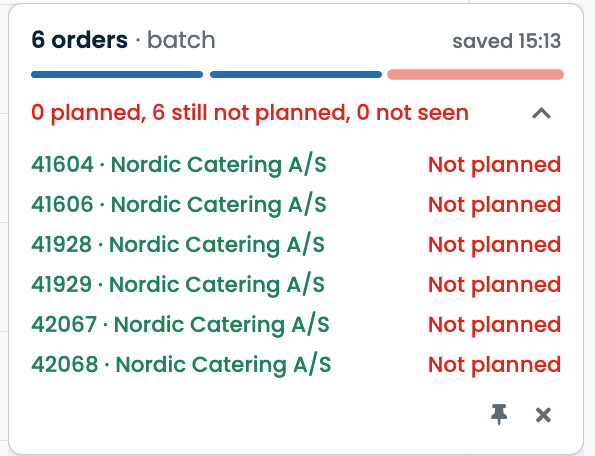
The card counts the orders the optimiser planned, the ones it could not plan, and any it hasn't seen yet. Open it to see each order.
A label on the overview, Orders and the order page tells you whether the plan is up to date, the optimiser is placing changes, or it is improving the plan.
Click the eye on an order to follow it. Changes to orders you follow always get a card, whatever your settings.
Changes for drivers who aren't included in the optimiser never show a card, since there is nothing to plan.
Make it yours
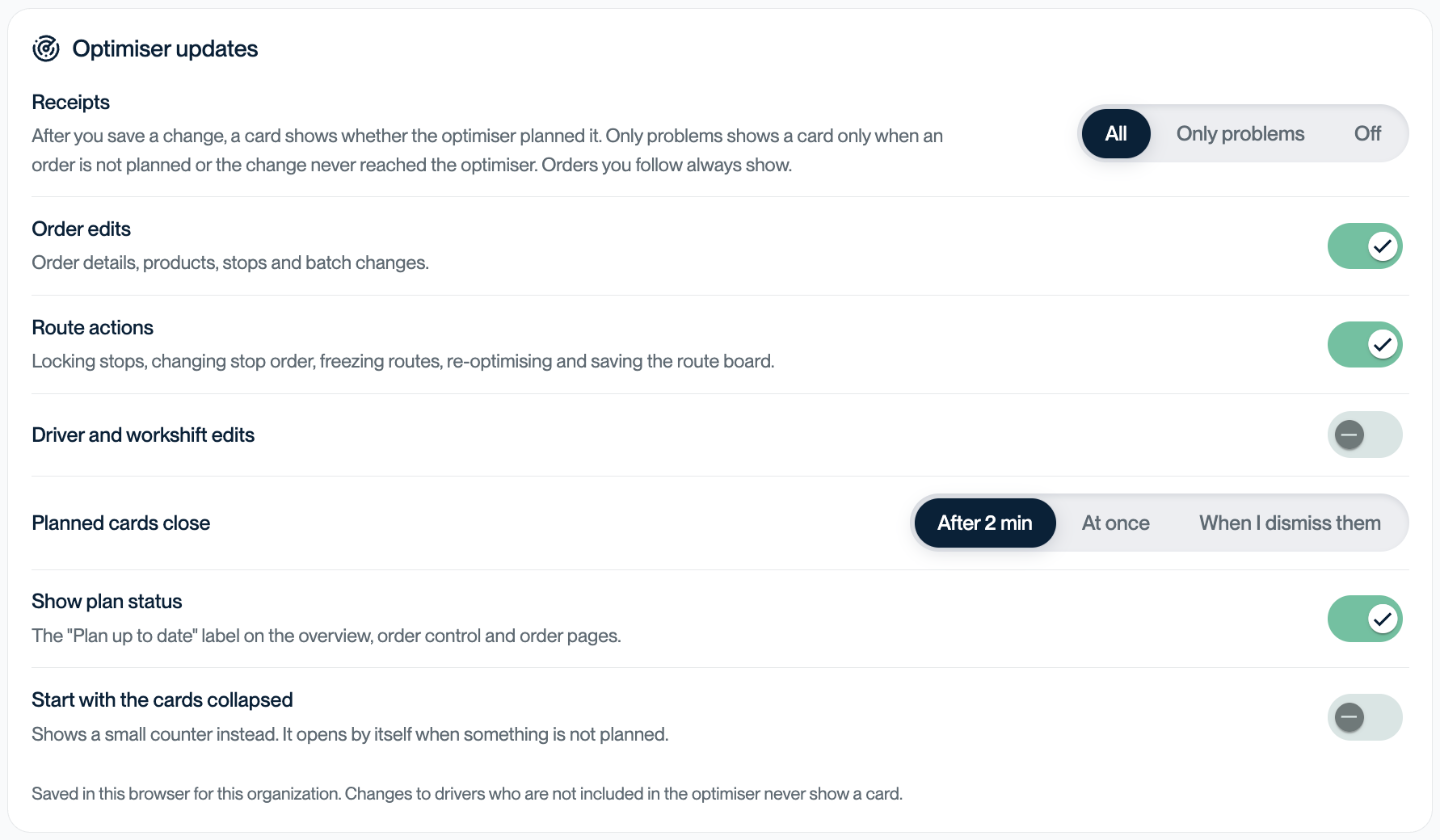
Not everyone wants the same amount of feedback. Under Account → Optimiser updates you choose which changes get a card, whether you only want to hear about problems, and how long planned cards stay on screen.
3 · Locations
Photos in the order you choose
Location images help drivers find the right door, gate or parking spot. The first photo matters most, and until now you couldn't choose which one came first. Now you can: open the location in Registry → Locations and drag the images into the order you want.
Drag an image to a new place. The number shows the order drivers see them in.
New orders to that location show the images to the driver in this order. Orders that already exist keep the order they had.
Set your optimiser updates
All three are live now. A good place to start is your own Account page, where you choose how much the optimiser tells you.