Receiver messaging
Tell your receivers,
straight from Zendera
A truck breaks down, a route runs late, a delivery moves. You can now send an SMS or email to the people waiting for their orders without leaving Zendera, and each message is filled in with that receiver's details.
Hi there,
Automatic notifications cover the normal day. The unusual days are harder: something goes wrong and a handful of customers need to hear about it now. Until today that meant looking up phone numbers and texting from your own phone. Send message does it in one step.
Where to find it
Start from an order or a route
You'll find Send message wherever you are already looking at the orders in question:
Select one or more orders in the list and click Send message in the bar above the table.
Open an order and send a message to the receivers on that order.
On the timeline in the overview, choose Message remaining stops to reach everyone who is still waiting on that route. This is the one to use when a vehicle breaks down.
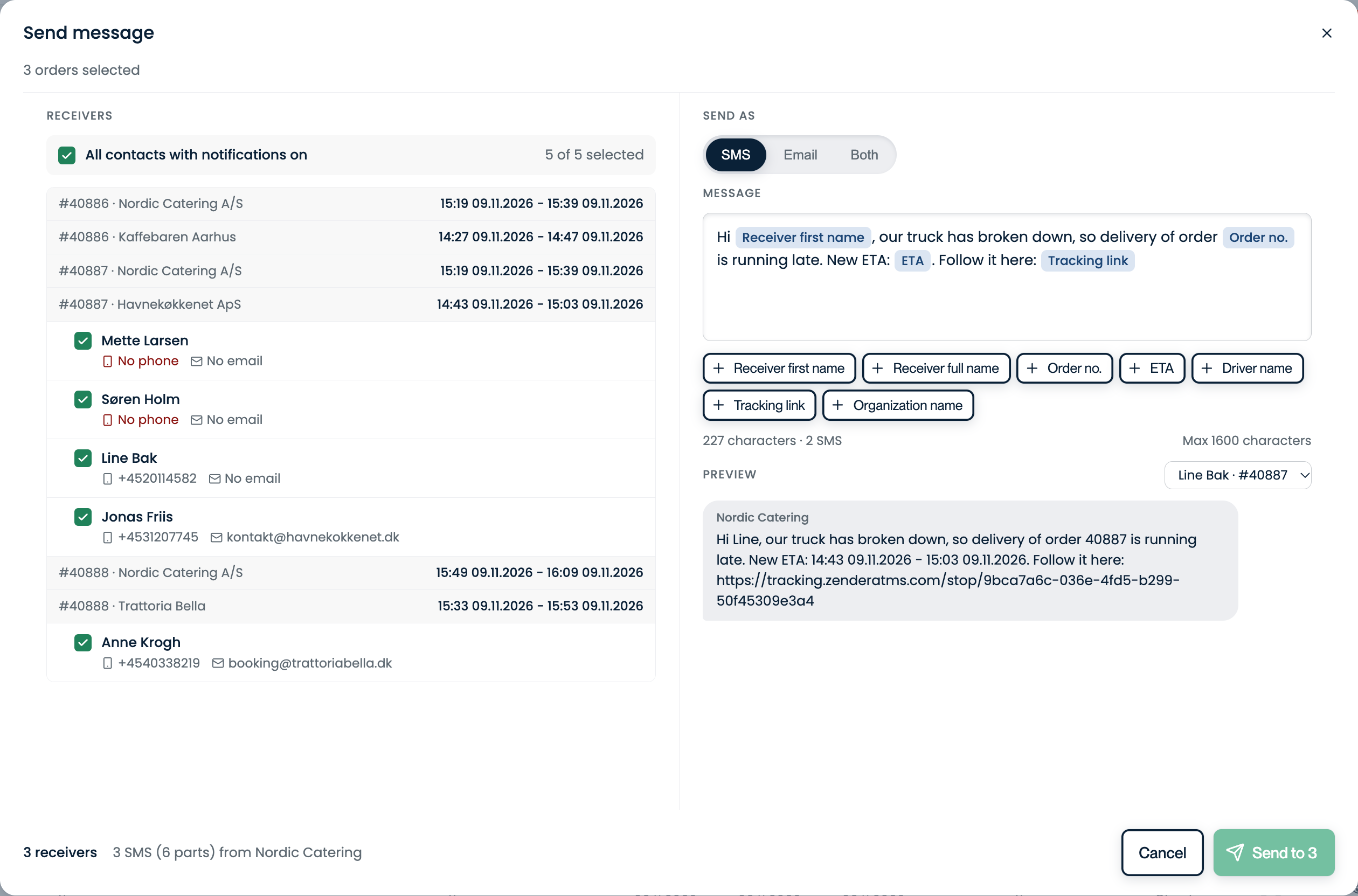
The receivers are the contact persons on each delivery. Contacts with notifications on are ticked for you. The rest are listed unticked, so you can add them.
Writing the message
One message, personal for everyone
Write the text once and add placeholders from the buttons under the message field. Each receiver gets their own values.
Choose SMS, email or both
Pick the channel at the top. The dialog counts characters and SMS parts as you type, up to 1,600 characters.
Check the preview
The preview shows exactly how the message reads for a receiver. Switch between receivers to check a few before you send.
Send
The footer tells you how many people will get it and how many SMS that is. Receivers without the details a message needs, such as an ETA, are left out and counted there, so nobody gets a half-filled message.
If you send during your organization's SMS quiet hours, the dialog warns you. The SMS are held and go out when quiet hours end, and emails still go out right away. You can change quiet hours in Settings.
Messages come from your organization's name. Receivers can't reply to them in Zendera, so add a phone number or email in the text if you want them to get in touch.
Sending messages is part of your access in Zendera. If you can't see Send message, ask an admin to give you access under Settings → Users.
Try it on today's orders
Open Orders, select a few orders and click Send message. Nothing goes out until you press Send.