Plan & dispatch
See where orders fit,
then dispatch them
Select the orders, pick the drivers you have in mind, and Zendera shows where each order lands and what it does to the day. The optimiser then plans the routes, and you see them on a map before anything is sent to a driver.
Hi there,
Dispatching a late batch of orders used to be a leap of faith: pick a driver, send, and look afterwards at what happened to the route. Plan & dispatch turns it around. You see the result first, and you only dispatch when it looks right.
Select orders on the Orders page and click Plan & dispatch. It works in two steps. (It lives on the new Orders page. If you're still on the old one, click Try the new Orders page at the top.)
Step 1 · Plan
Choose workdays, see what fits
On the right you add the workdays that could take the orders: search for a driver, or filter on who is at the depot, out driving or done for today. Each workday shows how much of the shift is used and how much is left.
On the left, every order gets a quick estimate: which workday it goes to, when it arrives, and whether that makes it late or pushes the route into overtime.
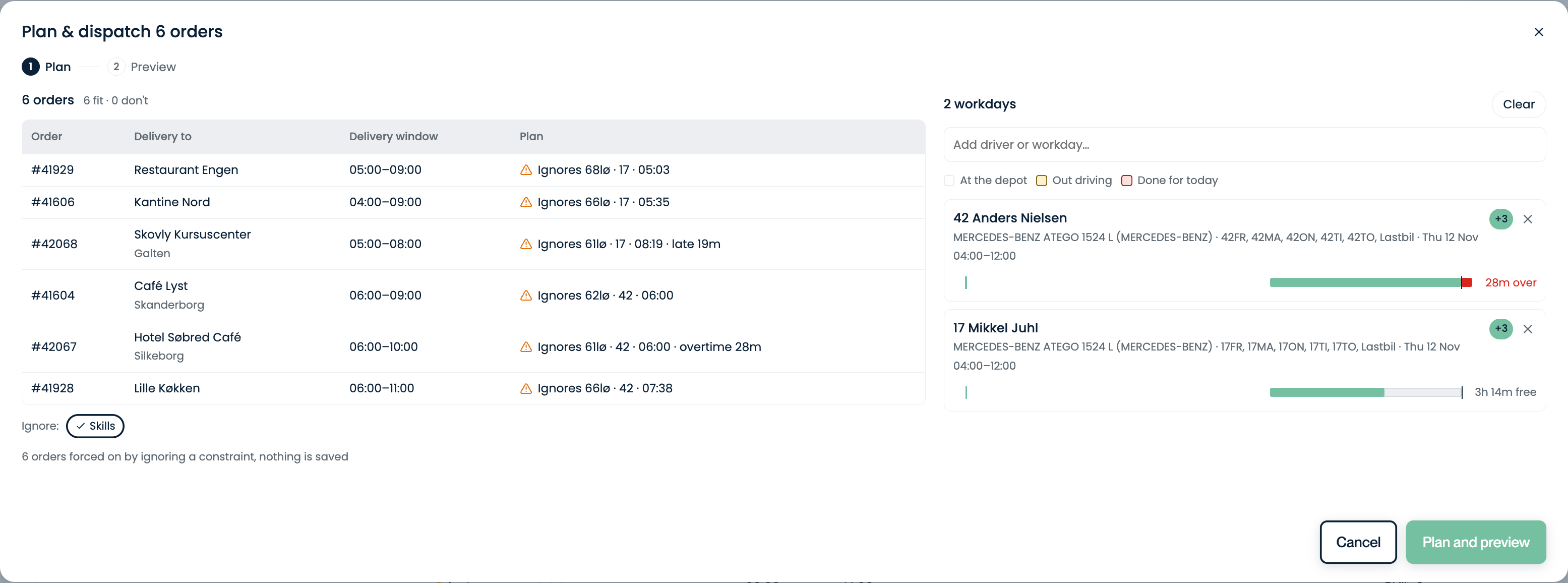
Zendera tells you why, for example a missing skill. You can choose to ignore that rule for this plan only. Nothing is changed on the order, the driver or the vehicle.
An order's pickup and delivery are planned on the same workday, so the goods never end up on one truck and the delivery on another.
Step 2 · Preview
The optimiser plans, you check
Click Plan and preview. The estimate in step 1 is a quick hint. The real plan comes from the optimiser, which now lays out the full routes with the new orders in them. The preview shows every route that changes, stop by stop, and draws it on the map.
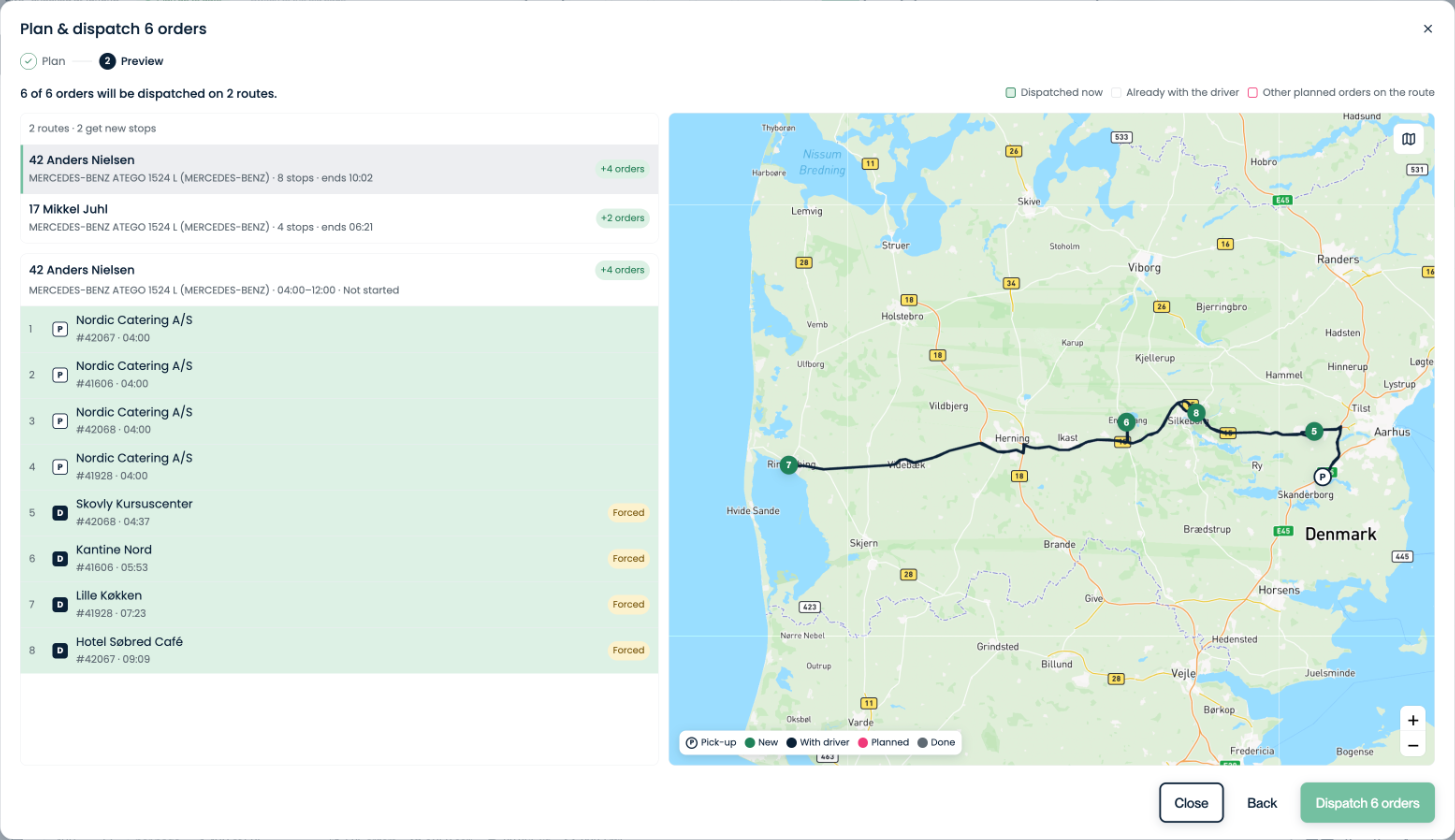
Happy with it? Click Dispatch and the orders go to the drivers in exactly that order. If not, go Back and change the workdays, or close the dialog and nothing is saved.
If a driver has started, the plan starts from where they are now. Stops they have already been given keep their order, and the new orders are fitted in around them.
If a route would end after the shift, Zendera says so in the preview. You either allow the overtime for that route or leave it out. Overtime is never added without your OK.
Try it on your next batch
Open Orders, select a few unassigned orders and click Plan & dispatch. You can look at the preview as often as you like. Nothing is sent until you click Dispatch.